
TL;DR: The fastest way to clip yourself while streaming without a second screen is Eklipse’s Voice Command feature — say “Clip it” mid-game and Eklipse timestamps that exact moment for post-stream processing. No alt-tab, no hotkeys, no second monitor required.
Four hours into a Warzone session, you pull off a solo squad wipe. Your hands are on the mouse and keyboard. Chat is going wild. And the window to clip that moment is already closing — because you are not about to stop, tab out, and fumble through Twitch’s clip tool while three players are pushing you.
That is the real problem with clipping while streaming. The moments that matter most are the moments you are least able to document them.
This guide covers every method for clipping yourself mid-stream in 2026 — from native platform tools to AI auto-detection — ranked by how little they interrupt your actual gameplay.
Why clipping yourself mid-stream is harder than it looks
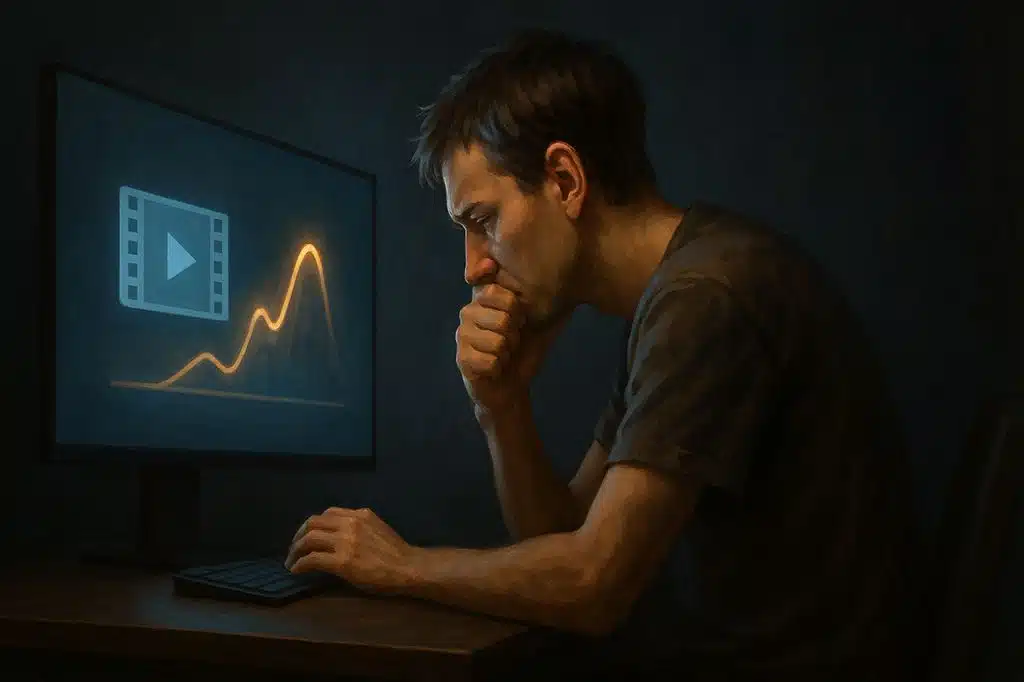
The standard advice — “just use the Twitch clip button” — ignores how streaming actually works.
On Twitch, creating a clip requires you to open your channel in a second browser tab, find the clip editor, set the start and end point, and confirm. Even on keyboard shortcut, you are interrupting your focus at exactly the moment you need it most.
Marcus, a Valorant streamer averaging 200 viewers, tracked this for a month. He found he successfully clipped about 30% of the moments he intended to clip. The other 70% were either missed entirely or triggered too late — the clip started three seconds after the ace, cutting the setup that made it worth watching. He was losing his best content not because he did not play well, but because clipping mid-stream forced him to choose between the moment and the documentation.
The second problem is second screens. A lot of “how to clip while streaming” guides assume you have a dedicated display running your stream dashboard. Most streamers do not. If you are on a single-monitor setup, clipping while streaming means alt-tabbing out of your game, which on most systems introduces a half-second freeze and a visible disruption to your stream.
There are four viable methods that actually address this. Here is how each one works.
Method 1: Voice Command clipping (least disruptive)
Best for: Single-monitor streamers, FPS players, anyone who cannot spare a hand mid-game
Eklipse’s Voice Command feature lets you trigger a clip timestamp by saying a phrase out loud during your stream. The default command is “Clip it” or “Clip that” — say it into your microphone, and Eklipse marks that moment in your VOD for post-stream processing.
What this means in practice: you never leave your game. You say the words, your hands stay on your mouse and keyboard, and after your stream ends, Eklipse has already queued that timestamp for clip generation.
How to set it up:
- Connect your Twitch or Kick account to Eklipse at app.eklipse.gg/register
- Enable Voice Command in your Eklipse settings
- Stream normally — when you want to clip a moment, say “Clip it” out loud
- After the stream ends, your Voice Command timestamps appear in your Eklipse dashboard, pre-queued for processing
What you get: The clip is already identified when your stream ends. You are not watching a three-hour VOD to find the three moments worth posting. They are already marked.
One thing to note: Voice Command is a timestamp trigger, not a live export. The clip is processed after the stream ends, not instantly available mid-stream. If you need a clip in real time — to show chat, to share in Discord immediately — this method does not do that. For everything else, it is the cleanest solution available.
Method 2: Twitch native hotkey (Alt+X)
Best for: Streamers who occasionally clip, casual game types where a brief pause is acceptable
Twitch has a keyboard shortcut for creating clips: Alt+X on Windows (or the equivalent on Mac with the Twitch desktop app). Pressing it opens the Twitch clip editor in the background, pre-filled with the last 30 seconds of your stream.
This is faster than the manual method but still has real limitations:
- The clip editor opens as a separate window — you need to confirm the clip before the editor times out
- The default 30-second window may cut before the moment you want (you can extend it, but that requires interaction)
- On single-monitor setups, the editor window overlaps your game
- In fast-paced FPS titles, the input interruption is enough to lose a fight
Jordan, a 150-viewer Apex Legends streamer, tried hotkey clipping for two weeks. Her conclusion: “It works fine when I’m just chatting or doing something slow. In ranked, I miss every fight I try to clip because I’m distracted for two seconds and by the time I’m back in the game the moment is over.”
Where Alt+X is genuinely useful: streaming non-competitive content (Just Chatting, slow-paced RPGs, cooking streams) where a two-second interruption is invisible. For FPS and BR players, it is not the right tool.
Method 3: OBS replay buffer (local recording, hotkey-triggered)
Best for: Streamers who want a local clip archive, PC setups with enough overhead
OBS Studio has a Replay Buffer feature that continuously saves the last N seconds of your recording to RAM. When you press your assigned hotkey (default: F10), it writes that buffer to a local file.
Setup:
- In OBS, go to Settings > Output > Replay Buffer
- Enable replay buffer, set duration (30-120 seconds typical)
- Assign a hotkey in Settings > Hotkeys > Save Replay
- Start replay buffer at the beginning of each stream
Advantages over Twitch’s native tool:
- Works offline — no internet dependency for the clip trigger
- Local file means you control the quality and format
- No visible interface interruption if your hotkey does not overlap with your game’s bindings
Disadvantages:
- Adds CPU/RAM overhead (typically 5-15% depending on your system and buffer length)
- Still requires a hotkey press — same interruption problem as Alt+X in fast gameplay
- Files are local only — you still need to edit and export before posting to TikTok or Shorts
- If you forget to start the replay buffer, you lose the entire stream
For high-end PC setups (RTX 30/40 series with NVENC encoding), the performance hit is negligible. On mid-range rigs, it can cause frame drops on demanding titles.
Method 4: AI auto-detection post-stream (zero in-game action)
Best for: Streamers who want maximum clip output with zero mid-stream interruption
This is the method that requires nothing from you during the stream itself.
Eklipse’s AI highlight detection connects to your Twitch or Kick account and processes your VOD automatically after the stream ends. The AI detects kills, clutches, squad wipes, multi-kills, and high-engagement moments — then generates clips formatted for TikTok and YouTube Shorts without you watching the VOD.
What the workflow looks like:
- Stream normally — no hotkeys, no voice commands, nothing extra
- Stream ends, VOD is saved to Twitch/Kick
- Eklipse processes the VOD (typically within minutes for sessions up to 6 hours)
- You open Eklipse and find 10-20 timestamped clips ready to review and export
The tradeoff: you are not selecting the moments in real time. The AI is doing it based on game events. For FPS games (Valorant, COD, Apex, Fortnite), detection accuracy is high because the model reads kill feed events and audio peaks. For strategy games or Just Chatting, accuracy drops — the AI is optimized for action-event detection, not narrative arc.
Alex streams Warzone six hours a night, four nights a week. Before Eklipse, he was posting two clips a week after manually reviewing VODs on weekend mornings. After connecting Eklipse for auto-detection, his weekly output went to 15-20 clips across TikTok and Shorts. He spent the same amount of total time — but that time went from scrubbing footage to reviewing clips Eklipse had already found.
Comparing all four methods
| Method | Interrupts gameplay | Setup required | Works post-stream | Output format |
|---|---|---|---|---|
| Voice Command (Eklipse) | No | 5 min | Yes | TikTok/Shorts-ready |
| Twitch Alt+X | Yes (2-3 sec) | None | No (instant) | Twitch clip |
| OBS Replay Buffer | Yes (hotkey) | 15 min | No (local file) | Raw video file |
| AI Auto-Detection (Eklipse) | No | 5 min | Yes | TikTok/Shorts-ready |
For streamers posting to TikTok and Shorts consistently, the two Eklipse methods (Voice Command + AI auto-detection) produce the most usable output with the least in-game disruption. Voice Command captures the standout moments you know are worth keeping. Auto-detection picks up everything else, including highlights you did not notice were happening.
Recommended combination: Enable both. Use Voice Command during stream for moments you know are exceptional. Let AI auto-detection handle the rest. After the stream, your Eklipse dashboard has the full set already processed.
Single-monitor setup: the practical workflow
If you are on one monitor — which is the majority of streamers at or below 500 average viewers — here is the exact workflow that avoids alt-tabbing entirely:
Before you go live:
- Connect Twitch/Kick to Eklipse (one-time setup)
- Enable Voice Command in Eklipse settings
- Enable AI auto-detection (on by default)
During stream:
- Play normally
- When something exceptional happens, say “Clip it” or “Clip that” out loud
- Do not touch your mouse or keyboard for the clip — Eklipse handles the timestamp
After stream ends:
- Open Eklipse dashboard (takes 30 seconds)
- Review Voice Command clips first — these are your highest-priority posts
- Review AI-detected clips — keep the ones that are good, archive the rest
- Export in vertical format for TikTok/Shorts directly from Eklipse
Total post-stream time for a 5-hour session: approximately 20-30 minutes to review and export. No scrubbing, no manual editing, no format conversion.
FAQ
Does Eklipse Voice Command work on Kick as well as Twitch?
Yes. Eklipse supports Kick stream clipping with the same Voice Command and AI auto-detection functionality available on Twitch. Connect your Kick account in Eklipse settings and the workflow is identical.
What happens if I forget to say “Clip it” during a great moment?
AI auto-detection runs on the full VOD regardless of Voice Commands. If you missed the clip trigger but the moment was a kill, clutch, or squad wipe, the AI will likely detect it anyway. Voice Command is a supplement — the AI is the safety net.
Will using OBS replay buffer affect my stream quality?
It depends on your hardware. With NVIDIA NVENC encoding (RTX series), the overhead is minimal — typically under 5% CPU. On software encoding (x264), it can add 10-20% CPU load. If your stream is already near your system’s ceiling, test replay buffer in a non-live session before enabling it during a real stream.
Does Eklipse work if my Twitch VODs are not publicly saved?
Eklipse needs access to your VOD to process it. If your Twitch account has VODs disabled, enable “Store past broadcasts” in your Twitch Creator Dashboard under Settings > Stream. This is required for any post-stream clip tool, not just Eklipse.
Can I use Voice Command and AI auto-detection at the same time?
Yes — they are not mutually exclusive. Voice Command timestamps are flagged separately in your Eklipse dashboard, but the AI also processes the full VOD. In practice this means you may see some overlap (a moment you triggered and the AI also detected), which is easy to deduplicate when reviewing.
What is the best method for console streamers?
OBS is PC-only. Twitch Alt+X works on any browser or the Twitch app. Eklipse’s console streamer support lets you connect your console VODs for AI auto-detection — Voice Command works through your stream microphone, same as on PC.
Conclusion
Clipping yourself while streaming without a second screen comes down to one decision: do you want to trigger clips in real time, or do you want to capture everything automatically after the stream ends?
Twitch’s native hotkey and OBS replay buffer are real-time tools — useful, but both require your attention mid-game. For single-monitor setups and competitive gameplay, that interruption costs more than it’s worth.
Voice Command and AI auto-detection work without taking your hands off the game. Voice Command handles the moments you know are exceptional. AI auto-detection captures the rest. Together they produce more clips, with less effort, in post-stream-ready format.
If you are streaming four or more hours a week and posting fewer than five clips, the bottleneck is not your gameplay — it is your clipping workflow.
Try Eklipse free and connect your Twitch or Kick account. Your next stream’s clips will be waiting for you when you close the game.
🎮 Play. Clip. Share.
You don’t need to be a streamer to create amazing gaming clips.
Let Eklipse AI auto-detect your best moments and turn them into epic highlights!
Limited free clips available. Don't miss out!
