Gaming commentary: how to add it to your gaming clips
If you streamed the footage, your gaming commentary already exists. You were talking the entire time, so the job isn’t recording a voiceover, it’s keeping what you said intact through the cut and making it readable with the sound off.
That reframe saves most streamers an entire production step they were about to add for no reason.
There’s a second case, and it’s the one people usually mean: silent gameplay you captured without a mic, where commentary genuinely has to be recorded after the fact. That’s real work, no AI does it for you, and this guide covers it too.
What changed recently is detection. Eklipse’s newer engine scores what you said as signal rather than treating audio as noise around the gameplay.
Key takeaways
– Streamed footage already contains your commentary; recorded gameplay doesn’t, and the two need completely different workflows
– Eklipse’s engine scores conversational signal, so Just Chatting bits, IRL segments, and podcast moments now get clipped alongside kills
– The most common failure is a cut that slices a sentence in half, because detection cuts on the event and not on the sentence boundary
– Most short-form is watched on mute, so burned-in word-by-word captions are what actually delivers commentary to viewers
– No AI tool writes or performs commentary for you; voiceover is still a manual recording job
Two kinds of gaming commentary, and only one needs recording
These get conflated constantly, and the confusion costs people hours.
Live commentary is what you said while playing. It’s already in the VOD, timestamped, in sync, and reacting to something real. Your work is preservation.
Added commentary is a voiceover recorded over footage after the fact, the classic YouTube gaming commentary format. It’s a separate performance, and it needs a script, a take, and a mix.
The test is simple. Did you have a mic running when the footage was captured? If yes, skip to preserving it. If no, you’re recording, and the later section covers that.
| Live commentary | Added commentary | |
|---|---|---|
| Where it comes from | Your stream mic, already in the VOD | A separate recording session |
| Sync | Already perfect | You align it manually |
| Tone | Genuine reaction | Retrospective narration |
| What AI does | Detects it, transcribes it, captions it | Nothing |
| Your job | Don’t cut it in half | Write it, record it, mix it |
Your gaming commentary is already the detection signal
This is the part that changed, and it’s worth understanding because it affects which clips you get back.
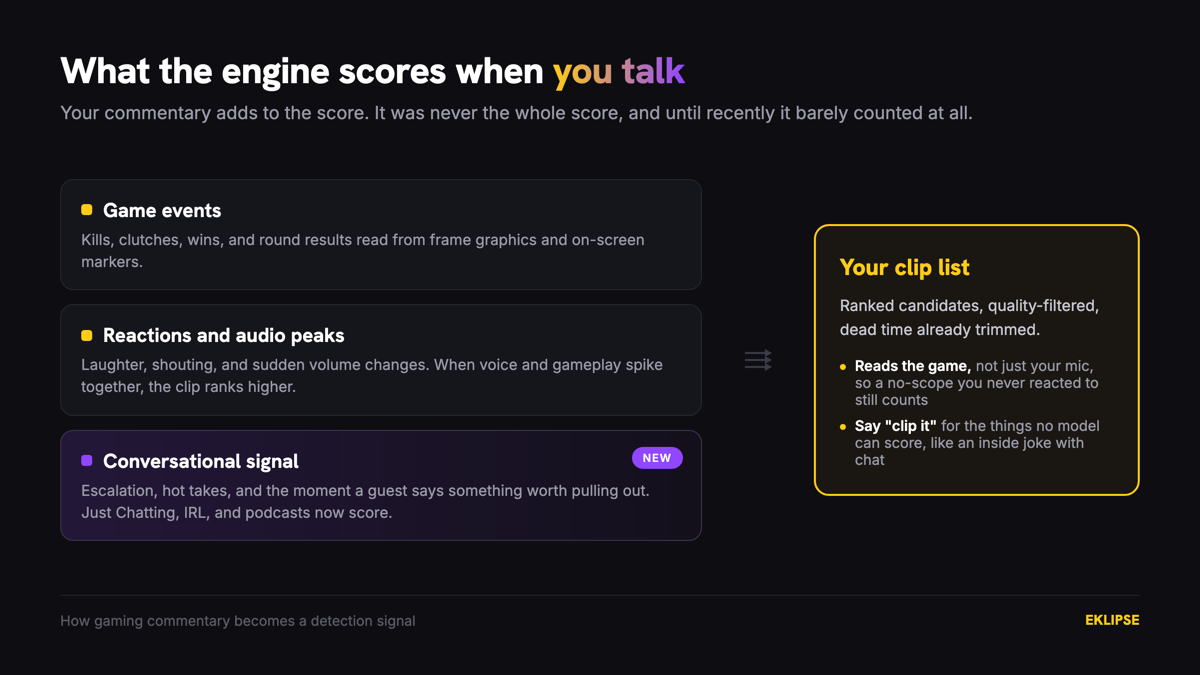
Older detection was game-only. It read kill feeds, scoreboards, and on-screen markers, so a great story you told between matches produced no signal and never became a clip. Variety streamers were stuck clipping by hand.
Since the July 2026 engine update, detection is no longer game-only. Just Chatting bits, IRL segments, and podcast moments get scored too. Podcast and talk-show content is scored on conversational signal, picking up escalation, hot takes, and the moments a guest says something worth pulling out.
Reactions and audio peaks are scored alongside the gameplay signal rather than instead of it. Laughter, shouting, and sudden volume changes all count, and when your voice and the gameplay spike together the clip ranks higher.
There’s a deliberate design choice worth knowing here. Eklipse reads the game itself rather than only listening to your mic, which is why a no-scope you never reacted to still registers as a highlight. Your commentary adds to the score; it isn’t the whole score.
Ravi runs a variety channel that drifts between Rocket League and two hours of Just Chatting. For a year the second half of every stream produced nothing, because there was no kill feed to read. The footage wasn’t worse. It just wasn’t legible to a game-only model, and the clips he wanted most were the ones he had to find manually.
For anything sitting outside gameplay entirely, the Just Chatting use case covers what the engine looks for in talk-heavy segments.
Keep the commentary intact when the clip gets cut
Here’s the failure mode nobody warns you about.
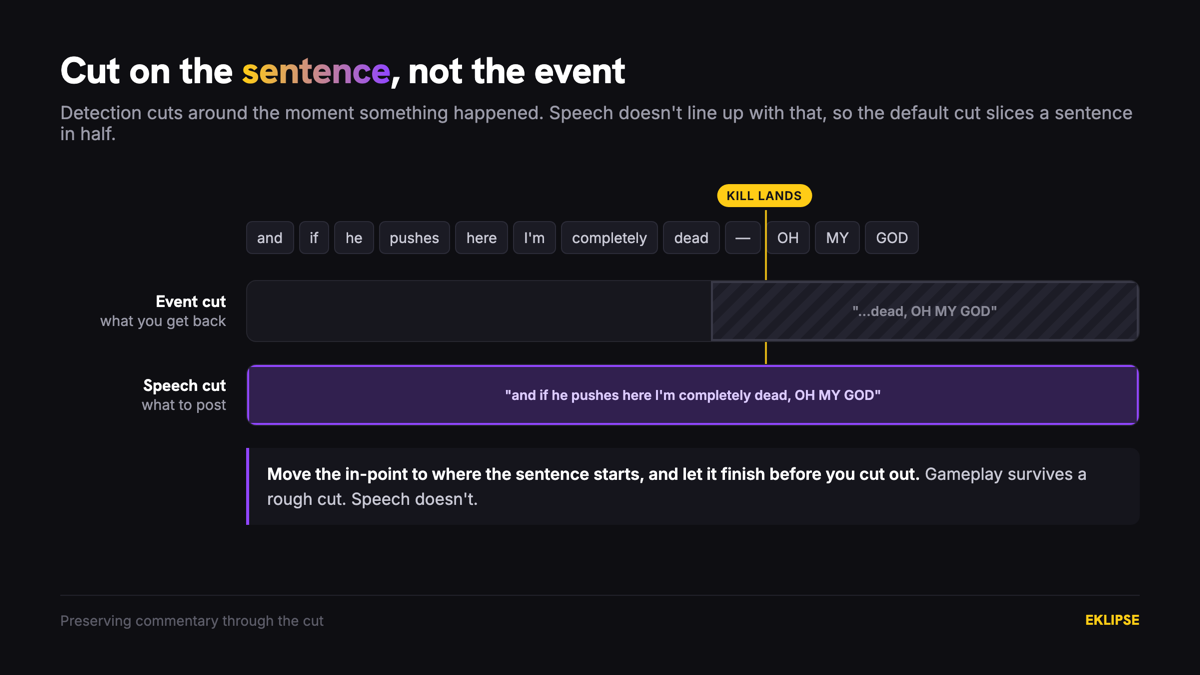
Detection cuts around an event. Sentences don’t respect events. So the model hands you a clip that opens on the second half of “and if he pushes here I’m completely” and ends mid-word on the reaction.
Gameplay survives a rough cut. Speech doesn’t. A clip that starts on a partial sentence reads as broken in a way that a clip starting mid-firefight never does.
Three habits fix nearly all of it:
- Move the in-point to the start of the sentence, not the start of the action. If the sentence begins 1.5 seconds before the model’s cut, take those 1.5 seconds. Speech boundaries beat event boundaries every time.
- Let the sentence finish before you cut out. Trailing off mid-word is the single most common reason a clip feels amateur, and it costs one drag of a handle to fix.
- Cut on breaths. The pause between sentences is a clean edit point that sounds intentional. Cutting inside a word never does.
This overlaps with a broader point about where clips should start, which we covered in why repurposed clips get no views. The short version: the model finds the moment, and you decide where it begins.
Captions are how commentary reaches a muted feed
A large share of short-form gets watched with the sound off. If your commentary lives only in the audio track, most of the feed never receives it.
Captions are how commentary gets delivered. AI-Edit transcribes the clip and times it word by word, then styles it in gaming-native fonts that move with the audio, which keeps the rhythm of how you said it rather than dumping a paragraph on screen.
Four things separate captions that work from captions that just exist:
- Burn them in. Platform auto-captions are toggled off for many viewers and get stripped when a clip is downloaded and reposted.
- Caption your voice, not the kill feed. The kill feed is already on screen. The commentary is the layer only you have.
- Cut the filler from the transcript. Every “uh” and “like” that was invisible in speech becomes very visible as text. Trim them.
- Keep text out of the bottom third. The platform caption box, username, and sound attribution sit there on every vertical app.
Word-by-word timing matters more than font choice here. A punchline that appears all at once has no timing, and timing is most of what made it funny.
Mixing game audio against your voice
Commentary that’s buried is the same as no commentary, and this is where most self-edited clips fall down.
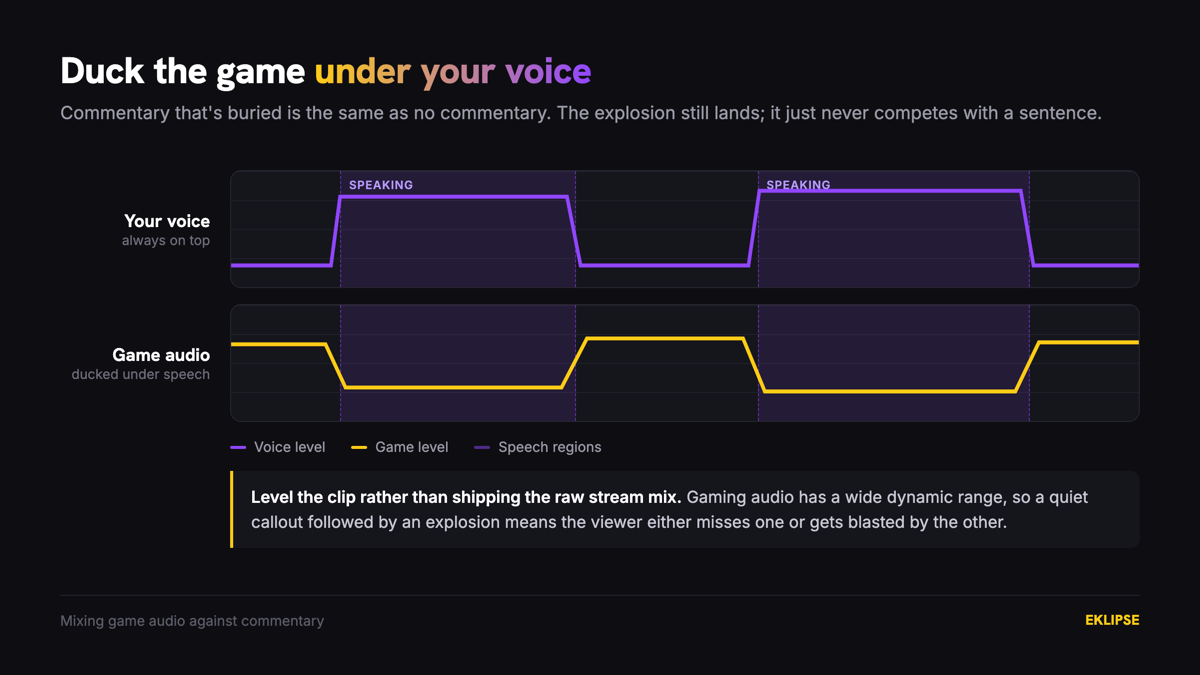
Your voice should sit clearly above the game. If a viewer has to work to catch a word, they scroll instead. Duck the game audio under speech and bring it back up in the gaps, so the explosion still lands but never competes with the sentence.
One consequence worth flagging: transcription accuracy drops when background music runs louder than your voice. If you run music hot on stream, check the caption pass before posting rather than after, because a mistranscribed punchline is worse than no caption.
Gaming audio also has a wide dynamic range. A quiet callout followed by an explosion means the viewer either misses the callout or gets blasted, so level the clip rather than leaving the raw stream mix.
When you actually need to record new commentary
If the footage has no mic track, none of the above applies and you’re producing something new. Be clear-eyed about this: no AI tool writes or performs your commentary. Eklipse doesn’t generate voiceover, and neither does anything else worth using.
The workflow is manual and it’s not long:
- Pick the clip first and cut it to length before writing anything. Commentary written before the edit always runs long.
- Watch it once and note where you’d naturally speak. Silence in the right places is part of the performance.
- Write to the picture, not to a word count. Aim to finish a beat before the visual moves on.
- Record in one take if you can, because retakes flatten the delivery.
- Duck the game audio and align the take to the action.
Then run captions over the result exactly as you would for live commentary.
Elena records solo Elden Ring sessions with no mic and used to write full scripts before touching the edit. The narration kept overrunning the visuals, so she’d re-cut the footage to fit the words. Cutting the clip first and writing to it reversed the dependency, and the takes stopped needing a third pass.
What the AI won’t do for you
Worth stating plainly, because the marketing in this category is loose.
Detection finds moments and scores conversational signal. Transcription turns speech into text. Captions style and time that text. Every one of those is labor, and all of it is handled.
Nothing in that list is authorship. No model decides your angle, writes your joke, chooses your tone, or performs a take. It cannot tell you that a bit ran too long or that a story only lands for people who watch you regularly.
There’s also a genuine limit on detection itself. Conversational scoring picks up escalation and volume, which correlates with interesting but isn’t the same thing. A calm, quiet, genuinely insightful two minutes produces a weak signal, and you’ll still find those by hand. Say “clip it” in the moment and the timestamp is marked for you, which is the cheapest fix for anything a model can’t score.
Frequently asked questions
Can AI add commentary to my gaming videos automatically?
No. AI detects moments, transcribes speech, and generates captions, but it doesn’t write or perform commentary. If your footage has no voice track, recording one is a manual job.
How do I add commentary to gameplay I already recorded without a mic?
Cut the clip to final length first, watch it once to find your natural speaking points, write to the picture, then record a single take and duck the game audio underneath it. Writing before cutting is what makes narration overrun.
Does Eklipse clip Just Chatting and podcast segments?
Yes. Since the engine update, detection covers Just Chatting bits, IRL segments, and podcast moments alongside gameplay. Talk content is scored on conversational signal rather than game events.
Why does my clip start in the middle of a sentence?
Because detection cuts around the event, and events don’t line up with speech. Drag the in-point back to where the sentence starts, which is usually one to two seconds earlier.
Do I need captions if my commentary is good?
Especially then. Most short-form is watched muted, so uncaptioned commentary reaches a fraction of the people who see the clip.
Should the game audio or my voice be louder?
Your voice, consistently. Duck the game under speech and let it come back up in the gaps so effects still land without burying a word.
Start with the commentary you already have
Gaming commentary is a preservation problem far more often than a production problem. If you streamed, the reactions are in the footage, in sync, and genuine, and the engine now scores them instead of ignoring them.
The work that’s left is small and specific. Move the in-point to the start of the sentence, let it finish before cutting out, burn in word-by-word captions, and keep your voice above the game.
Save the recording booth for footage that genuinely has no voice on it.
If you want the moments where you said something worth keeping already pulled out of your last stream, connect your Twitch or Kick account and start clipping.
🎮 Play. Clip. Share.
You don’t need to be a streamer to create amazing gaming clips.
Let Eklipse AI auto-detect your best moments and turn them into epic highlights!
Limited free clips available. Don't miss out!