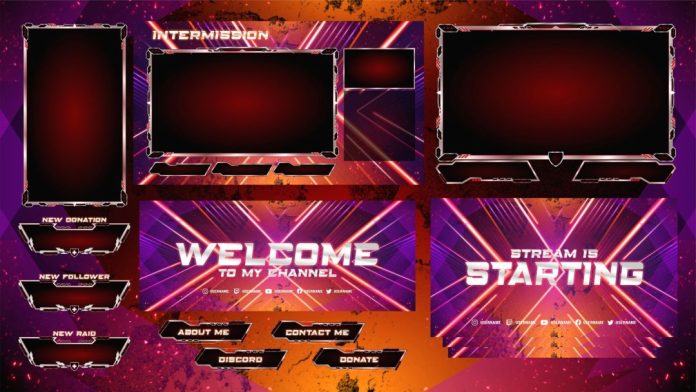
With free Twitch overlay templates, you can enhance the visual appeal of your Twitch stream without spending any money. These templates offer a variety of styles and themes, allowing you to create a unique and professional look for your broadcast.
You can get free Twitch overlay templates through platforms like StreamElements Super Themes, Coffee Inn: Free Neon Stream Overlays, or Strike: Clean Red Free Stream Overlay.. From sleek minimalist designs to dynamic animations, Free Twitch Overlay Templates help make your stream more engaging and memorable for viewers.
Canva provides a range of customizable free Twitch overlay templates, making it an ideal choice for streamers. With this Twitch overlay maker, streamers can improve their broadcast’s visual quality without spending extra money.
Key Features:
Canva’s intuitive design platform allows users to create overlays without extensive graphic design experience.
Users can modify colors, fonts, and layouts to match their personal branding.
There are numerous templates available for different streaming needs.
Canva provides a wide range of graphics and elements that can be incorporated into overlays.
You’ll be able to effectively customize your Twitch overlay templates using Canva’s versatile toolset designed specifically for creators like yourself
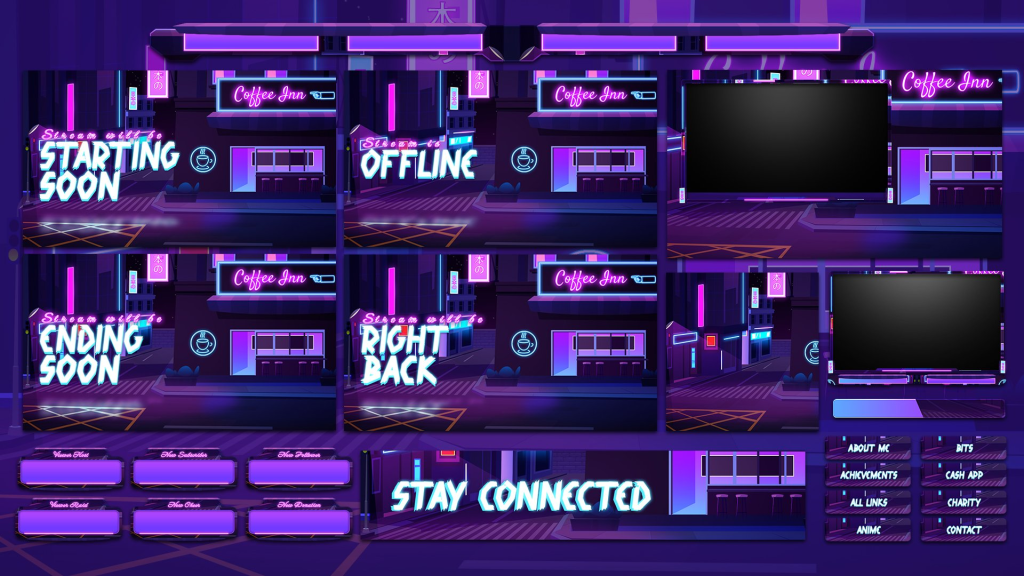
2. Coffee Inn: Free Neon Stream Overlays
Source: Hexeum
The Coffee Inn overlay offers a visually captivating urban café theme with neon aesthetics. This overlay is ideal for streamers seeking a relaxed, lo-fi vibe that resonates with audiences looking for chill streams. Its neon elements and warm tones create a welcoming atmosphere.
Key Features:
20 customizable Twitch panels.
Ready-to-use screens for intermission, BRB, and stream starting.
Includes a webcam overlay and an offline banner.
Photoshop source files are provided for additional personalization.
Compatible with OBS, Streamlabs, and other streaming platforms, this overlay is an excellent choice for streamers who value creative design and easy setup.
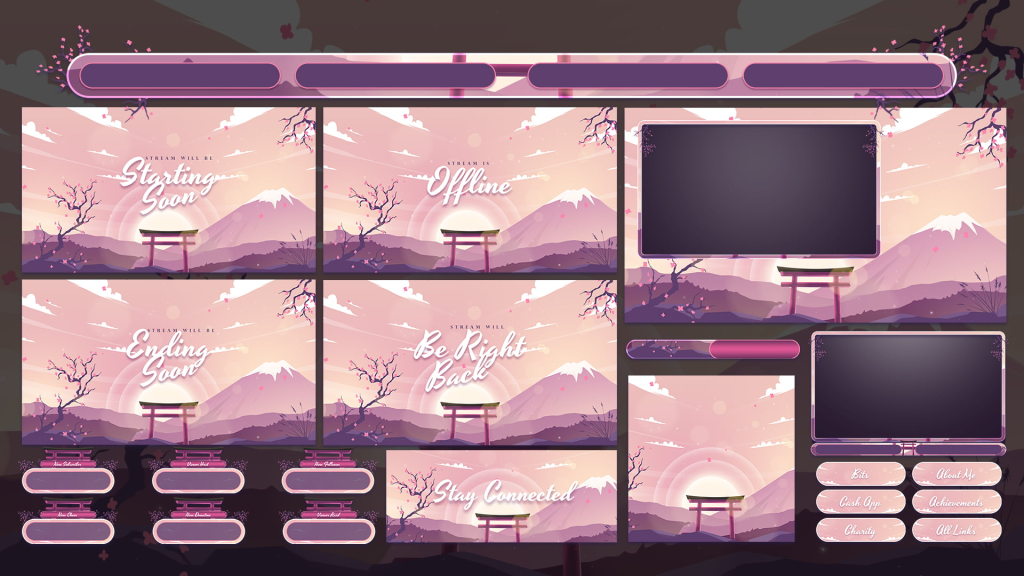
3. Kosuke: Free Japanese Stream Overlay
Source: Hexeum
Kosuke offers a Japanese-inspired design, ideal for anime lovers or streamers wanting to showcase Japanese culture. Its detailed features and sleek layout make it a standout among free animated stream overlays.
Key Features:
Available in six different languages, including English and Japanese.
Includes alerts, profile picture frames, and other essentials.
Sleek design elements that blend modern and cultural aesthetics.
Works seamlessly with Twitch, YouTube, and Facebook Live.
With its diverse language options and culturally rich theme, Kosuke is a versatile choice for global streamers.
Strike’s minimalist red design offers a clean and professional look, suitable for streamers who want simplicity without sacrificing style. This overlay emphasizes clarity and functionality, making it perfect for competitive gaming or casual streaming.
Key Features:
Multiple language options.
Webcam frames, alerts, and integrated chat boxes.
A bold red theme that stands out without being overwhelming.
Easy-to-install files compatible with major streaming platforms.
Strike’s simple yet effective design ensures your content remains the focal point while maintaining a polished appearance.
5. Incision: Complete Animated Overlay Pack
For streamers seeking a fully animated overlay, Incision delivers a cutting-edge experience. Its dynamic elements and modern design make it ideal for tech-savvy creators aiming to captivate their audience.
Key Features:
Interactive widgets for viewer engagement.
Animated screens, including stream starting and intermission.
One-click setup links for Streamlabs and OBS.
High-quality visuals tailored for professional-grade streams.
Incision’s animated features provide an immersive experience that keeps viewers engaged throughout your broadcast.
6. StreamElements Super Themes
StreamElements offers a wide range of free overlay templates, designed to fit various streaming styles and themes. These templates include everything from futuristic sci-fi aesthetics to playful cartoon designs, catering to all kinds of streamers.
Key Features:
Fully customizable overlays with alerts and widgets.
Comprehensive packages, including chat boxes, panels, and more.
Easy integration with Twitch, YouTube, and Facebook Live.
Regularly updated designs to keep your stream fresh and relevant.
StreamElements’ versatility and comprehensive approach make it a favorite among streamers looking for a one-stop solution.
How to Download and Install Free Overlays
Downloading and installing free stream overlay templates for Twitch is straightforward:
Choose a Template: Select an overlay from trusted sources like StreamElements, Canva, or Nerd or Die.
Download the Files: Follow the download instructions on the respective platform. Most overlays come in ZIP or PSD formats.
Integrate with Streaming Software:
For OBS Studio: Import the overlay files as scenes or sources.
For Streamlabs: Use the drag-and-drop feature to set up your overlays.
Customize Your Setup: Adjust colors, text, and layouts to align with your branding.
With just a few steps, you can transform your Twitch stream into a professional-grade broadcast.
Final Thoughts
Free Twitch overlay templates provide an easy and effective way to improve your channel’s look and engage viewers. Whether it’s the vibrant Coffee Inn design or the sleek Strike layout, there’s a perfect template for every style.
By selecting the best free Twitch overlay templates and customizing them to match your brand, you can create a standout stream. Explore free Twitch overlay templates download options today and give your channel a polished, professional appearance.
Maximize your Black Ops 6 rewards—Create highlights from your best gameplay with with Eklipse
Eklipse help streamer improve their social media presence with AI highlights that clip your Twitch / Kick streams automatically & converts them to TikTok / Reels / Shorts
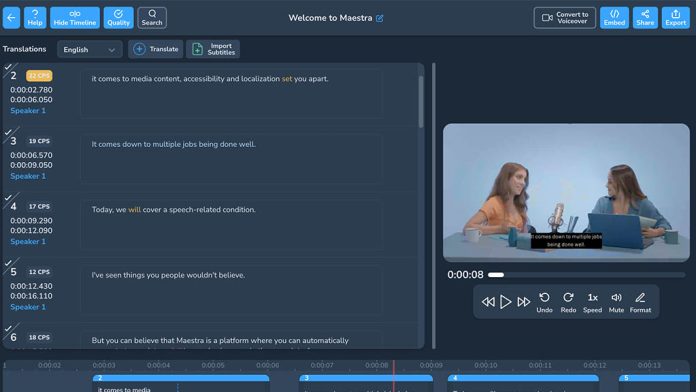
Subtitle editor online have gained significant popularity for adding captions to videos. These tools enable users to create, edit, and integrate subtitles directly from their browsers. By utilizing an Online Subtitle Editor, you can enhance the accessibility of your videos, making them easier to understand for a broader audience.
This article explores the top 5 Online Subtitle Editors, highlighting the unique features, advantages, and disadvantages of each. Whether you’re a filmmaker, content creator, or someone simply looking to add captions, these tools provide a convenient and effective solution for your video needs.
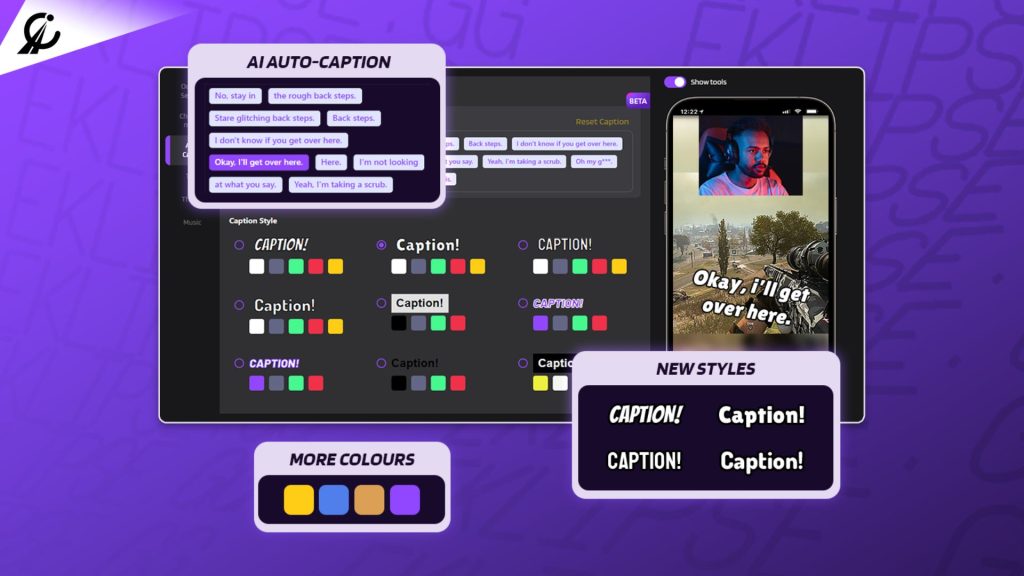
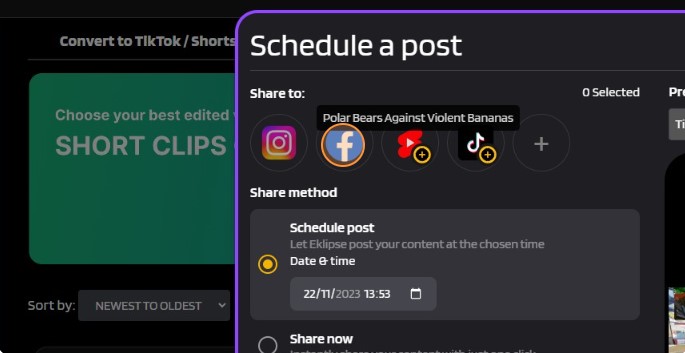
If you’re in search of a tool that can assist you in adding subtitles to your video without any difficulties, Eklipse is worth a try. Although Eklipse is not specifically designed as a subtitle editor, it functions as an AI-based clip creator that highlights the best parts of your stream.
However, it does offer an automatic captioning feature that allows you to add subtitles with 80% accuracy, particularly if you convert your clip to formats such as TikTok, Reel, or YouTube Shorts. With Eklipse, there’s no need to manually design the text, as it takes care of everything for you. The drawback of this feature is that it is only available in English and only applicable to videos in a vertical format.
Key features:
Captioning Feature: Use automatic captioning to add subtitles with 80% accuracy and convert your clip to various formats.
Automatic Highlights: Generate clips from your Twitch, YouTube, and Facebook streams/VODs using AI.
Multiple Game Support: Works with over 20 popular games including Call of Duty, Fortnite, and Apex Legends.
Social Media Sharing: Convert and share highlights directly to TikTok, YouTube Shorts, Instagram Reels, and Facebook Reels.
Limited Clip Generation: The free plan allows up to 15 AI-generated clips per game.
Pros:
Easy and free to use
Saves time and effort through automated highlight creation
Allows you to clip the best moment of your stream automatically
Enable users to convert the clip into a short and vertical format
Allows you to add auto-caption
Cons:
The subtitle feature only supports the English language
The free plan includes limited features and watermarked exports
Only applies to TikTok/Reel/Shorts form
Pricing: $19.99 per month
Available on: Android, iOS, Web
2. Kapwing: A Must-Try Subtitle Editor Online
Source: Kapwing
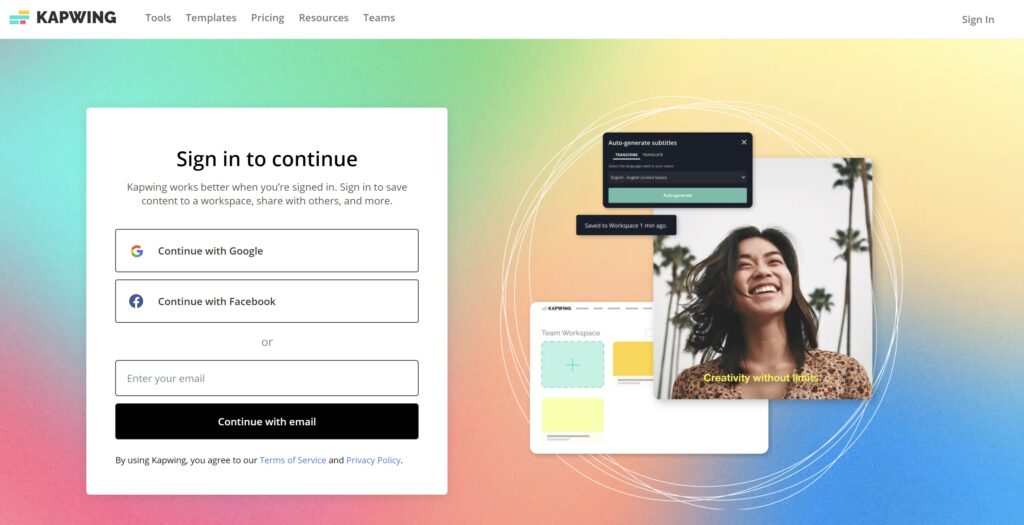
Another tool to customize your subtitle is Kapwing. Kapwing offers a user-friendly interface and advanced editing tools. With Kapwing, you can add, edit, and create subtitles with ease, making it a great choice for both novice and experienced users.
Additionally, Kapwing supports multiple video formats, including MP4, AVI, and more, and its video editing tools allow you to trim, resize, and add text to your videos. Aside from its subtitle editing features, Kapwing also offers additional tools for editing your video, making it a comprehensive solution for video editing needs.
Key features:
AI-powered Auto-Generation: With a single click, Kapwing’s automatic captions feature utilizes AI (Artificial Intelligence).
High Accuracy: While not perfect, Kapwing boasts high accuracy in its automatic captions.
Easy Editing & Customization: After auto-generation, you can directly edit the captions within the Kapwing interface.
Accessibility Features: Kapwing offers features that improve caption accessibility, such as adjusting line height and adding text outlines.
Export Flexibility: Once you’ve finalized your captions, you can either permanently embed them into your video.
Pros:
User-friendly interface
Advanced editing tools
Edit and personalize captions
Supports multiple video formats
Additional video editing features
Cons:
Limited language support
Reliance on audio quality
Some advanced features may require a paid subscription
Pricing: $16 per month for Pro, $50 per month for Business
Available on: Windows, Mac, Linux, Chromebook
3. Subtitle Horse: Best Browser-Based Captions Editor
Doc. Behance
Are you looking for a caption tool that supports a wide range of languages? If so, then Subtitle Horse is the answer. With its intuitive interface and advanced editing tools, Subtitle Horse makes it easy to create and edit subtitles with precision.
The special thing about this tool is that it is community-driven, allowing users to collaborate and share subtitles with others, making it a great choice for those looking to work with others on subtitle projects. However, Subtitle Horse may not have as many advanced editing options as other subtitle editors.
Key features:
Automatic Subtitle Generation: Likely uses AI to transcribe audio into subtitles for your videos.
Multiple Language Support: This feature allows subtitle generation in different languages.
Editing Capabilities: The ability to edit and refine the auto-generated subtitles might be offered.
Sharing Options: Exporting or embedding subtitles within your video for sharing could be a feature.
Speaker Identification: Distinguishing between different speakers in the video for proper attribution.
Pros:
Wide range of language support
Intuitive interface
Effortless results in no time
Advanced editing tools
Community-driven platform
Cons:
Limited video format support
May not have as many advanced editing options as other tools
Video format support may be more limited
Pricing: Free download
Available on: Windows
4. Amara: A Feature-Rich Subtitle Editor Online
Source: Amara.org
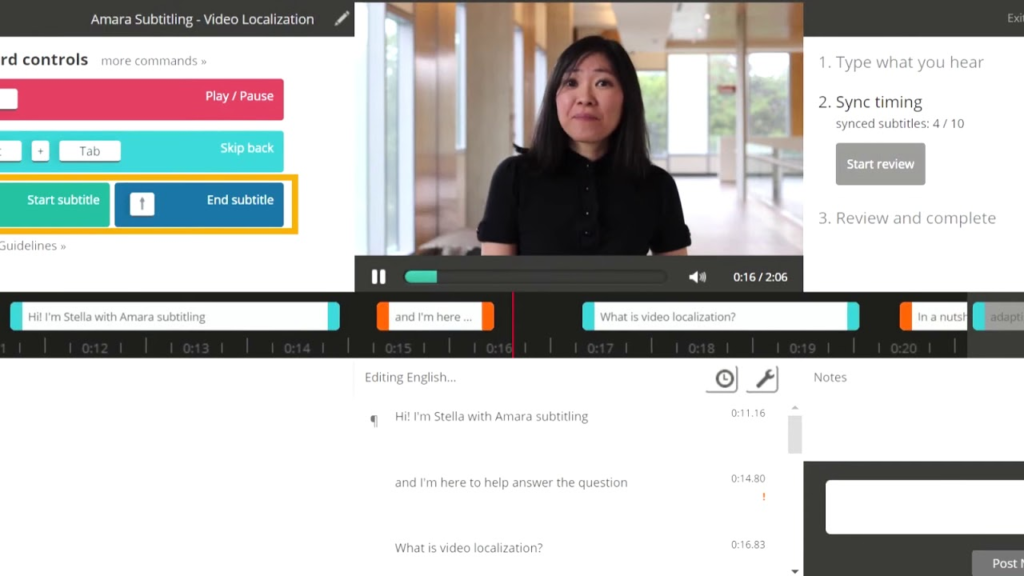
You can use Amara as your alternate editor for making captions. Amara is a feature-rich online subtitle editor that supports multiple languages and video formats. With its user-friendly interface and automated editing tools, Amara makes it easy to create and edit subtitles with precision.
Other than that, the platform also offers a collaborative platform where users can work together to create and edit subtitles, making it a great choice for those working on projects with multiple contributors. However, Amara may require a learning curve to fully utilize its features, and some advanced features may require a paid subscription.
Key features:
Collaborative Editing: Work with others in real-time on caption creation and editing, perfect for teams.
Multi-lingual Support: Supports a vast range of languages for both manual and potentially automatic captions.
Free Basic Plan: Core features like manual caption editing and basic project management are available for free.
Web-based Interface: Access Amara from any device with a web browser, no software downloads required.
Workflow Management Tools: Organize your caption projects, assign tasks, and track progress within Amara’s interface.
Pros:
Collaborative caption editing
Supports multiple languages and video formats
User-friendly interface
Advanced editing tools
Collaborative platform
Cons:
May require a learning curve to fully utilize its features
Automatic captions as an add-on service, not its core function
Some advanced features may require a paid subscription
Pricing: $24 per month for Plus
Available on: Windows, Mac
5. Movavi Video Editor: Best Overall Video Editing
Source: Movavi.com
Movavi Video Editor can be a great choice if you want to add captions and subtitles to your videos. Its user-friendly interface makes it easy for beginners to jump in and start adding text overlays to their projects. You can import your video file and then use the Titles & Text tab to choose from a variety of caption and subtitle styles.
As an AI video editor, Movavi allows you to customize the font, size, color, and position of your captions, ensuring they perfectly match the tone and style of your video. Additionally, you have granular control over the timing of your captions, allowing you to precisely match them to the spoken dialogue or audio cues in your video.
Key features:
Intuitive Interface: Movavi boasts a clean and easy-to-learn interface, making it accessible.
Media Management: Import and export videos, photos, and audio files in various formats.
Basic & Advanced Editing Tools: Cut, trim, crop, and split video clips while offering functionalities like transitions, effects, and filters.
Caption & Subtitle Support: Add captions and subtitles to your videos with various customization options for appearance and timing.
Multitrack Editing: Arrange video, audio, and text elements on separate tracks for precise control.
Pros:
Intuitive and straightforward interface
A comprehensive set of tools
Seamlessly add captions and subtitles to your videos
Import and export your projects in various video and audio formats
Capture screen or record footage from the webcam
Cons:
Limited advanced features
Watermark on the free version
Requires installation on your device
Pricing: $19.95 per month for Video Editor, $79.95 per year for Video Editor Plus
Available on: Windows, Mac
6. Jubler: Best Free Subtitle Editing Tool
Jubler is a free and open-source tool specifically designed for subtitle editing. It caters to both novice and experienced users. Beginners will appreciate Jubler’s intuitive interface that allows them to create subtitles from scratch or edit existing ones with ease. Features like spell-checking and a visual preview window ensure accuracy and clarity in your subtitles.
Jubler also offers advanced functionalities like translation mode, allowing them to easily convert subtitles between languages. It also supports various subtitle formats, making it compatible with a wide range of video editing workflows.
Key features:
User-Friendly Interface: Jubler boasts a clean and intuitive interface, making it easy for beginners to learn and navigate.
Comprehensive Editing Tools: Create new subtitles from scratch, edit existing ones, and adjust timing with precise control.
Spell Checking & Preview: Ensure accuracy in your subtitles with built-in spell checking and a visual preview window.
Multiple Subtitle Formats: Import and export subtitles in various formats, including common ones like SRT, ASS, and SSA.
Advanced Options (for power users): Jubler offers translation mode, allowing conversion of subtitles between languages.
Pros:
Free and open-source
Easy for newcomers with an intuitive interface
Granular control over subtitle timing
Import and export subtitles in various formats
Advanced functionalities (for power users)
Cons:
Limited to subtitles
Requires installation
Technical knowledge or exploration
Pricing: Free to use
Available on: Windows, Mac, Linux
FAQ
1. How do I edit a subtitle file?
To edit a subtitle file, open it in a subtitle editor or text editor. Modify the text, timing, and format as needed, then save the file.
2. What is the best free subtitle editor?
Some popular free subtitle editors include Aegisub and Subtitle Edit. They offer a range of features, from basic editing to advanced formatting options.
3. Where can I edit subtitles?
You can edit subtitles using online tools like PlaySubtitle Editor Online or desktop software like Subtitle Edit. Many platforms provide easy-to-use interfaces for subtitle creation and adjustments.
Final Thoughts
These 6 subtitle editor online tools provide various options to enhance your videos’ accessibility and clarity. Whether you’re a content creator, filmmaker, or simply need captions, these tools offer valuable solutions for elevating your video content.
If you’re seeking AI-powered editing, Eklipse stands out as an excellent choice. Try Eklipse for free and discover the remarkable benefits of AI editing. Sign up today and let your content gain more visibility.
Green screen is a visual graphic technique used to replace your background with stunning visuals or dynamic videos effortlessly. Now, you don’t even need to set up a large green screen or record yourself in front of it. The best green screen software listed below can easily add a green screen effect to your video.
So, what software should you use for green screen editing? Clipchamp, VSDC Free Video Editor, and iMovie offer excellent features to elevate your video creativity. In this article, we’ll explore these top green screen software options, helping you find the perfect fit for your needs. Let’s dive in!
Green screen technology is a filmmaking and photography technique where a specific color background, typically green, is used to replace part of an image or video with another background. The use of green screens is widespread in various media, from movies to weather broadcasts and video games.
The process involves filming a subject in front of a green backdrop, then using software to remove the green and layer the subject onto a different scene. This technique is popular because green is a color that is least likely to match skin tones, making it easier to separate the subject from the background.
How to Choose a Green Screen?
By selecting the right green screen, you can ensure smooth and professional results for your projects. Here are some points to consider before choosing the right video editors for your green-screen videos:
Ease of Use: Look for an editor with a user-friendly interface that is easy to navigate, especially if you are new to green screen editing. Tutorials and support resources can also be helpful.
Features: Consider the features you need, such as advanced chroma key options, background replacement, and color correction tools. Ensure the software includes the capabilities required for your projects.
Compatibility: Make sure the green screen editor is compatible with your computer’s operating system and hardware. Check the system requirements to avoid performance issues.
Price: Green screen editors range from free options to high-end professional software. Determine your budget and find an editor that offers good value for money, balancing cost with the features you need.
Support and Updates: Choose software that offers good customer support and regular updates. This ensures you have access to help when needed and that the software stays current with new features and improvements.
Free Green Screen Software for Content Creation
Here are free green screen tools that will empower you to bring your visual storytelling to life. These software options offer chroma key effects and a range of features to enhance your content creation journey. Let’s dive in and discover the perfect tool for your needs!
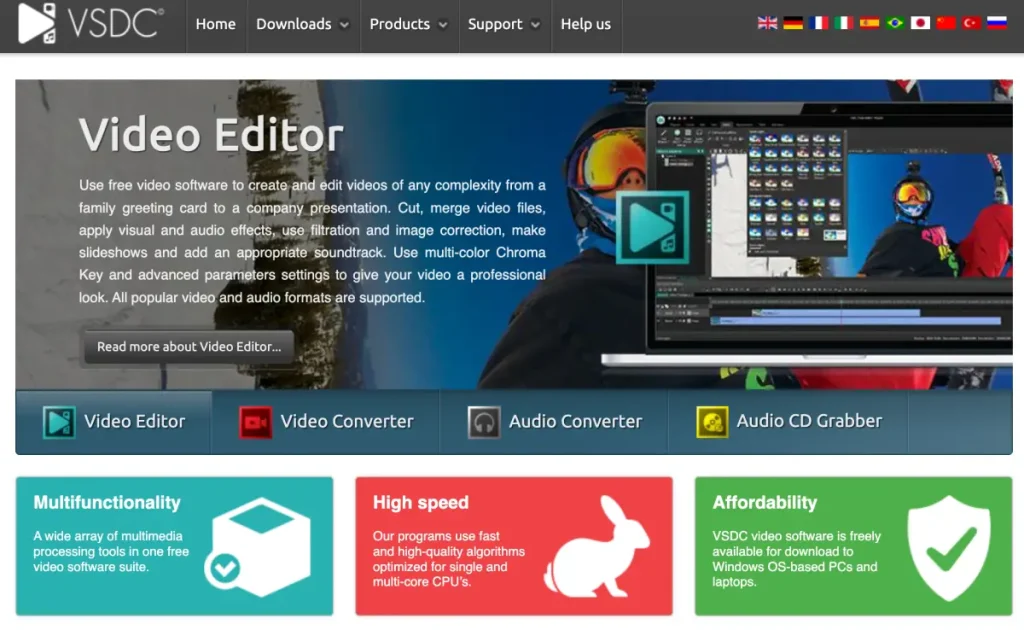
1. VSDC Free Video Editor – Best Free Green Screen Software
Source: videosoftdev.com
VSDC Free Video Editor is a versatile software that caters to both beginner and amateur videographers. With an array of selection tools, lighting correction, filters, transitions, special effects, and more, VSDC offers a comprehensive package for video editing enthusiasts.
Take advantage of its chroma key settings to unleash your creativity and create captivating movies. Keep in mind that VSDC has a slight learning curve, so it might be helpful to watch tutorial videos on platforms like YouTube to maximize its features.
Key Features:
Basic Editing Tools: Cut, trim, and split videos, adjust playback speed, and add transitions.
Green Screen Editing (Free): Chroma key compositing allows you to replace a green background with your chosen image or video.
Text & Titles: Add titles, captions, and text overlays to your videos.
Filters & Effects: Apply various visual effects and filters to enhance your video.
Export Options (Free with limitations): Export videos in various formats, though free options have limitations on resolution and file size.
Pros:
Free and no watermark
User-friendly interface
Supports multiple formats
Lightweight
Regular updates
Cons:
Limited features in the free version
Export limitations
Occasional pop-up ads
Available on: Windows
Pricing: Free to use
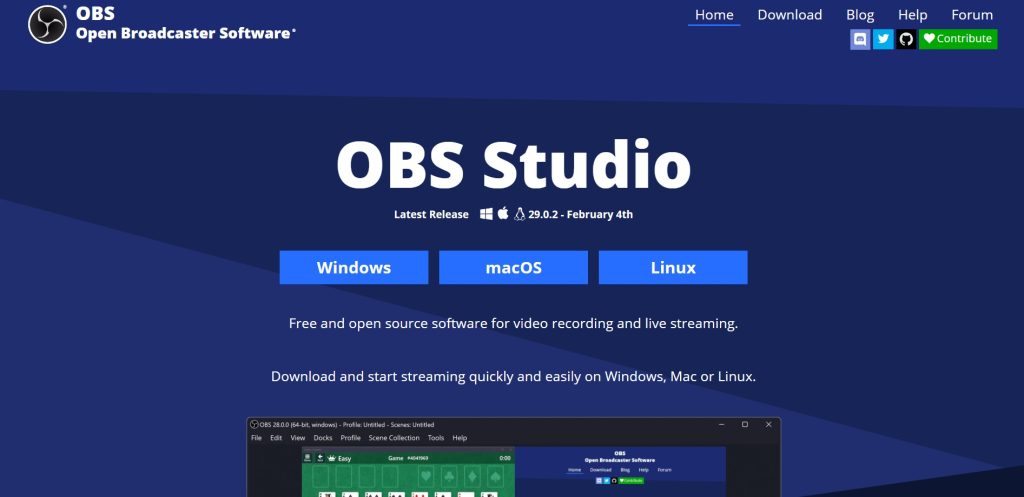
2. OBS Studio – Best Green Screen Software for Streamers
Source: obsproject.com
OBS Studios was originally designed for broadcasting such as livestream to Twitch, YouTube, or even Kick. It offers a range of functionalities beyond basic video editing. While it may not be as beginner-friendly as Streamlabs, OBS Studios provides endless possibilities through its numerous plugins.
Removing your green screen with OBS Studios is a relatively straightforward process, allowing you to adjust brightness and contrast for optimal results. The great thing about OBS is that you can instantly remove your green screen while live streaming, eliminating the need for video editing software.
Key Features:
High-Performance Streaming & Recording: Handles demanding tasks like high-resolution streaming and recording efficiently.
Customizable Scenes & Sources: Create complex scenes with multiple sources like cameras, capture cards, and images.
Powerful Plugins & Scripting: Extends functionality with a vast library of plugins and the ability to write scripts for automation.
Multiplatform Support (Windows, Mac, Linux): Works seamlessly across different operating systems.
Free and Open Source: Free to use and modify with a large, supportive community.
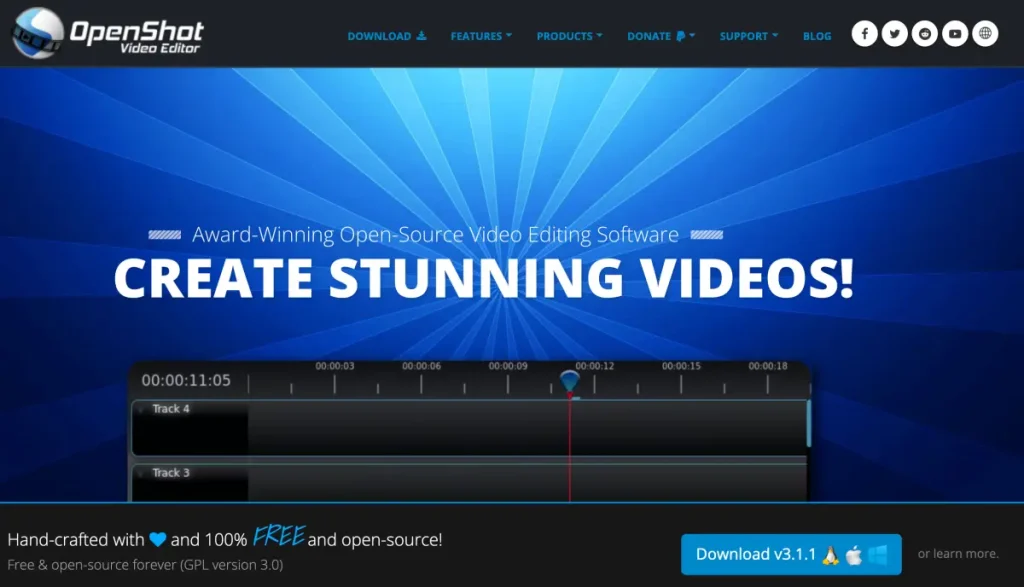
Designed for multimedia creators, OpenShot not only serves as green screen software but also provides features like special effects and 3D animation. You can export your creations to various formats, including Xbox 360, DVD, YouTube, and Vimeo.
While it may require some prior experience with video editing software, OpenShot offers a robust set of tools to enhance your content. However, this budget-friendly video editor may be overwhelming for beginners.
Key features:
Free and Open-Source: OpenShot is a completely free and open-source video editor, making it a great choice for budget-conscious creators.
Keyframe Animations: OpenShot allows for keyframe animations, letting you animate the properties of clips and effects over time.
Unlimited Tracks: The software boasts unlimited video and audio tracks, giving you the freedom to create complex projects with multiple layers.
Trim, Cut, and Slice Tools: OpenShot provides essential editing tools for trimming, cutting, and slicing clips to precisely edit your footage.
Transitions and Effects: A library of transitions and effects is included to add polish and creative flair to your videos.
Pros:
100% free and open-source software
Allows export to many devices
Featured numerous advanced editing tools
Supports most audio and video formats
Available for Windows, Mac, and Linux
Cons:
A bit technical for beginners
A bit laggy and buggy
Limited advanced features
Available for: Windows, macOS, Linux, Chrome OS
Pricing: Free to use
4. Streamlabs – Green Screen Software Alternative for Streamers
Source: streamlabs.com
Streamlabs, initially for Twitch live-streamers, is a versatile tool for streaming and recording. Create tutorials or capture moments with ease. Customize videos with overlays, on-screen elements, and seamless transitions.
Effortlessly remove the green screen, replacing or eliminating the background in a few steps. Streamlabs provides continuous updates for a smooth editing experience. Streamlabs is similar to OBS, a broadcasting software that enables you to eliminate the green screen during your live streams.
Key features:
Built-in Alerts and Widgets: SLOBS comes with several built-in alerts and widgets that you can use to interact with your viewers.
User-friendly Interface: SLOBS has a simple and intuitive interface that makes it easy to get started.
Multi-track Recording: SLOBS can record multiple audio tracks, such as your microphone, desktop audio, and game audio.
Integration with Popular Platforms: SLOBS integrates with popular streaming services like Twitch, YouTube, and Facebook.
Monetization System: SLOBS includes a monetization system that allows you to receive tips and donations from your viewers.
Pros:
Streamlined interface
Integrates well with popular streaming platforms
Built-in monetization tools
Stream management features
Free and open-source
Cons:
Limited customization compared to OBS Studio
Relies on cloud storage
Potential performance impact on lower-end machines
Available on: Windows,Mac
Pricing:
Free plan available
Standard: $9 per month
Pro: $17 per month
5. Clipchamp – Best for Beginners on a Budget
Source: clipchamp.com
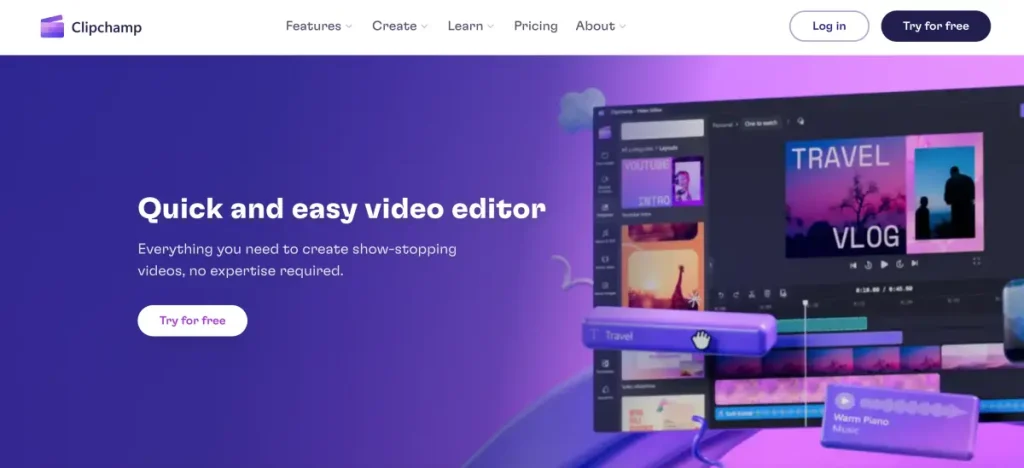
If you’re looking for an intuitive green-screen video editor, Clipchamp is a fantastic choice. Not only does it enable you to change your background with ease, but it also offers a wide array of special effects to enhance the realism of your videos.
You have the option to use your footage or explore Clipchamp’s extensive library of high-quality content. This cloud-based editor even provides customizable templates that streamline the editing process. The basic program is available for free, allowing you to try it out and unleash your creativity.
Key features:
Intuitive Interface: Clipchamp boasts a clean and easy-to-navigate interface, making it accessible for anyone to jump in and start editing.
Built-in Recording Tools: Clipchamp allows you to directly record your screen or webcam footage within the platform.
Rich Stock Asset Library: Clipchamp offers a vast library of royalty-free stock videos, images, and audio tracks.
Pre-made Templates: These templates can be a great starting point, saving you time and effort in constructing your video from scratch.
Cloud-Based Editing: Clipchamp is a cloud-based platform, meaning your projects are automatically saved online.
Pros:
Intuitive user interface
Ease of use
Content Library
Microsoft Integration
Multi-platform support
Cons:
Limited control over effects
Export limitations
Slow export rendering
Available on: Windows, Mac, Linux
Pricing:
Free plan available
Premium: $119.99 per year
6. Lightworks – Best Free Non-linear Editor
Source: lwks.com
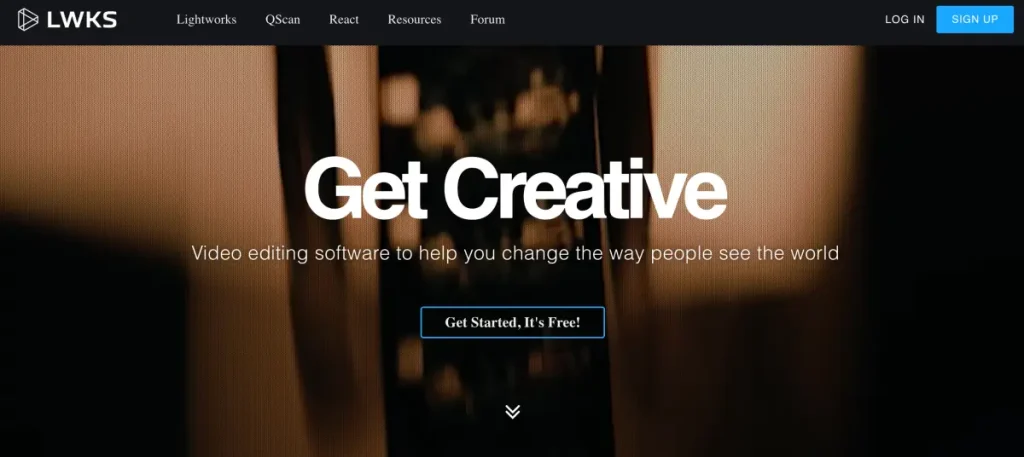
With a legacy spanning over 25 years, Lightworks is renowned for its advanced editing capabilities, including its free green screen editor. Access powerful chroma key features that enable you to remove backgrounds and create original content.
This low-end PC video editor also offers an extensive range of special effects and supports the creation of high-quality 4K films. While it may have a learning curve, especially for beginners, once you grasp its intricacies, you’ll be able to seamlessly upload your work directly to platforms like YouTube.
Key features:
Non-linear editing: Freely assemble clips and edit in any order.
Proxy editing: Work with lower-resolution files for smoother editing on less powerful machines.
Color grading tools: Adjust colors to achieve a specific look.
Multitrack audio editing: Edit and mix multiple audio tracks.
Export to various formats: Export your video in different formats for different uses.
Pros:
Provides ease of use
Supports direct exportations to YouTube
Web-based tool
Can be accessed through mobile phone
Professional-quality video editing
Cons:
Smaller user base
Require updates for extra tools
Unable to export to 1080p or above
Available on: Windows, MacOS, and Linux
7. iMovie – Best Video Editor for iOS
Source: pcmag.com
For Apple users, you must be familiar with this free video editor for Mac and other iOS devices. This free video editing tool is designed for Mac computers, iPhones, and iPads by Apple. It’s free and doesn’t require downloading since it’s built-in software.
Despite its cost, iMovie empowers you to create Hollywood-style videos in 4K resolution, offering a plethora of features. You can add filters, transitions, and themes, as well as rotate and trim videos at your discretion. Importantly, it doesn’t imprint a watermark on your video.
Key features:
Green Screen Editing: iMovie allows you to utilize green screen technology to replace the green background with other visuals for creative effects.
Video Stabilization: The software can help stabilize shaky footage captured handheld or with unstable cameras.
Drag-and-Drop Editing: The software utilizes a drag-and-drop approach, allowing users to easily add, arrange, and edit clips on the timeline.
Pre-made Templates: iMovie offers a library of pre-made templates and themes that can quickly enhance your videos with a professional look and feel.
Sound Effects and Music Library: Access a built-in library of sound effects and royalty-free music to add audio elements to your videos.
Pros:
Offers plenty of essential editing tools
Supports 4K editing
Provides 100+ soundtrack
Enables users to create Hollywood-grade films with ease
Pre-made contents
Cons:
Complex color correction feature
Limited customization
Only available for Apple devices
Available on: Mac, iOS
Pricing: Free to use
Top Premium Green Screen Software
While this article primarily focuses on free green screen software, it’s essential to highlight a few professional-grade options that can elevate your editing capabilities. These premium software programs offer advanced features and are widely used in the industry:
1. Adobe Premiere Pro – Best for Industry-Standard Editing
Source: adobe.com
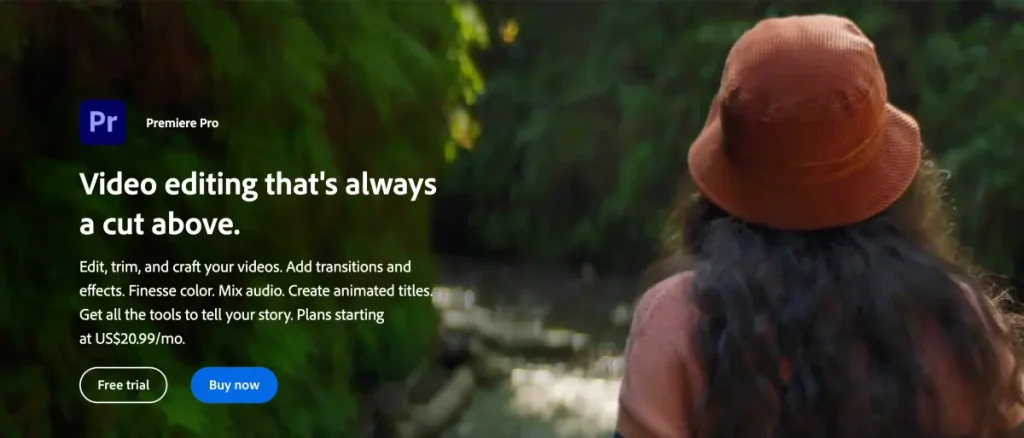
Adobe’s long-standing reputation in photography and video editing extends to green screen software. Whether you’re working with live-action or animated footage, Adobe Premiere Pro provides a comprehensive suite of tools, including graphics, layers, and more.
However, it’s important to note that this AI-powered editor has a steep learning curve and comes with a higher price tag. If you’re a beginner with limited video editing knowledge, it may be more beneficial to start with more affordable or free software before transitioning to Premiere Pro.
Key features:
Professional Video Editing: Powerful tools for cutting, trimming, and arranging video clips.
Multi-Track Editing: Combine video, audio, graphics, and effects on separate tracks for precise control.
Motion Graphics & VFX: Create stunning animations and visual effects with built-in tools.
Color Correction & Grading: Fine-tune the look and feel of your videos with advanced color tools.
Audio Editing & Mixing: Mix and edit audio tracks with professional features.
Pros:
Make automatic clips from a raw video
Extensive editing options
Flexibility and file format support
Industry-standard
Available on various platforms
Cons:
Need to upload your stream
Steep learning curve
Limitation on the free version
Available on: Windows, Mac
Pricing:
Premiere Pro: $22.99 per month
Premiere Pro for teams: $37.99 per license
2. Adobe After Effects – Best High-End Video Editor
Source: videomaker.com
Adobe After Effects is a professional-grade software specifically designed for motion graphics, visual effects (VFX), and compositing. It’s an industry standard used in filmmaking, television production, and creating high-quality videos for web and social media.
While After Effects is incredibly powerful, it’s important to note that it has a steeper learning curve compared to simpler video editing software. It’s geared towards professional video editors and motion graphics artists who require advanced creative control.
Key features:
Animation Powerhouse: Bring your ideas to life with fluid animations since it lets you animate anything, even complex character rigs.
Visual Effects Wizard: After Effects provides the tools to manipulate footage and create believable visual effects.
Compositing Mastermind: Seamlessly combine elements from various sources into a cohesive final image.
Presets and Templates for Efficiency: After Effects offers a vast library of pre-built motion graphics templates and animation presets.
Highly Customizable & Extendable: Take your creativity further with advanced customization options.
Pros:
Powerful animation capabilities
Industry-standard
Masterful compositing
Streamlined workflow
Highly extendable and customizable
Cons:
Steeper learning curve
A subscription-based model with ongoing costs
Resource-intensive software
Available on: Windows, Mac
Pricing:
Free plan available
After Effects: $34.49 per month, $263.88 per year
3. PowerDirector – Best Tool with Precise Controls
Source: cyberlink.com
As another advanced video editing software, PowerDirector offers a range of visual effects features, including robust green screen capabilities. With full control over every effect, you can fine-tune your videos to achieve the desired results.
PowerDirector’s Picture in Picture designer allows you to visualize changes in real time, streamlining the editing process. Additionally, you can storyboard your production from start to finish, taking your video editing skills to the next level. PowerDirector empowers you to create high-quality videos effortlessly.
Pros:
Precise editing with a timeline
Keyframe animation
Multicam editing for complex projects
Powerful tools
Good balance of features and user-friendliness
Cons:
Limited free features
Watermarks on the free version
Requires a subscription for full functionality
Available on: Windows, Mac
Pricing:
PowerDirector 365: $51.99 per year
Director Suite 365: $93.99 per year
PowerDirector 2024 Ultimate: $139.99 per year
4. Hitfilm Pro – Best Tool for VFX Integration
Source: fxhome.com
If you’re seeking green screen software that combines both 2D and 3D imaging capabilities, Hitfilm Pro is worth considering. Alongside its top-notch green screen features, it offers a range of effect editing tools that enhance the overall quality of your videos.
Hitfilm Pro is more affordable and easier to use compared to software like PowerDirector and After Effects. While it may have fewer video editing features, many professionals regard its chroma key tool as the best in the market.
Key features:
Advanced Compositing & VFX: Hitfilm Pro boasts powerful compositing tools.
3D Editing & Animation: Take your creativity to new heights with Hitfilm Pro’s 3D editing and animation capabilities.
Professional Color Grading: Elevate your video’s look with Hitfilm Pro’s extensive color grading tools.
High-Performance Editing: Hitfilm Pro supports editing in resolutions up to 8K and utilizes 32-bit floating-point color.
Built-in Asset Library: Hitfilm Pro provides a library of royalty-free stock footage, music, sound effects, and project templates.
Pros:
Powerful VFX tools
Cost-effective
User-Friendly for beginners
Customizable workspace
Mac and PC compatible
Cons:
Demanding system requirements
Basic audio editing
Limited customization of transitions
Available on: Windows, and Mac
Pricing:
Free plan available
Creator: $7,99 per month
Pro: $12.99 per month
Final Thoughts
That’s our list of the best green screen software for video editing, free in 2025! For beginners and personal use, you can try OBS Studio or OpenShot, as they are open-source software and completely free.
If you want to explore more advanced features to make your videos stand out among the competition, we suggest trying Eklipse! With Eklipse, you can streamline your content creation process and reach a wider audience effortlessly. Click the button below to try it for free!
Many Valorant players face challenges selecting agents, often leading to mismatched squads and preventable losses. Crafting a winning team requires understanding how maps influence agent roles. Effective strategies depend on a balanced lineup tailored to each map’s unique demands. This article delves into best Valorant team compositions for each map and highlights key tips for building cohesive teams.
A well-rounded squad can elevate gameplay and boost your chances of victory. Mastering team composition involves thoughtful agent selection and synergy. By analyzing map-specific strategies, players can confidently assemble teams that dominate in any scenario. Explore how to pick the right agents and create unstoppable teams.
Understanding the Importance of Team Composition in Valorant
Best Valorant Team – Source: Valorant
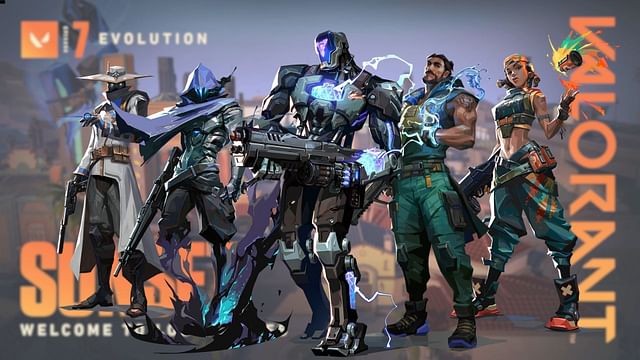
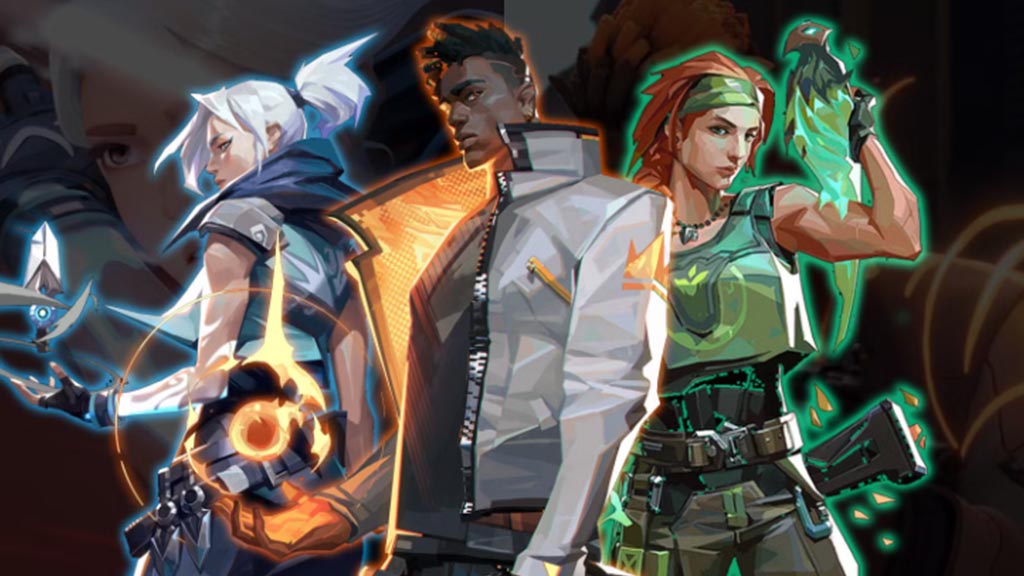
Teamwork lies at the core of Valorant’s gameplay, and strategic agent selection defines the outcome. Crafting best Valorant team comps requires understanding each map’s distinct design, which influences agent roles and their synergies. Staying informed about meta shifts is critical to staying competitive.
For effective Valorant team comps for each map, balance is key. The best agents for each map Valorant include a Duelist, Controller, Sentinel, and Initiator. These roles ensure superior map control, enhance strategy execution, and significantly increase the chances of victory.
On Ascent, mid control is vital, making best Valorant team comps crucial for success. Effective VCT comps for each map often feature agents like Jett, Omen, Sova, Killjoy, and KAY/O. Sova’s recon abilities provide valuable mid intel, enabling safer pushes. Meanwhile, Killjoy and KAY/O strengthen defenses and improve site retake strategies, showcasing their importance in optimal Valorant agent comps.
Pros and Cons:
Pros: Balanced, strong mid control, good for both attack and defense
Cons: Can be predictable if not played dynamically
Bind: Explosive Plays with Raze and Brimstone
Bind is a map where mobility and area control are key. A team comp featuring Brimstone, Raze, Viper, Fade, and Gekko is effective. Raze’s explosive abilities allow her to clear out tight corners, while Brimstone’s smokes help control key areas.
Pros and Cons:
Pros: Very effective at taking sites, high aggression potential
Cons: Can be countered by long-range agents
Breeze: Utilizing Long Sightlines with Viper and Sova
Breeze is known for its open spaces and long sightlines. Effective strategies often involve agents suited for these features. The suggested composition is Cypher, Viper, Sova, Jett, and KAY/O.
Pros and Cons:
Pros: Good for long-range engagements and picks
Cons: Can struggle in close-quarters situations
Haven: Versatility with Breach and Killjoy
Haven requires a versatile approach due to its three bomb sites. A recommended team composition consists of Breach, Omen, Jett, Sova, and Killjoy.
Haven’s three-Site layout supports both close-range skirmishes and long-range duels, emphasizing individual gunplay skills. Omen disrupts vision at critical points, while Neon’s speed aggressively counters early attackers or pressures defenders to retreat.
Pros and Cons:
Pros: Balanced for all three sites
Cons: Can be challenging to coordinate attacks on multiple sites
Icebox: Smokes and Intel with Viper and Sova
Icebox requires a combination of close-quarters and long-range engagements. A suitable team composition may include Viper, Sova, Jett, Killjoy, and Gekko.
The revamped Icebox prioritizes B-Site engagements, requiring Attackers to push Green aggressively and secure Yellow defensively. Verticality remains essential, making Jett’s Updrafts and smokes key for entry. Sova complements this aggression with angled Recon Bolts and Shock Darts, effectively clearing crucial areas.
Pros and Cons:
Pros: Good balance of engagements
Cons: Requires good coordination
Fracture: Aggressive Plays with Neon
Fracture rewards aggressive playstyles. Agents that can quickly push sites are often the most effective.
Although Fracture is currently excluded from Valorant’s Unrated and Competitive map pool, its unique layout still intrigues players. The map’s mid-area Defender Spawn allows quick access to east and west Sites, while ziplines connect the northern and southern zones. With three entry routes per Site, strategic detection becomes essential. Sova’s Recon Bolts and Killjoy’s turret prove invaluable for pinpointing enemy positions and maintaining control.
Pros and Cons:
Pros: Rewards quick plays
Cons: Requires strong coordination
Lotus: Synergy with Viper and Omen
Lotus has multiple entrances; thus area control is vital. A great team comp might be Raze, Viper, Omen, and Killjoy.
Pros and Cons:
Pros: Good at taking sites
Cons: Difficult to manage multiple entrances
Pearl: Duelists Dominate with Neon and Yoru
Pearl allows duelists like Neon and Yoru to excel by creating space while the team provides support.
Pros and Cons:
Pros: Rewards aggressive playstyle
Cons: Vulnerable to counter aggression
Abyss: Fast Paced Play with Omen and Jett
Abyss benefits from fast-paced agents who can utilize its features effectively.
Pros and Cons:
Pros: Good for fast-paced plays
Cons: Difficult for slower compositions
Agent Synergies: The Key to Victory
Understanding agent synergies is extremely beneficial. Combining certain abilities can greatly enhance their impact. For instance, Sage’s Slow Orb used in conjunction with Raze’s Paint Shells creates a powerful combo. Adapting strategies based on agent synergies can significantly improve your chances of winning matches.
Adapting to the Ever-Changing Meta
The Valorant meta is subject to constant change due to new agents like KAY/O or frequent buffs/nerfs that can alter team compositions. Remaining up-to-date is crucial; what may be effective today might not be as effective tomorrow.
Final Thoughts
Creating the best Valorant team compositions for each map relies on understanding map-specific needs and adapting to your team’s playstyle. No single setup fits every situation; balancing agent roles is crucial. Staying updated on meta shifts ensures your strategies remain effective and competitive over time.
Effective communication brings out the full potential of every agent, key to crafting the best Valorant team compositions for each map tier list. Prioritize a balanced lineup featuring duelists, controllers, initiators, and sentinels for adaptability and synergy. This strategic mix improves gameplay and positions your team for top-tier success in Valorant.
Looking for the best online YouTube video cutters to create highlight reels? You’re in the right place. Below, we’ve listed top online tools to help you cut specific moments from any YouTube video. To cut YouTube videos, you can use a simple and efficient online tool.
YouTube is a vast platform offering various types of content, but it lacks a comprehensive clip feature for all videos. While YouTube’s native Clip function works for select content, the best online YouTube video cutters offer more flexibility for other videos. Let’s explore these options!
The first option for creating clips from YouTube is Eklipse which can fulfill your video cutting needs with ease! Simply register and get started!
All you have to do is paste your video link in the URL box for our A.I tool to automatically extract the best clips! Eklipse also works best for streamers wanting to extract highlight clips from their streams. Click here to read the short guide on just how to achieve all this!
Join the Eklipse Revolution: Register and Subscribe Today
Maximize your Black Ops 6 rewards—Create highlights from your best gameplay with with Eklipse
Eklipse help streamer improve their social media presence with AI highlights that clip your Twitch / Kick streams automatically & converts them to TikTok / Reels / Shorts
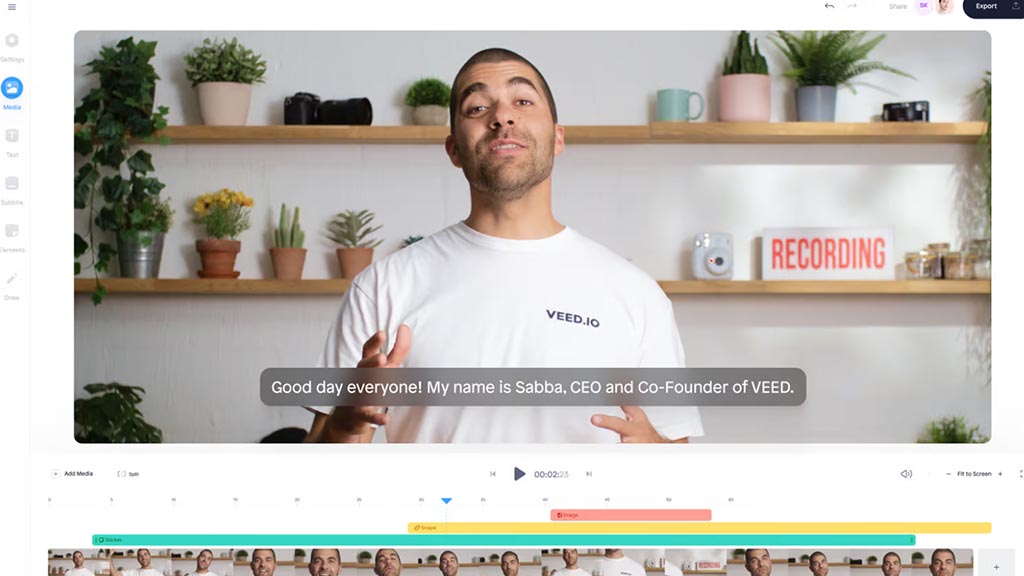
VEED.IO is a versatile online video editing platform designed to simplify the video creation process for users ranging from beginners to professionals. It leverages AI-powered tools to enhance video production, making it accessible for various content creators, including marketers, educators, and social media influencers.
2. YT Cutter
Source: YT Cutter
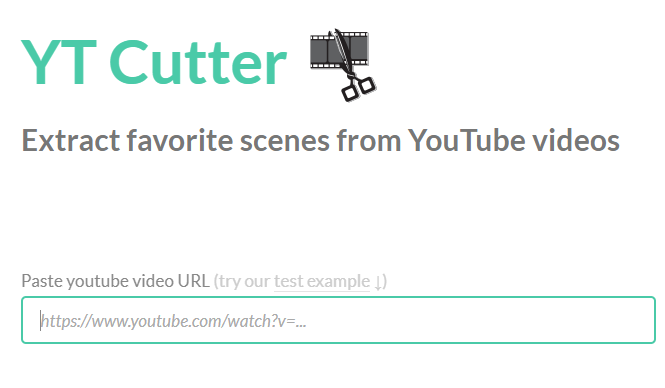
The next in our list is YT Cutter, a handy online tool that can extract clips from any YouTube URL. Working for free and with no need to register, you can use it to cut YouTube videos, take screenshots and export your final files to video, GIFs and even audio!
3. YouTube Trimmer
Source: YouTube Trimmer
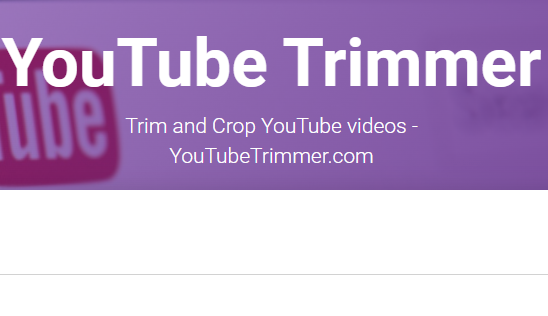
Next up is YouTube Trimmer which is another online tool to help accomplish your YouTube trimming and cutting goals. Featuring a simple interface with a URL box, all you have to do is drop your link in it. You’ll get a video preview where you can choose the segment(s) to cut, and then export your video in a choice of output formats.
4. YT Cropper
Source: YT Cropper
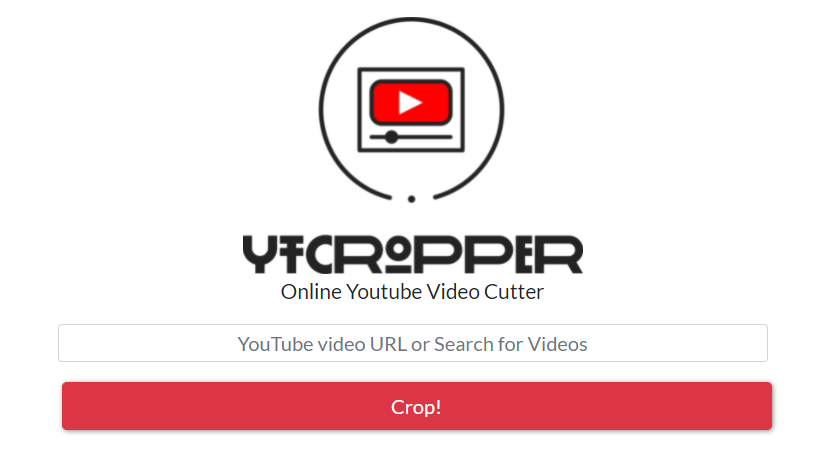
YT Cropper is yet another convenient and free online YouTube video cutter. With the usual offerings, it can trim your YouTube video to your desired length, and you can then save your favorite segments. However where it loses a few points is that it cannot cut videos to each fraction of a second, and there is no direct download option like the other services on our list.
5. iMovie
Source: Apple
If you’re on a Mac, your best bet for a YouTube video cutter will be iMovie. iMovie provides users a powerful editing suite for videos, where you can do just about anything. With iMovie, users can cut videos into smaller segments, crop videos, add filters and even add background music. The only real drawback (if you can call it that), is that it is only available for Mac or iOS users.
FAQ
1. What is the best online YouTube video converter?
Here are 12 top converters for downloading YouTube videos: Snap Downloader, ByClick Downloader, 2CONV, WinX HD, VidJuice, Converto.io, ClipConverter.cc, and FLVTO. FLVTO.biz is a free, no-registration converter supporting MP4, WebM, and OGV formats.
2. What is the best online video editor for YouTube?
Flixier is ideal for editing YouTube videos, offering built-in motion titles, calls to action, and over 50 transitions. Its easy-to-use timeline allows you to efficiently arrange your clips.
3. How can I cut video from YouTube?
To cut a video from YouTube, you can use online video cutters or download the video first and then edit
Final Thoughts
Here are our top 5 picks for the best online YouTube video cutters. These tools are perfect for those seeking more editing options than YouTube’s limited Clip function.
While most online cutters don’t yet support direct sharing to social media, Eklipse lets you convert and share gaming moments for free on TikTok, Shorts, or Reels. Sign up on Eklipse.gg to create clips and gain social media recognition.
Maximize your Black Ops 6 rewards—Create highlights from your best gameplay with with Eklipse
Eklipse help streamer improve their social media presence with AI highlights that clip your Twitch / Kick streams automatically & converts them to TikTok / Reels / Shorts
TikTok offers a range of audio and sound options for users to enhance their videos. However, there may be times when you need to remove sound from a TikTok video due to copyright issues, unwanted noise, or changing audio trends. That’s why it’s important to understand how to remove sound from TikTok video.
You’re in the right place! This guide will show you exactly how to remove sound from TikTok videos, including live recordings. Let’s get started!
Source: Eklipse Blog – How to remove sound from TikTok video on iphone
How to remove sound from TikTok video after posting? Removing the sound from your TikTok video is basically easy. You’ll only need to do a couple of clicks and bingo! You’re all set. Here’s how turn off auto sound on TikTok:
To begin with, open the TikTok app on your device.
Go to the video you want to remove sound from.
Tap on the Music tab at the top of the center screen.
Locate the sound you want to remove and tap the X at the bottom right of the screen.
The sound will now be removed from the video.
How To Mute TikTok Video Using In-app Feature
Alternatively, if you don’t want to hear the sound without even removing it, you can simply mute it. Here’s how to mute TikTok on iPhone and Android:
Open the TikTok app and log in to your account.
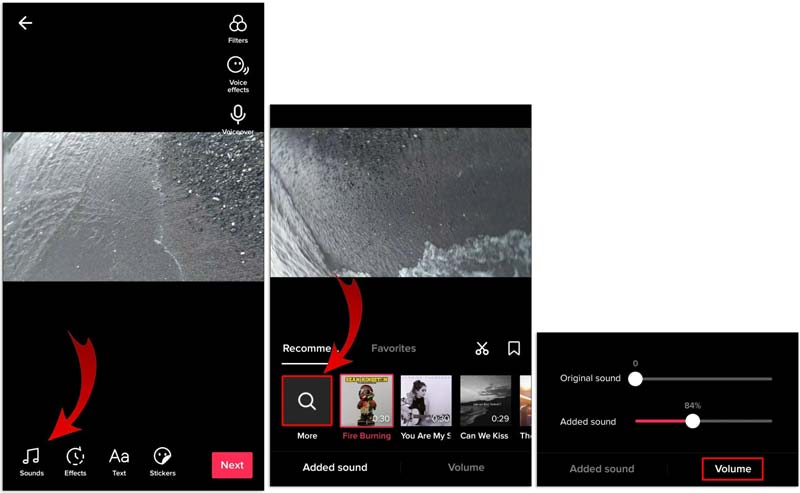
Tap the plus (+) icon to record a new video or upload any existing video.
Go to the editing screen.
Hit the Sounds option to mute your TikTok sound.
Tap the Volume option to edit the volume of the sound.
Move the Added sound and the Original sound sliders to zero.
How To Remove Sound From TikTok Video After Posting
Did you know you can easily remove or mute audio from TikTok videos using online tools? One great option is Canva. This graphic design software now also offers powerful video editing tools. Here is how to quickly mute your TikTok video using Canva:
Starting off by accessing Canva through the website or app.
Log in using either a Google or Facebook account.
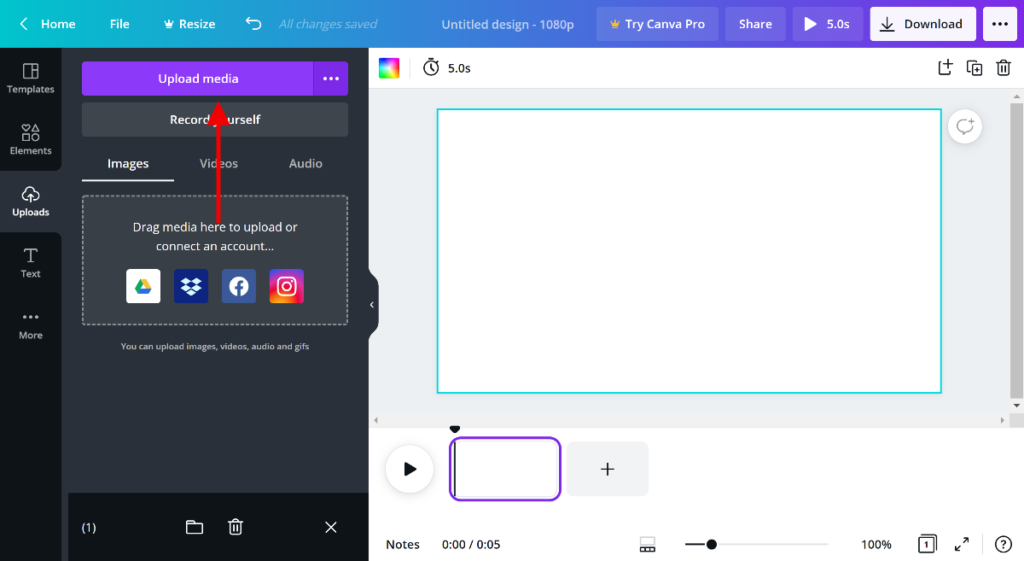
Then, upload the video you want to edit to Canva.
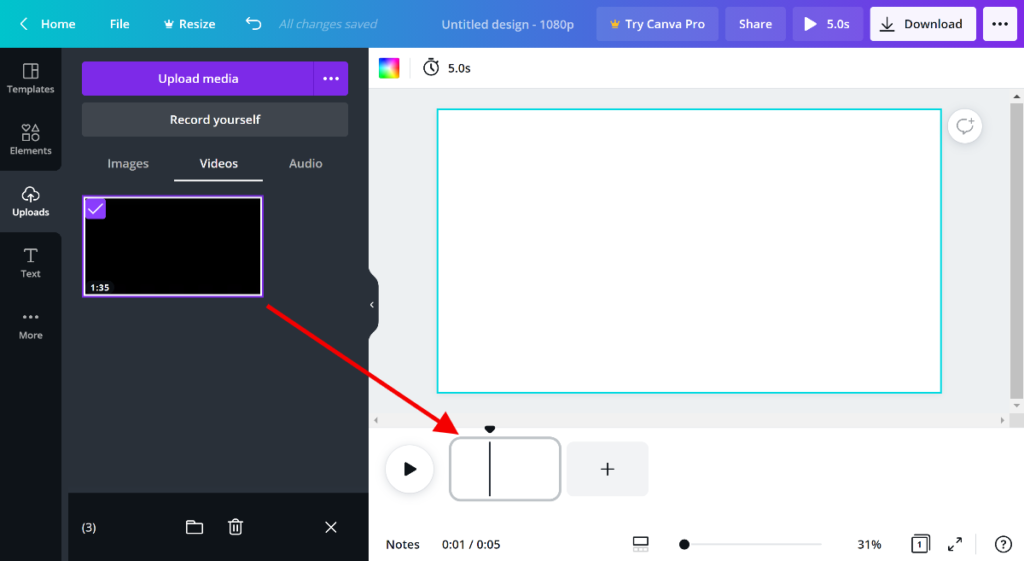
Drag your video to the storyboard.
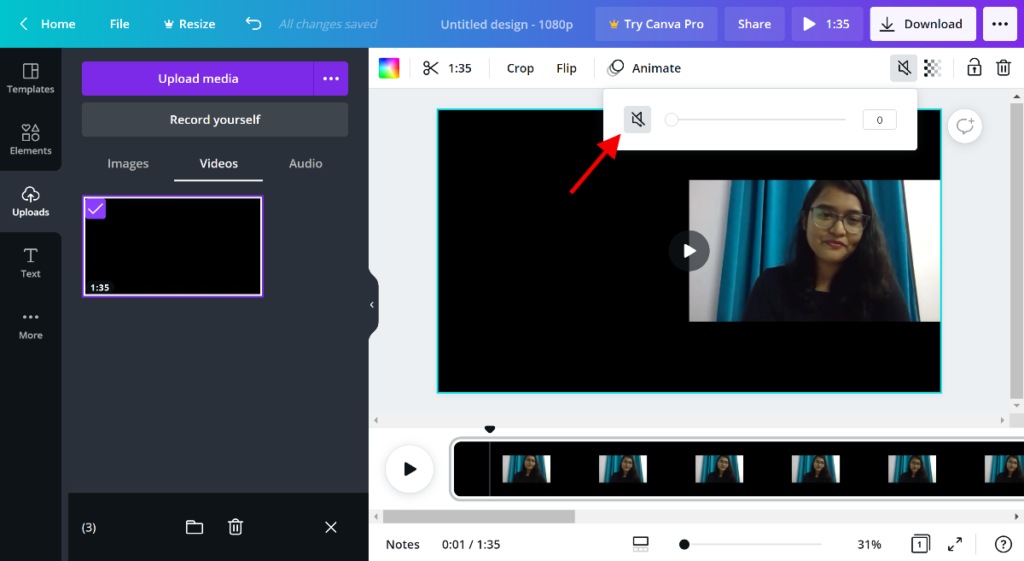
Next up, click the volume button in the upper left corner.
Move the slider until the volume is 0, and you’re all set.
FAQ
1. How to get sounds off TikTok?
Tap “Sound” > “Share icon” > “Copy Link”, and then paste it to any TikTok sound downloader app.
2. How do I remove audio from a video on TikTok?
Open the TikTok app, then tap the “sound” icon > click “Share” > “Remove Sound” > “Confirm”.
3. How do I remove unwanted sound from a video?
Try using video editor app. Hit the “Audio” menu, and click “Mute”.
Conclusion
That’s all about how to remove sound from TikTok video. Removing sound from TikTok videos is simple, and you can do it right from the app itself. Now you can ensure the TikTok original sound copyright is removed successfully.
In addition, if you are looking for effective ways to improve your TikTok video quality, try Eklipse! This advanced AI editor will save 90% of your editing time by transforming your streams into viral TikTok clips with just one click. Try Eklipse for free today!
Maximize your Black Ops 6 rewards—Create highlights from your best gameplay with with Eklipse
Eklipse help streamer improve their social media presence with AI highlights that clip your Twitch / Kick streams automatically & converts them to TikTok / Reels / Shorts
In today’s digital world, video editing is a must-have skill, especially for creating standout short-form content. The comparison of Eklipse vs. CapCut highlights two versatile tools for beginners and professionals, each offering features to boost your editing game. For those seeking a CapCut alternative, Eklipse’s AI-driven capabilities stand out.
With the rumor that Capcut will be banned in the US, there is certainly no harm in looking for alternatives that may have better capabilities. Discover which tool, Eklipse or CapCut can enhance your creativity and content creation in here!
Eklipse: Best for Creators who prioritize professional-looking results
Eklipse AI Video Generator – Source: Doc.
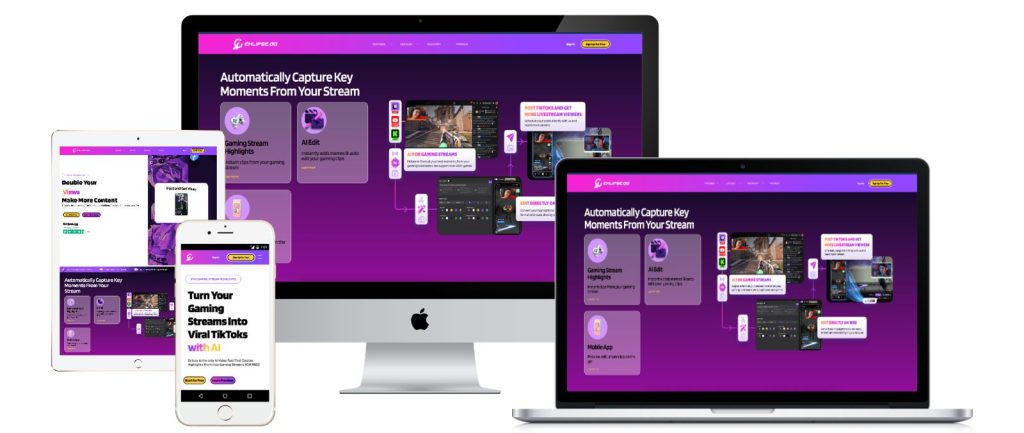
Eklipse.gg empowers streamers and content creators with AI-powered magic. It automatically generates highlight clips from Twitch, YouTube, Facebook, and Kick streams, saving you 90% of the editing time. This AI wizard doesn’t stop there – it tailors these highlights for viral success on platforms like TikTok, Reels, and Shorts.
Catering to both beginners and experienced users, Eklipse.gg offers a robust suite of editing tools. From multi-track editing and precise trimming to color grading, chroma key compositing, and advanced animation, Eklipse grants you complete creative control. Craft the perfect look and feel for your videos, all within a user-friendly interface.
Key Features:
Multi-track editing: Layer multiple video and audio tracks for a more complex and visually engaging editing experience.
Professional-grade color tools: Achieve stunning visuals with advanced color grading options, allowing you to fine-tune the look and feel of your videos.
Chroma key compositing: Create special effects by removing a specific color (usually green or blue) and replacing it with another video or image, perfect for creating green screen effects.
Powerful animation tools: Breathe life into your videos with keyframe animation, allowing you to animate text, shapes, and even video elements.
Customizable workspace: Tailor the editing interface to your workflow with a high degree of customization options.
Pros:
Unmatched editing power: Offers a vast array of tools for precise and professional video editing.
Highly customizable: Adapt the editing interface to your specific needs and preferences.
Advanced features: Cater to experienced editors seeking creative control and complex editing capabilities.
High-quality output: Export videos in high resolutions for professional presentations.
Regular updates: The developers actively update the app with new features and bug fixes.
Cons:
Steeper learning curve: The abundance of features might be overwhelming for beginners.
Limited free plan: The free version comes with limitations on export resolution and watermarks.
Potentially Limited Mobile Editing: While information regarding a mobile version might be outdated, Eklipse is currently a desktop-only application.
Capcut: Trendy Templates That Are Perfect for Social Media Savvy
Capcut – Source: Doc.
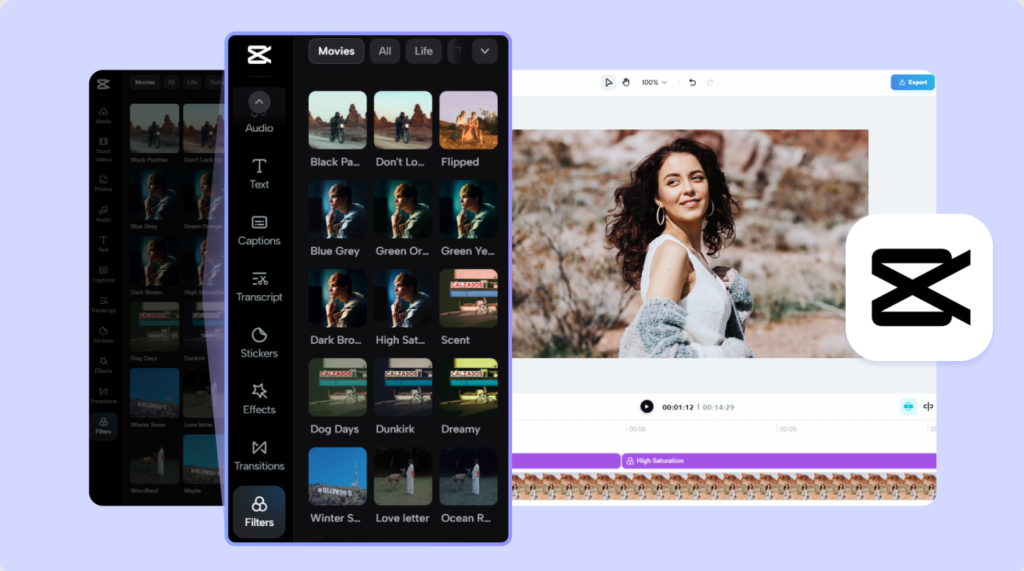
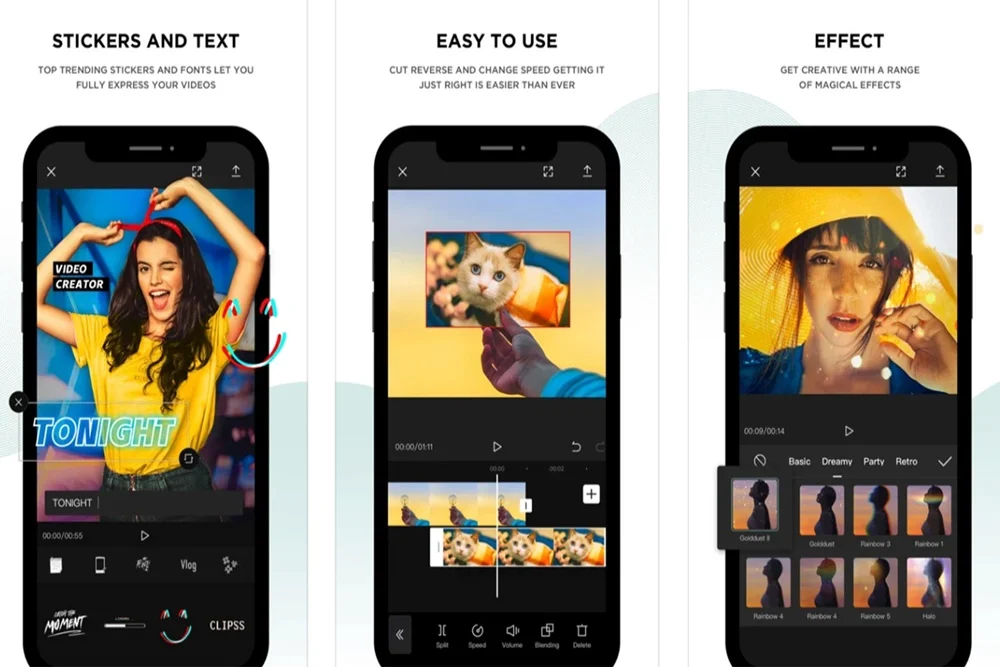
CapCut empowers creators across devices – browsers, Windows, Mac, Android, and iOS. This all-in-one AI-powered platform takes video editing and image design to the next level. With a vast library of trendy templates, filters, stickers, fonts, and music, CapCut equips you to craft stunning visuals with ease. Plus, it seamlessly handles high-quality video imports and exports, ensuring your masterpiece reaches your audience flawlessly.
For social media mavens, CapCut streamlines the mobile video editing experience. Boasting a library of trendy templates, intuitive editing tools, and a vast music library, it elevates your videos in a snap. From brainstorming to sharing, CapCut empowers you to create captivating social media content effortlessly.
Key Features:
Trendy Templates: Dive into a collection of pre-designed templates with transitions, effects, and music, perfect for creating videos that resonate with current social media trends.
Intuitive Editing Tools: CapCut offers a user-friendly interface with drag-and-drop functionality, making it easy to trim clips, arrange video sequences, and add various creative elements.
Extensive Music Library: Royalty-free music tracks and sound effects are readily available within the app, eliminating the need for external sources and copyright concerns.
Smart Adjustments: Enhance your videos with one-click adjustments for brightness, contrast, and saturation. Fine-tuning specific colors is also an option.
Text Overlays & Stickers: Overlay your videos with customizable text and a wide variety of animated stickers to add personality and humor to your content.
Pros:
Effortless Video Creation: Ideal for beginners and creators who value speed and ease of use.
Trendsetting Templates: Stay ahead of the curve with trendy templates that keep your content engaging and relevant.
Rich Audio Library: Access a vast collection of royalty-free music and sound effects to elevate your video’s soundscape.
Social Media Optimization: The editing features and format options cater specifically to popular social media platforms.
Free and Accessible: Available for free on mobile devices, making it a budget-friendly and convenient choice.
Cons:
Limited Advanced Features: Compared to professional-grade editors, CapCut offers a more streamlined feature set.
Project Management Limitations: Managing complex editing projects with multiple layers might be challenging.
Performance on Older Devices: Users with older phones might experience performance issues due to the app’s resource requirements.
Eklipse.gg vs. Capcut: The Key Differences
Choosing between Eklipse.gg and Capcut depends on your specific needs and editing style. Here’s a breakdown of their strengths:
Focus: Eklipse.gg caters to streamers and gamers by offering automatic highlight generation from platforms like Twitch. If you primarily work with Twitch streams and prioritize speed, Eklipse might be ideal.
Versatility: Capcut offers a broader range of editing tools and features for working with various video and image formats. It doesn’t require specific platforms and allows for manual editing control.
Content-Type: Eklipse leans towards generating gaming-centric content, while Capcut provides tools and resources for diverse video and image projects.
Ultimately, the “winner” depends on what you prioritize. Eklipse excels at streamlining the streamer/gamer workflow, while Capcut offers flexibility for a wider range of creative projects.
Let’s compare Eklipse and CapCut, focusing on features crucial for streamers:
1. Compatibility:
Both Eklipse and CapCut are available on Android and iOS devices. However, Eklipse offers additional flexibility – you can access its editing tools directly on your desktop through a web browser. This can be a major advantage for streamers who prefer editing on a larger screen.
2. Price:
Eklipse boasts a free tier that allows you to convert clips to TikTok format without watermarks. While there might be limitations compared to the paid plan, it’s a great option for beginners. Eklipse’s paid plan focuses on enhancing AI-powered gaming highlight generation, a valuable tool for streamers.
CapCut, on the other hand, is completely free to use with all features unlocked. However, there might be occasional ads displayed within the app.
3. User Interface:
Eklipse offers a user-friendly interface specifically designed for streamers. It focuses on tasks like highlight creation and TikTok conversion, making them readily accessible. CapCut has a more general editing interface, requiring some exploration to find the functionalities you need for streaming content.
4. Features:
Here’s where Eklipse shines for streamers:
AI Gaming Highlights: This automated feature analyzes your streams and generates bite-sized highlights, saving you time and effort.
Streamlined TikTok Conversion: Eklipse allows for quick and easy conversion of your clips to the vertical format required by TikTok.
CapCut, while lacking dedicated features for streamers, offers a robust general editing suite with functionalities like:
Multi-track editing: Layer multiple clips, text, and audio for a richer editing experience.
Advanced effects: Enhance your content with transitions, filters, and special effects.
Final Thoughts
The comparison of Eklipse vs. CapCut highlights their AI-powered features, enhancing creativity and productivity for diverse content needs. Eklipse.gg simplifies highlight creation for streamers, while CapCut offers trendy templates and mobile-friendly editing versatility.
Your choice depends on your goals. Eklipse excels at AI-driven highlight generation and TikTok optimization, while CapCut provides comprehensive tools for broader editing purposes. Try Eklipse for free and access expert tips on their blog to enhance your streaming.
Video editing is a crucial skill for gamers, marketers, and social media creators. If you’re searching for the best free alternatives to CapCut for video editing, several feature-rich tools are worth considering. Among them, Lightworks stands out with its professional-grade editing capabilities.
These tools offer unique features to help you craft engaging content, whether you’re editing TikTok clips, YouTube videos, or gameplay highlights. With the rumor that Capcut will be banned in the US, there is certainly no harm in looking for alternatives that may have better capabilities.
1. Eklipse.gg: AI-Powered Editing for Gamers and Streamers
Source: Eklipse
Eklipse.gg revolutionizes video editing for gaming creators, offering AI-powered tools to create polished highlights from gameplay footage.
Designed specifically for streamers on platforms like Twitch and YouTube, Eklipse.gg is a must-have for turning hours of gameplay into engaging, shareable content with minimal effort.
Key Features
AI-Driven Highlights: Automatically detects and edits the best moments from your gameplay.
Pre-Made Templates: Gaming-focused effects and transitions for professional-looking clips.
Cloud-Based Platform: Edit and save your work online—no downloads required.
Strengths
Time-Saving: Removes the manual work of sifting through hours of footage.
User-Friendly: No advanced editing skills needed to produce stunning results.
Streamlining Creativity: Lets creators focus on audience interaction rather than post-production.
Weaknesses
Limited functionality for non-gaming projects.
Requires a stable internet connection for optimal use.
2. Adobe Premiere Rush: All-in-one Video Editing
Source: Adobe
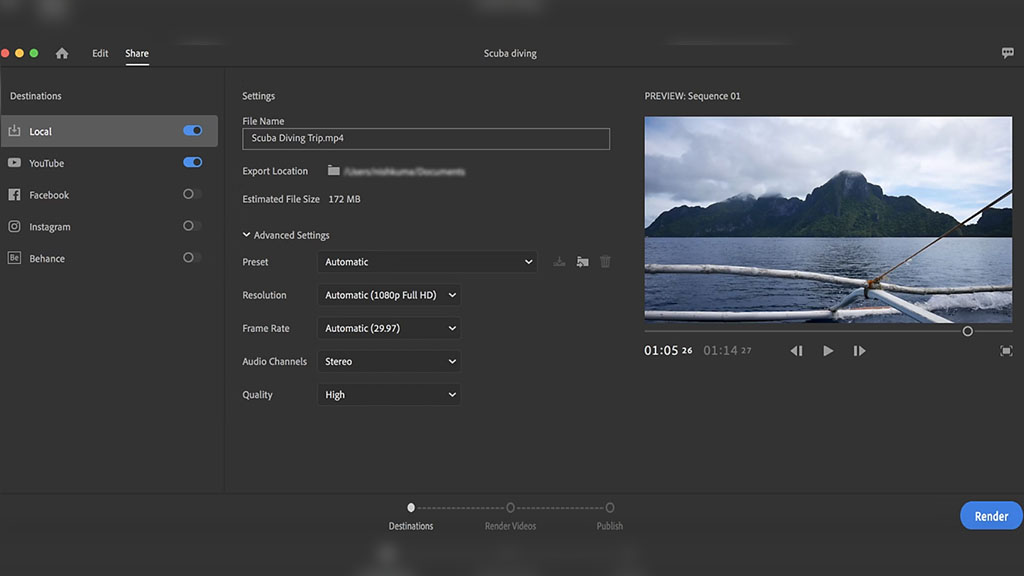
Adobe Premiere Rush is an all-in-one video editing application designed for quick and efficient video creation and sharing across multiple devices. It is particularly aimed at content creators who need to produce professional-looking videos for social media platforms without the complexity of more advanced software
Key Features
Cross-Device Functionality: Premiere Rush allows users to start projects on one device and continue on another, enhancing flexibility for creators on the go.
User-Friendly Interface: The app features an intuitive interface with a simple timeline, making it accessible for beginners. Users can easily drag and drop clips, access multiple video and audio tracks, and utilize built-in templates.
Export Options: Videos can be exported directly to various social media platforms like YouTube, Facebook, and Instagram from within the app.
Strengths
Premiere Rush is designed for simplicity, making it ideal for beginners or those needing to edit videos quickly without extensive training.
The one-click sharing feature facilitates immediate distribution of content to social media channels, streamlining the workflow for content creators.
Weaknesses
While it offers essential editing tools, Premiere Rush lacks some of the more advanced features found in professional software like Adobe Premiere Pro.
While there is a free version available with limited features, full access requires a subscription, which may not be ideal for casual users or those on a budget.
3. DaVinci Resolve: Comprehensive Post Production Software
Source: DaVinci
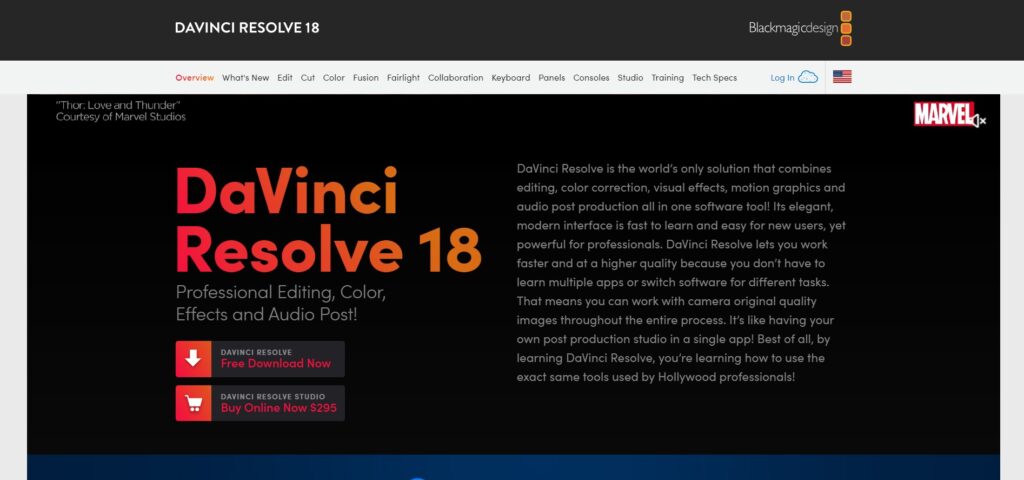
DaVinci Resolve is an industry-standard editing suite offering professional-grade tools for video editing, color correction, and motion graphics. While it’s designed for advanced users, its free version packs a punch for those seeking high-quality output.
Key Features
Advanced Editing Suite: Non-linear editing, color grading, and VFX tools.
Professional-Quality Output: Suitable for film-grade projects.
Collaboration Features: Streamlined workflows for team projects.
Strengths
Industry-leading software with extensive features.
High-quality results for professional projects.
Weaknesses
Steeper learning curve for beginners.
Demands high-performance hardware.
4. Shotcut: Open-source Video Editing Software
Source: Shotcut
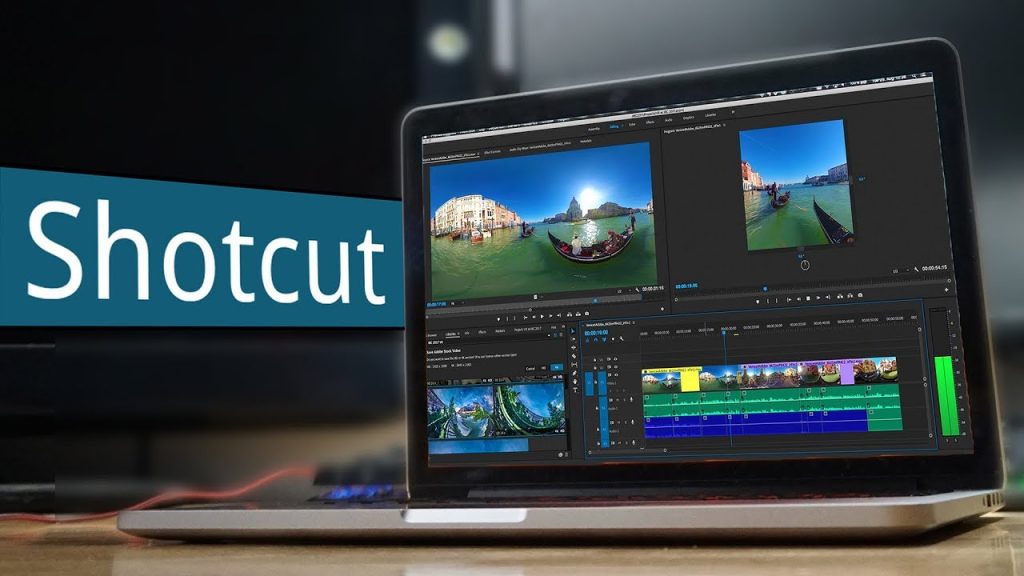
Shotcut is a versatile, open-source video editor with robust features comparable to many paid programs. It’s ideal for creators who need flexibility and support for a wide range of formats.
Key Features
Multiple layers of video and audio.
Open-source and regularly updated with new features.
Customizable filters and transitions.
Strengths
Free and feature-packed.
Great for users with some editing experience.
Weaknesses
May lag with large projects.
Limited templates compared to other tools.
5. OpenShot: Available on Multiple Platforms
OpenShot is an excellent CapCut alternative for Android, offering a simple, user-friendly interface without the complexity. It’s fully free and free of watermarks.
Key Features
Drag-and-drop functionality.
Supports unlimited layers for complex projects.
Wide format compatibility.
Strengths
Beginner-friendly.
Free with no hidden costs or restrictions.
Weaknesses
Can struggle with performance on older systems.
Interface may feel basic to some users.
6. HitFilm Express: Create Professional Quality Videos
HitFilm Express is perfect for creators seeking advanced editing features and cinematic visual effects. As a free video editing software, it’s especially great for indie filmmakers and YouTubers.
Key Features
Advanced compositing tools.
Built-in tutorials for learning complex techniques.
Free version includes essential editing tools.
Strengths
Powerful VFX features for free.
Strong online community support.
Weaknesses
High learning curve.
Watermarks appear on select exports unless upgraded.
7. Lightworks: Professional Grade Video Editing
Lightworks provides professional-grade tools commonly used in filmmaking. As a CapCut alternative for PC free, its feature-packed free version is ideal for experienced editors, making it one of the best free video editing software options available.
Key Features
Multi-cam support and non-linear editing.
Flexible export options for social media platforms.
Extensive effects library.
Strengths
Optimized for low-performance systems.
Excellent for collaboration on team projects.
Weaknesses
Free version limits export resolution to 720p.
Advanced features may overwhelm beginners.
8. VEED.IO: Simplify The Process of Video Creation and Editing
VEED.IO is a user-friendly online editing platform perfect for social media creators. With its intuitive interface and automatic captioning, it’s a great CapCut alternative for iPhone for fast and easy editing.
Key Features
Browser-based editing—no downloads required.
Automatic captions with basic editing features.
Simple tools for trimming, cutting, and enhancing.
Strengths
Accessible on any device with internet access.
Great for quick edits and basic social media content.
Weaknesses
Limited to simple projects.
Automated captions may require manual adjustments.
FAQ
1. What to use instead of CapCut free?
InShot is the best alternative for CapCut. It’s free and available on Apple. You can use it.
2. Is CapCut no longer free?
Most people. But yes some of the features some of the more advanced
3. What is the best free application for video editing?
The best free application for video editing depends on your needs. Lightworks, DaVinci Resolve, and CapCut are excellent options.
4. Is Veed or CapCut better?
Compared to CapCut, it’s more versatile, in that it’s perfect for both short-form and longer videos. In terms of specific use case, VEED is highly suitable for producing and editing business videos
Final Thoughts
The best free alternatives to CapCut for video editing offer versatile tools to enhance content creation. Options like Eklipse.gg and DaVinci Resolve cater to various editing preferences, from AI automation to advanced manual features.
Eklipse.gg simplifies editing by using AI to create gameplay highlights in minutes. It also provides free expert tips to help improve your streaming experience, available through their blog.
Maximize your Black Ops 6 rewards—Create highlights from your best gameplay with with Eklipse
Eklipse help streamer improve their social media presence with AI highlights that clip your Twitch / Kick streams automatically & converts them to TikTok / Reels / Shorts
Source: Eklipse Blog - Streamladder mobile alternatives for twitch clips
CapCut has earned its place as a favorite video editing app thanks to its user-friendly interface and robust features. However, recent news about CapCut’s potential ban in the US has raised concerns among creators.
If you’re a TikTok fan, a passionate video editor, or simply looking for an app that matches CapCut’s capabilities, there are several excellent alternatives available for Android, iOS, and PC. Let’s explore the best CapCut alternatives and discover your next go-to editing app!
Looking for the best CapCut alternatives free? Try Eklipse! Eklipse is noted for its sleek and intuitive interface, which is ideal for quick edits and sharing on social media. With its advanced features, Eklipse is suitable for gamers, streamers, and content creators focused on short-form content, such as clipping the best gaming moments and sharing them on social media.
Focus: Streamers and Gamers
Features:
Convert long videos into short clips
AI-powered highlight generation and auto-tagging
Seamless integration with Twitch, YouTube, and Facebook
Voice-activated editing commands
AI-animated captions, stickers, and emojis
Free plan with limited features, Premium plan for advanced features
Upload your video via Local VOD
Pros:
Ideal for gamers with its gamer-centric features and AI highlights
Voice-activated editing and playful elements provide a unique experience
The free plan makes it accessible to beginners
Cons:
Some features in the Premium plan, like longer processing times, might be essential for some
Available on: Android, iOS, Windows
Pricing:
Free plan with basic features and restricted advanced features
Premium plan only $19.99 per month
2. Clipchamp – Best for Social Media Video Creation with Templates
Source: clipchamp.com – capcut alternative free
Social media stardom beckons! Clipchamp is your secret weapon, armed with drag-and-drop simplicity and a treasure trove of social media templates. Whip up engaging content in a flash, choose from a kaleidoscope of stock footage, and let Clipchamp catapult your creations to the top of your viewers’ feeds.
Focus: Social media creators, businesses, and marketers
Features:
Drag-and-drop editing
Pre-made video templates
Stock media library (copyright-free images)
Seamless screen recording
Direct social media integrations
Pros:
Simple and intuitive interface perfect for beginners
Social media focus makes it ideal for content creators
The free plan offers basic features and assets
Cons:
Lacks AI-powered features like Eklipse.gg and VEED.io
Some advanced features may not be necessary for all creators
Available on: iOS, Android, and web browser
Pricing:
Free plan with limited features
Premium plan is $11.99 per month
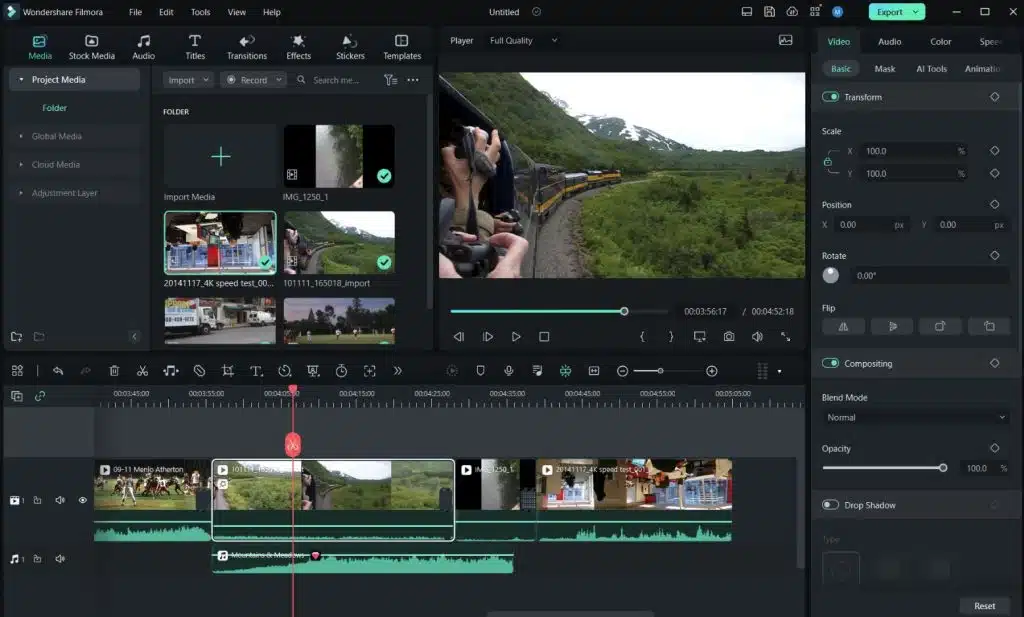
3. Filmora – Best for Creative Video Editing with User-Friendly Tools
Source: Wondershare Filmora
Filmora is a powerful yet user-friendly video editing software developed by Wondershare. Designed to cater to both beginners and experienced editors, Filmora offers a wide range of creative tools and features, making it easy to produce professional-quality videos. Its intuitive interface and drag-and-drop functionality allow users to quickly edit videos with minimal effort.
Focus: Content creators and small business marketers
Features:
Intuitive drag-and-drop video editing
Extensive library of effects, transitions, and royalty-free music
Advanced editing tools like keyframing, motion tracking, and color grading
Supports 4K video editing and multiple formats
Direct sharing to social media platforms
Built-in screen recording for tutorials or gameplay
Pros:
Easy to learn for beginners, yet powerful enough for advanced users
Wide variety of creative effects and templates
Affordable pricing compared to professional editing software
Regular updates with new features
Supports macOS and Windows
Cons:
Free version includes a watermark on exported videos
Limited advanced tools compared to high-end professional software
Some features require additional downloads
Available on: macOS, Windows
Pricing: Filmora offers a free trial with watermarked exports. Paid plans start at $4.99.
4. Inshot – Best Capcut Alternatives for Quick Social Media Edits
Source: eps-production.com
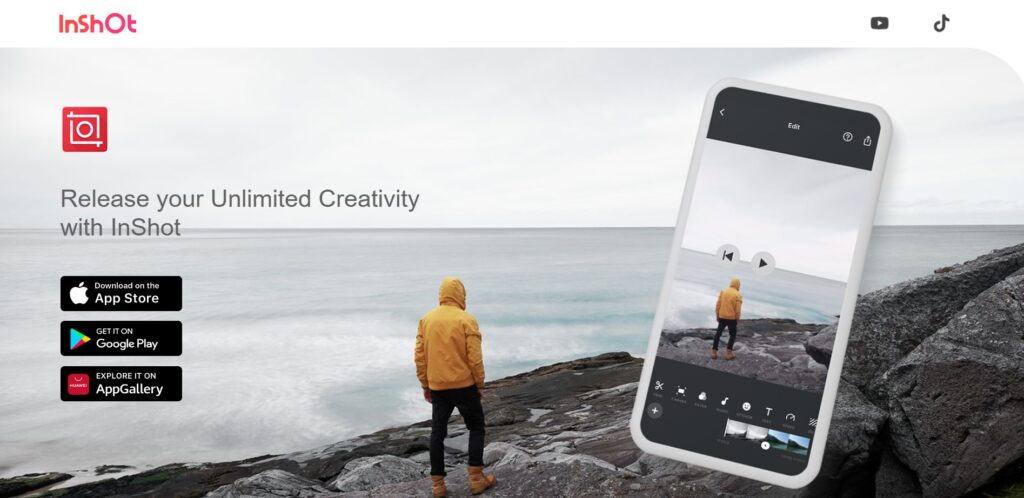
InShot is a user-friendly app with many features for creating amazing social media content. Trim clips with precision, add trendy transitions, spice things up with text overlays and animated stickers, and create eye-catching intros and outros. InShot’s intuitive interface and vast music library make it easy to whip up engaging content for Instagram, TikTok, and beyond. That’s why many people prefer using this app as their CapCut alternative for Android.
Focus: Social media creators
Features:
Easy-to-use editing tools
Trim/cut videos
Add music, text, and filters
Various social media templates
Pros:
User-friendly interface
Comprehensive toolbox
Music and sound effects library
Free with minimal ads
Cons:
Advanced features missing
Watermark on the free version
Limited text manipulation
Available on: iOS and Android
Pricing:
Free plan with watermark and limited features
Premium plan starts at $3.99 per month
5. VEED – Best for Cloud-Based Collaborative Editing
Source: veed.io – capcut alternative for pc free
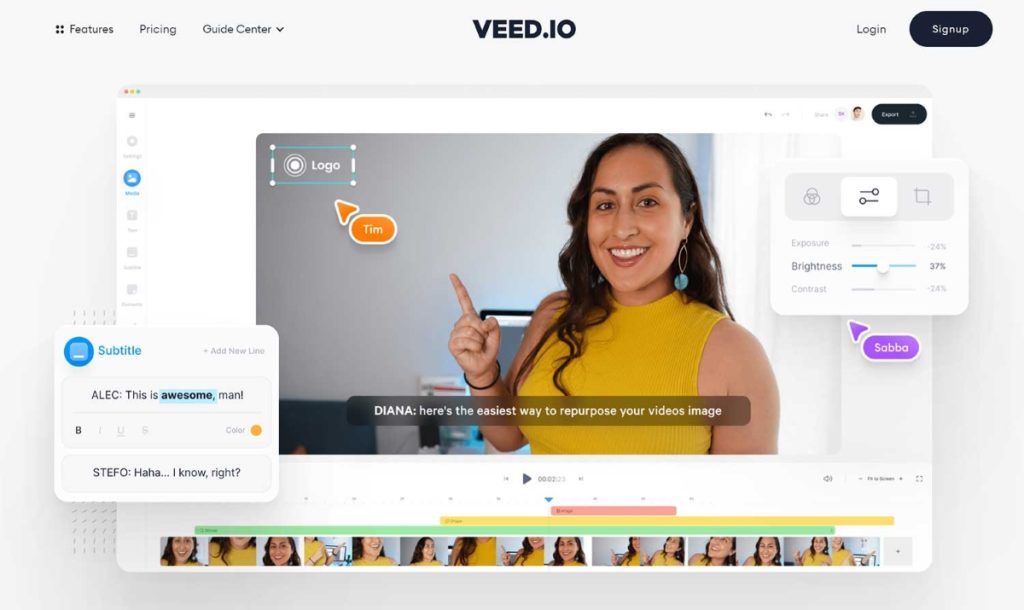
Feeling overwhelmed by editing chaos? VEED.io throws you a digital life preserver. Its intuitive interface guides you through the editing jungle, while AI superpowers like auto-subtitles and smart trimming tame unruly footage. Craft captivating videos, inject vibrant personality with emojis and music, and VEED.io ensures your creative spark ignites into stunning visuals.
Focus: YouTubers, organizations, and business
Features:
Cloud-based editing
Real-time collaboration
Seamless screen recording
Automatic transcription and captioning tools
Extensive stock media library (copyright-free)
Pros:
Versatile platform caters to diverse creator needs
Intuitive interface and AI features make editing easy
6. Klap – Best for AI-Powered Video Editing with Storyboard Creation
Teamwork makes the editing dream work, and Klap brings your squad together. Edit in real-time, share feedback seamlessly, and watch your collective vision rise from pixels to polished masterpiece. Klap is the digital campfire where creativity sparks fly, uniting your team to conquer any project. If you are also looking for CapCut alternative for iphone, Klap can be a worthy option.
Focus: Social media creators
Features:
AI-powered editing suggestions
Seamless storyboard creation
Automatic scene detection
Smart long-video trimming
Direct social media integrations
Pros:
Perfect for teams with its collaborative features and project management tools
Screen recording and live streaming options add versatility
The free plan offers basic collaboration features
Cons:
Not ideal for solo creators due to the collaborative focus
Limited editing tools compared to other options
Available on: iOS and Android
Pricing:
Free plan with limited features
The premium plan starts at $23.2 per month
7. GoPro Quik – Best for Action-Packed Videos with GoPro Integration
Quik is a free mobile app developed by GoPro specifically designed for editing action-packed videos. It uses intelligent editing tools to analyze your footage and automatically create dynamic, short videos with transitions and effects. Quik integrates seamlessly with GoPro cameras, allowing you to import and edit your footage anywhere, anytime easily.
Focus: Social media creator
Features:
Automatic video creation with intelligent scene detection and editing
Pre-made video templates
Drag-and-drop editing for manual adjustments
Supports multiple video clips, photos, and music tracks
Integrates directly with GoPro cameras
Pros:
Ideal for editing action sports and adventure footage
Intelligent editing saves time and effort
User-friendly interface with a gentle learning curve
Free to use with no watermarks
Cons:
Limited editing functionalities compared to professional video editing software
Fewer customization options compared to some other mobile editing apps
Available on: iOS and Android
Pricing:
Quik is a free app with no in-app purchases or premium tiers.
7. LumaFusion – Best for Powerful Mobile Video Editing
LumaFusion is a professional-grade video editing app designed specifically for iPhones and iPads. It offers various advanced editing features, including multi-track editing, chroma key compositing, audio mixing, and motion graphics. LumaFusion allows for precise edit control and provides a powerful solution for mobile video creators.
Focus: Mobile video creators
Features:
Multi-track editing for video, audio, and titles
Powerful trimming and cutting tools
Advanced effects like green screen compositing and slow-motion
Audio mixing with multiple tracks
Motion graphics and title creation for a polished look
Supports external storage devices
Pros:
The most powerful and feature-rich mobile video editing app available
Ideal for professional and semi-professional content creators
Offers precise control and flexibility for advanced editing tasks
Cons:
Steeper learning curve compared to simpler mobile editing apps
The one-time purchase price may seem expensive for casual users
Available on: iOS (iPhone and iPad)
Pricing:
LumaFusion has a one-time purchase price of $29.99 (USD) with no additional subscriptions or in-app purchases.
8. KineMaster – Best for Layered Video Editing with Flexible Interface
KineMaster is a versatile mobile video editing app that offers a layered editing approach. It allows you to add multiple video, image, and text layers to create complex and visually engaging videos. KineMaster offers extensive customization and control, making it a favorite for mobile content creators.
Focus: Social media creators
Features:
Layered editing with multiple video, image, and text tracks
Chroma key compositing for green screen effects
Voiceover recording and audio mixing tools
Pre-made templates and effects for quick video creation
Asset store with royalty-free music, sound effects, and transitions
Export videos in various resolutions and formats
Pros:
Flexible and customizable layered editing approach
Wide range of features for advanced editing tasks
User-friendly interface with drag-and-drop functionality
Cons:
The free version has a watermark and export limitations
Premium subscription unlocks additional features and removes the watermark
Available on: iOS and Android
Pricing:
Free plan with a watermark and limitations on exported video resolution
Premium plan starts at $3.99 per month
Final Thoughts
From the list of best CapCut alternatives, it’s clear that each app is tailored to different user needs with unique features. For example, Eklipse stands out for streamers and gamers, offering tools to create engaging social media content; while InShot specializes in editing for platforms like Instagram and TikTok.
If you’re looking for a versatile option, Eklipse combines robust editing features for video creators, gamers, and streamers alike—making it a well-rounded choice for all your editing needs. Try Eklipse now for free!
Recursive Destruction, introduced in Season 1 of Marvel Rivals, is a unique mechanic that rebuilds destructible objects instead of simply destroying them. This dynamic feature changes the map layout and creates new tactical opportunities for players.
In this guide, we will explain how to trigger Recursive Destruction, its relevance to missions and events, and tips for maximizing its effectiveness in gameplay.
Destructible objects capable of Recursive Destruction emit a faint red glow with lines around them. These are primarily found on the Midtown map. Spotting these objects is the first step toward activating the mechanic.
Use Chrono Vision
Activate Chrono Vision (press B on keyboard or Right D-pad on a controller) to clearly identify Recursive Destruction objects. In this mode, red-glowing objects stand out, while regular destructible objects appear in yellow.
Attack the Object
Once located, repeatedly attack the red-glowing object. As the object undergoes repairs and changes its form, Recursive Destruction is triggered, altering the environment dynamically.
Locations
Midtown Map
As of Season 1, Midtown is the only map featuring Recursive Destruction. Familiarize yourself with this map to efficiently trigger the mechanic.
Specific Locations Within Midtown
A large, broken Iron Man suit located halfway through the map.
Various destructible buildings found in the third portion of the map.
Knowing these hotspots can save time and ensure success during gameplay.
Tips for Triggering Recursive Destruction
Play on Midtown: Use the “Quick Match (Midtown)” option to guarantee access to the map featuring Recursive Destruction.
Use Ranged Characters: Characters with ranged attacks are more effective for targeting distant objects.
Attacker Advantage: As an attacker, focus on triggering Recursive Destruction after capturing the first checkpoint.
Focus Fire: Concentrate attacks on a single object to activate the effect quickly.
Relevance to Missions and Events
Seasonal Missions
Certain missions in Season 1 require triggering Recursive Destruction. For example, the “Who Needs Damage Control?” challenge in the Midnight Features event involves triggering this effect three times in Midtown.
Event Rewards
Completing Recursive Destruction-related missions can yield valuable rewards, such as 100 Chronos tokens for completing the “Who Needs Damage Control?” challenge.
Conclusion
Recursive Destruction adds an exciting layer of strategy to Marvel Rivals’ gameplay. By understanding how to trigger this unique mechanic and where to find it, you can gain a tactical advantage and complete missions for valuable rewards. Make sure to utilize Chrono Vision and focus your attacks on red-glowing objects in Midtown to maximize your efficiency.
Stay updated on future game features and maps that may expand on this mechanic. For now, use this guide to dominate the battlefield and unlock new opportunities in Marvel Rivals.