Home Blog Page 172

What Does KEKW Means? What Are The Origins of It?

0

If you’ve been active on social media or engaged in Twitch chats, you might have come across the terms “KEK” or “KEKW.” While these expressions may seem perplexing if you’re not well-versed in geek culture, they hold significant meaning within the gaming community. In this article, we will delve into the origins and usage of KEK, explore its connection to World of Warcraft (WoW), and shed light on the popular Twitch emote known as KEKW!

The Origins and Meaning of “KEK”

Source: Sportshub

In World of Warcraft (WoW), when players from opposing teams communicate via chat messages, their words appear cryptically to one another. Interestingly, when one team sends “LOL,” it is displayed as “KEK” to the enemy team. Over time, this WoW-specific term seeped into wider internet culture and found its way onto platforms like Reddit, Twitter, and eventually Twitch.

What is Twitch Emotes?

Emotes serve as expressive icons or images used in Twitch chat to convey specific emotions or reactions. Users can access these emotes through drop-down menus or by using unique codes associated with each emote. While some emotes are universally available to all users, others may be exclusive to certain chats or require additional browser add-ons for activation.

“KEKW” on Twitch Chat Meaning

Source: Player Bros

“KEKW” is an evolution of the original “KEK” term and has become a beloved emote among Twitch users. When someone types “KEKW” in a chat message, it triggers an image of a laughing man to appear alongside their text. However, it’s important to note that this emote is only accessible to users who have installed the BTTV or FrankerFaceZ add-ons on their browsers, as these extensions enhance Twitch’s features and emote library.

The Laughing Man Behind “KEKW”

The laughing man depicted in the “KEKW” emote is none other than the late Spanish comedian El Risitas. Known for his infectious laughter, El Risitas gained international fame through a television segment where he hilariously chuckled at various anecdotes. His laughter has since become a symbol of amusement and joy within the Twitch community.

Conclusion

To sum up, “KEK” turning into “KEKW” shows how internet culture changes, especially in gaming circles. Knowing these terms helps you connect with gamers on Twitch. When you see “KEK” or “KEKW,” you’ll get the joke and be part of the fun!


Maximize your Black Ops 6 rewardsโ€”Create highlights from your best gameplay with with Eklipse

Eklipse help streamer improve their social media presence with AI highlights that clip your Twitch / Kick streams automatically & converts them to TikTok / Reels / Shorts
5 Strategies to Gain 1k Followers on Instagram in 5 Minutes

0
social media trend 2024

In today’s digital age, Instagram has become a powerful platform for content creators and influencers to showcase their work and connect with their audience. Aspiring streamers and video editors often strive to gain a substantial following on Instagram to boost their online presence. However, it’s essential to focus on organic growth rather than resorting to unethical practices like buying fake followers or using instant follower services. In this article, we will explore five effective strategies that can help you gain 1,000 genuine followers on Instagram in just 5 minutes.

1. Consistent Posting

Source: Web Eminence

One of the key factors in attracting followers on Instagram is maintaining a consistent posting schedule. Regularly sharing high-quality content not only keeps your existing followers engaged but also encourages new users to follow your account. Aim for at least one post per day, ensuring that each post is visually appealing and relevant to your niche.

2. Optimize Your Posts

To maximize the visibility of your posts and attract more followers, it’s crucial to optimize them effectively. Start by using relevant hashtags that are popular within your niche. Research trending hashtags and incorporate them into your captions strategically. Additionally, make use of geotags to target specific locations and increase the chances of being discovered by local users.

3. Utilize Instagram Stories

Instagram Stories provide an excellent opportunity for engagement and attracting new followers. Take advantage of features like polls, quizzes, and interactive stickers to encourage user participation. Engaging with your audience through stories helps build a personal connection and increases the likelihood of gaining new followers.

4. Create Interactive Content

Source: Single Grain

Interactive content is highly engaging and can significantly impact follower growth. Consider incorporating features like contests, giveaways, or challenges into your posts or stories. Encourage users to tag their friends or share your content for a chance to win prizes or be featured on your account. This not only increases engagement but also exposes your account to new potential followers.

5. Understand Your Target Audience

To attract the right kind of followers, it’s essential to understand your target audience. Conduct thorough research on the demographics, interests, and preferences of your ideal followers. Tailor your content accordingly to cater to their needs and desires. By creating content that resonates with your target audience, you increase the chances of gaining genuine and engaged followers.

Conclusion

In conclusion, gaining 1k followers on Instagram in just 5 minutes is an ambitious goal that requires a strategic approach. By consistently posting high-quality content, optimizing posts with relevant hashtags, utilizing Instagram Stories effectively, creating interactive content, and understanding your target audience, you can attract genuine followers who are genuinely interested in your work. Remember to prioritize organic growth over shortcuts for long-term success on Instagram as a content creator or gaming streamer.


Maximize your Black Ops 6 rewardsโ€”Create highlights from your best gameplay with with Eklipse

Eklipse help streamer improve their social media presence with AI highlights that clip your Twitch / Kick streams automatically & converts them to TikTok / Reels / Shorts


Play a Random Clip From Streamer on Twitch – Easiest Way!

0

Have you ever wanted to play a random clip from a streamer on Twitch? Maybe you want to show your viewers a funny moment from a recent stream, or maybe you want to surprise them with a clip from a streamer they don’t know about yet.

Twitch fosters interaction and community via features like raiding and shoutout commands with clips, enabling streamers to highlight others and give kudos to raiders.ย But how to play a random clip from a streamer on Twitch?

Luckily, it’s very simple! Now you can play a random clip from a raider using Twitch’s Shoutout command. Check this guide to learn how.

More on Eklipse Blog>>> How to Edit Twitch Clips to YouTube Shorts in 5 Steps

Step by Step Guide to Play Random Clip When Raided on Twitch

play random clip from streamer on twitch
clip player download

There are three steps that need to be taken to play a random clip when raided on Twitch:

  • First step: Find a third-party tool like Twitch Guru.
  • Second step: Copy and paste the link from Twitch Guru into your broadcasting software, such as OBS or Streamlabs OBS, using the browser source.
  • Third step: Once all the setup is complete, you can try using the /shoutout command in your Twitch chat.

Now, let’s delve into the detailed instructions.

Step 1: Use Twitch.Guru to Upgrade your โ€œShout Outโ€ Command

twitch guru shout out player
twitch guru shoutout not working

There are many tools to play a random clip from a streamer when raided on Twitch. One free and easy-to-use tool is Twitch.guru. It has a random clip player feature that you can use by following this guide.

  1. Head to Twitch.guru.
  2. Click Shout Out Player on the Free Tools section on the left sidebar menu.
  3. Insert your Twitch username.
  4. Now you can set up a few options such as Max Duration, Mute, and Turn text Display Off.
  5. Copy the Browser Source link on Twitch.guru

More on Eklipse Blog >> Twitch Emotes Not Showing Up? Try This 3 Quick Fix!

Step 2: Open your OBS (or any other broadcasting software) in your PC

twitch guru shoutout not working

The next step you need to do is paste that Browser Source link from Twitch.guru to your OBS or any other broadcasting software you are using.

To start embedding that link to your stream, you can follow this guide:

  1. Launch OBS.
  2. Click (+) button on the Sources part of the interface.
  3. Select Browser from the menu.
  4. Paste URL from Twitch.guru in the URL section of OBS.
  5. Now you can customize the position of the clip in your scene, change the size, etc.

Step 3: Start Playing Random Clip From Streamer When Raided on Twitch!

twitch shoutout extension
twitch guru alternative

Now that all the setup is done, you can start giving extra special Shout Out to the streamers when Twitch Raid is happening.

This is also really easy to do, youโ€™ll only need to use the Twitch commands to start doing it:

  1. Open your own livechat.
  2. Type the shoutout command (Twitch default command is /shoutout, but it is !so for some Twitch bots).
  3. Add username of the person who raided you to play the random clips (example: /shoutout xQc or !so xQc).

More on Eklipse Blog >> Top 5 Twitch Alternatives: Platforms, Sites, and Apps

Why Playing Random Clip From Streamer when Raided?

Playing a random clip from a streamer when raided serves several valuable purposes. 

Firstly, it introduces diversity and excitement to the raiding experience. By showcasing different content creators and their unique highlights, it keeps the audience engaged and intrigued. 

Secondly, it fosters a sense of community and collaboration among streamers. Featuring clips from other creators acknowledges their work and encourages reciprocal support. 

Moreover, it offers recognition to raiders, who often appreciate seeing their contributions acknowledged. Overall, playing random clips during raids enriches the streaming ecosystem by promoting interaction, sharing content, and enhancing viewer experience.

Conclusions

That’s all you need to do when you want to play a random clip from a streamer when raided on Twitch. It’s as easy as 1-2-3!

Have you ever dreamed of experiencing Twitch raid moments on your stream? To achieve this, you’ll need to boost your channel’s visibility by creating highlight clips and sharing them on social media platforms like TikTok.

Let’s try AI-clipping tool from Eklipse.gg to boost your streaming presence in social media! Click banner below to learn more about it.


Maximize your Black Ops 6 rewardsโ€”Create highlights from your best gameplay with with Eklipse

Eklipse help streamer improve their social media presence with AI highlights that clip your Twitch / Kick streams automatically & converts them to TikTok / Reels / Shorts

Frequently Asked Questions

How do you play a random clip from streamer when raided?

Use a chat bot command like “!clip” or “!random” to play a random clip from the streamer’s channel during a raid.

How do you watch streamers clips?

Visit the streamer’s channel and look for the “Clips” tab, or use the Twitch Clips website to search for clips by streamer or game.

How do you get a clip from a Twitch stream?

Visit the streamer’s channel and look for the “Clips” tab, or use the Twitch Clips website to search for clips by streamer or game.

How do you show random clips on Twitch?

Use a chat bot command like “!clip” or “!random” to display a random clip from the streamer’s channel during a stream

How to download someones Twitch clip?

Use a third-party tool or browser extension to download the clip from the streamer’s channel, or use the Twitch Clips feature to download the clip as an MP4 file.

Is there a clip command on Twitch?

Yes, many chat bots offer a clip command that allows viewers to create and play clips from the streamer’s channel.

6 Best AI Video Editors to Try in 2023: Save Your Time!

0

With the ubiquity of AI technology, itโ€™s no surprise that even our video editors are getting smarter. In fact, there is now a number of best AI video editor on the market that can help you create better videos, faster.

If youโ€™re looking for a video editor that can give you a competitive edge, here are the top 6 best AI video editors to try in 2023.

1. Recreate.ai – New AI Video Editor

best ai video editor app

Recreate.ai tool can enrich your recordings video with colors, textual styles, activities, video advances, and inventive overlays. Furthermore, you can make content for any web-based media effortlessly.

Pros

  • Helpful elements
  • Free for projects under 3 min/50 MB
  • One of the most straightforward AI Video editors

Cons

  • Adds watermark to free projects

2. Eklipse.gg – Best AI Video Editor (Pro Choice)

best free ai video editor

Another AI-powered video editor that is worth trying is Eklipse.gg. This app actually has a more specific use case compared to others, since it’s targeting streamers to help them create more content.

Eklipse.gg is an AI video editor that can automatically create clip or highlights from a stream. Other than that, this app is also completed with online video editor that can resize a video to TikTok format. The app is web-based and available for free! You don’t need to download anything to use it – just visit Eklipse.gg to start trying it out.


Maximize your Black Ops 6 rewardsโ€”Create highlights from your best gameplay with with Eklipse

Eklipse help streamer improve their social media presence with AI highlights that clip your Twitch / Kick streams automatically & converts them to TikTok / Reels / Shorts

Pros

  • Web-based app (don’t need to download any software)
  • Can convert short videos to TikTok format
  • Can automatically create clips from streaming
  • Got many features available for free

Cons

  • This tool might have a specific use case for streamers

3. Glia Studio – AI Video Editor

ai video editor online

GliaStudio by Gliacloud is an AI video editor that is packed with possibilities! They can edit a video with the quality of something you’d watch on the news.

If you want to make videos but don’t want to spend hours creating them, (or pay $1,000 per video), GliaStudio is a great choice for you.

Unfortunately, this AI video editor doesn’t have any free plan, and with only custom plan available to use.

Pros

  • Freeform accessible
  • Productive fundamental features like harvest, resize, and change
  • Quick working with cloud-based registering

Cons:

  • Freeform restricted to 1GB transfer and distributed storage

4. AIVO

automatic video editor

AIVO, an AI video proofreader, takes all the tedious work to change content into a narrating video. Furthermore, it improves the work process and has capacities like changing, rethinking, and inserting outlines.

It has a large of free-copyright images from Unsplash and Pixabay, which allows you to have more flexibility to your creation.

Pros

  • Free to download
  • Admittance to Shutterstock, Unsplash, and Pixabay
  • Upgraded work process

Cons

  • You’ll need to pay around $15 for full version of the app

5. YouCam Video

Meet YouCam Video, a revolutionary AI video editing app designed to transform your videos with cutting-edge features.

Leveraging the potential of AI, this app offers a range of exceptional capabilities, including AI-driven effects, background blur, motion tracking, object recognition, and seamless integration with popular social media platforms such as YouTube and TikTok.

Pros

  • Advanced AI portrait detection, ideal for social media videos
  • Real-time skin beautification and AR effects for creative enhancements
    Cons:
  • Limited advanced editing features compared to professional video editors.

Cons

  • Limited advanced editing features.
  • Currently available for iOS only.

6. Synthesia

Synthesia emerges as one of the most popular AI video editors in the market.

Empowering users with its advanced AI video generator feature, Synthesia facilitates the creation of professional-looking videos, producing realistic and engaging visuals effortlessly.

The app provides robust editing tools, including color correction and cropping, along with advanced effects like motion tracking and 3D rendering.

Pros

  • Specializes in creating music videos using MIDI files and AI-driven animations
  • Allows users to create visually engaging content without the need for advanced animation skills

Cons

  • Limited customization, not suitable for general video editing.

More on Eklipse Blog >> How to Create Reels with AI Tools for Streamers

Best AI Video Editor to Try

To sum it up, here’s the list of best AI video editor to try this year:

  • Recreate.ai
  • Eklipse.gg
  • Glia Studio
  • AIVO
  • YouCam Video
  • Synthesia

More on Eklipse Blog >> 5 Best AI TikTok Video Generators: Create More Content Instantly

Conclusion

That’s all the best AI video editor that you can try to use in 2022. Have you tried one of it? Don’t forget to check Eklipse blog from time to time for more software list recommendations!

How to Make a Horizontal Videos Vertical for TikTok?

0
TikTok
Source: Variety

Every content creator now has to know how to make a horizontal video into vertical for TikTok. This is essential for maximizing your audience’s convenience and boosting your popularity.

When creating TikTok content, it’s crucial to shoot videos that perfectly fit various screen sizes. Numerous studies have found that vertical videos are the best for this, as they seamlessly fit screens and allow easy content consumption on smartphones.

In today’s post, we will provide you with some tips on how to convert a horizontal video into a vertical format for TikTok. Without further ado, let’s dive in!

How to Make a Video Vertical for TikTok?

There are many options you can do to make a vertical video for TikTok.

The basic thing you can do is shoot your videos vertically, or you might want to use tools if you are looking to repurpose your landscape video to TikTok. Otherwise, you can stack two landscape videos into one so it becomes a vertical format.

Let’s breakdown those tips one by one!

make horizontal video vertical online

1. Shoot your videos vertically

One of the basic things to make vertical videos for TikTok is by shooting your video vertically.

This way, you won’t have to worry about changing the format of your video once you are done. Vertical videos are much easier to edit and afford you a lot of flexibility. Here’s how you can do that:

  1. Open the TikTok app.
  2. Press (+) button in the main interface.
  3. Hold your phone in a vertical position.
  4. Choose the duration of videos (15s, 60s, or 3m).
  5. Press the red button to start recording.
  6. After you’re done, you can apply all the effects and transitions then save your video.

2. Using auto-reframing tools

If you’ve already created a content but it’s in the landscape format like the one on YouTube, you might want to convert it into a TikTok vertical format.

To make horizontal video vertical for TikTok online, you can use auto-reframing tools – something like Eklipse.gg!


Maximize your Black Ops 6 rewardsโ€”Create highlights from your best gameplay with with Eklipse

Eklipse help streamer improve their social media presence with AI highlights that clip your Twitch / Kick streams automatically & converts them to TikTok / Reels / Shorts


Other than being an AI highlights generator from a stream, Eklipse now provides TikTok converter tool. With this tool, you can make any horizontal video become vertical easily!

Plus, you can edit the video as you want in Eklipse.gg. Add channel name stickers or copyright-free music with a plethora of layouts and overlay templates to choose!

All are available for free, and you can use the tools with your browser only! Try Eklipse now by clicking the link on the button above!

3. Stack photos and clips on top of each other

Another way to turn a landscape video into a vertical one is to stack clips on each other. This is great when you are collaborating with another creator on TikTok or want to make a comparison video. With the right editing, you can make the video look very aesthetic. You can do the same with photos, and stack them on top of each other.

More on Eklipse Blog >> How to Create TikTok with AI Generator: Streamer Must-Know

Why Do You Need To Make a Horizontal Video Vertical for TikTok?

convert horizontal video to vertical online free

Maybe you are now wondering why you need to convert horizontal videos to vertical? Here’s some benefit of creating vertical TikTok content:

Maximizing Audience’s Convenience

Everyone is basically holding their smartphone vertically. It has become the default orientation for most tasks in this gadget. Therefore, the majority of audience prefer not to bother with rotating the screen horizontally.

Preferred Across Social Media Platforms

The 9:16 vertical aspect ratio stands out as the optimal format for short-form video platforms such as TikTok and Instagram Reels. Interestingly, even traditional social media platforms like Facebook, Snapchat, and YouTube now support vertical videos.

FAQ

Q1. Is it more advantageous to shoot videos in vertical or horizontal format for TikTok?

Vertical videos are becoming increasingly popular on mobile-centric platforms like TikTok, where users predominantly consume content on their smartphones. This format aligns with the natural way users hold their devices, providing a more accessible and engaging viewing experience.

Q2. What is the recommended format for TikTok horizontal videos?

The recommended dimensions for TikTok videos are 1080ร—1920, with an aspect ratio mirroring that of a standard smartphone screen, which is 9:16.

Q3. How can you rotate videos on TikTok?

On the editing page, locate the “Rotate” icon positioned above the trimming bar. Simply click it to rotate your TikTok videos by 90, 180, or 270 degrees. Afterward, tap on the “Next” button to upload your rotated TikTok video.

More on Eklipse Blog >> How To Screen Share TikTok Live: All You Need to Know

Conclusion

So these are some ways you can use to modify the orientation of your TikTok videos. Your first choice should be to record videos in a vertical mode. If you have already recorded a video in horizontal mode, you can try applying the methods we talked about. Stay tuned for Eklipseโ€™s video editing updates if you want to give your TikTok videos a professional look!

In case you are new to TikTok and looking for a guide to creating a TikTok video from scratch, you can start with our article: How To Make TikTok Video? A Guide To Making Stunning Videos.

How to Make Kick Highlight From Stream: A Step-by-Step Guide

0
how to make kick highlight from stream featured image

As a Kick streamer, creating engaging content that retains your viewers’ interest is crucial. Making a Kick highlight from your stream that shows your best moments is an excellent way to achieve this.

In this article, we will guide you on how to make Kick highlight from stream. Keep reading and let’s learn how to do it!

Why You Should Create a Kick Stream Highlight

Creating a kick stream highlight is a great way to showcase your best moments and attract more viewers to your content.

A highlight reel can help you stand out from the crowd and give potential viewers a taste of what they can expect from your streams. In addition, you can share highlights to social media to reach a wider audience and build your persona.

More on Eklipse Blog >> How to Improve Kick Stream Quality: 10 Things to Check

How to Make a Kick Highlight from Your Stream

To start creating highlight from your Kick stream, you can follow this step-by-step guide:

Step 1: Live Stream to Kick

making kick stream highlights

The first step is to live stream your content on the Kick platform. Whether you’re playing a game, doing a talk show, or just chatting with your viewers, make sure to capture the best moments of your stream.

The easiest way to stream your content to Kick is by using Open Broadcasting Software (OBS). For a more detailed guide on setting up OBS for Kick streaming, check out our article on “How to Stream on Kick Using OBS Studio”.

Step 2: Download Your Kick VOD

how to make kick stream highlight

After you’ve finished streaming, download your VOD (Video on Demand) from Kick. To do this, you’ll need to set your VOD to public. After that, you can use a Chrome extension to extract your Kick stream VOD URL. Don’t forget to copy and paste it into VLC media player for downloading it.

For a more detailed guide, you can check out our guide on “How to Download Kick VOD and Clips”.

Step 3: Upload Your Kick VOD to Google Drive

Next, after youโ€™re done downloading your Kick VOD, youโ€™ll need to upload it to Google Drive, and set the link to be public. This will allow you to easily access and allow tools like Eklipse.gg to access your content.

Step 4: Use Eklipse to Create the Highlight

taking highlight of the best moment in kick stream

Once your VOD is uploaded, the next step is to use an AI highlight generator tool like Eklipse.gg to create your highlights. This tool can automatically create highlights from your stream, so there’s no need to scroll through hours of your VOD anymore.

To use Eklipse for creating your stream highlights automatically, all you need to do is paste your Google Drive link to Eklipse and hit the “Add Stream” button. Here are the step-by-step instructions:

  1. Go to Eklipse.gg

    Sign up and create your account to get started.

  2. Choose “Clips” > “Streams.”,

    The menu is on the the left side of Eklipse Dashboard

  3. Click the “Add Stream” .

    The button is on the right side of your interface

  4. Paste your Google Drive link in the designated box.

    Select the game that you played on your Kick VOD and write your “Stream Title.”

  5. After that, hit the “Use Google Drive” button.

Eklipse will process your stream for a while. When it’s done, Eklipse will give you the most exciting and funny highlights from your Kick VOD content so you can easily share it on social media or use it to create compilation content!

Step 5: Share to Social Media!

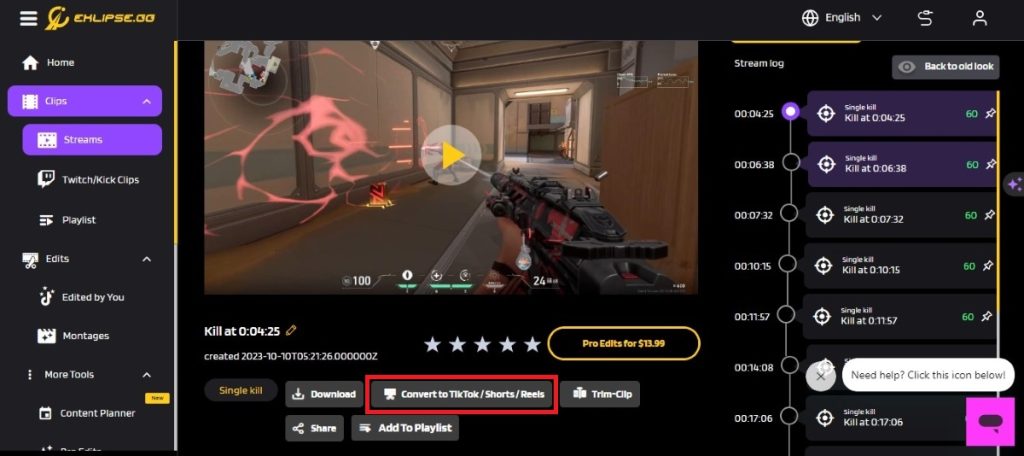
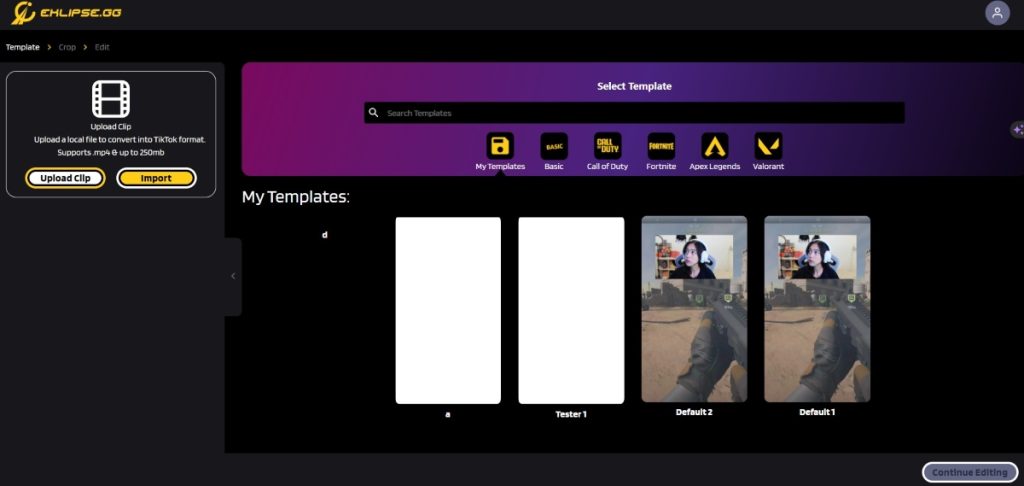
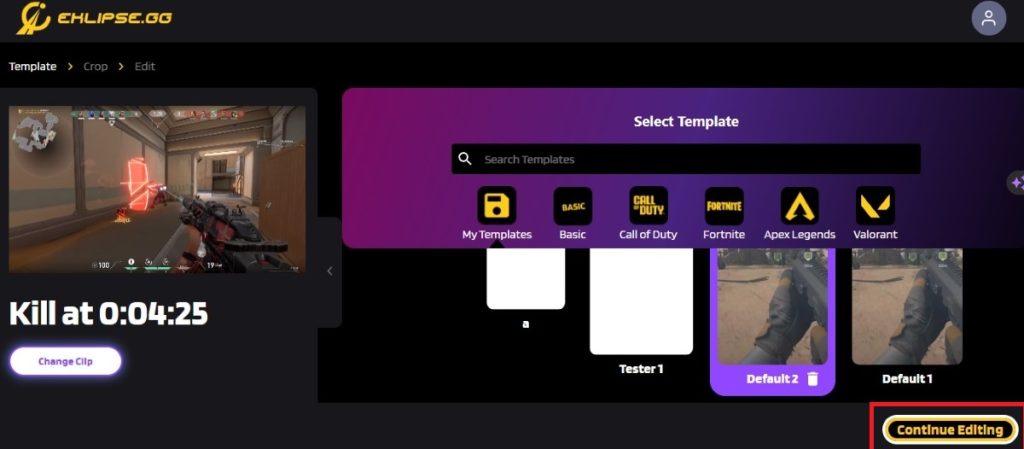
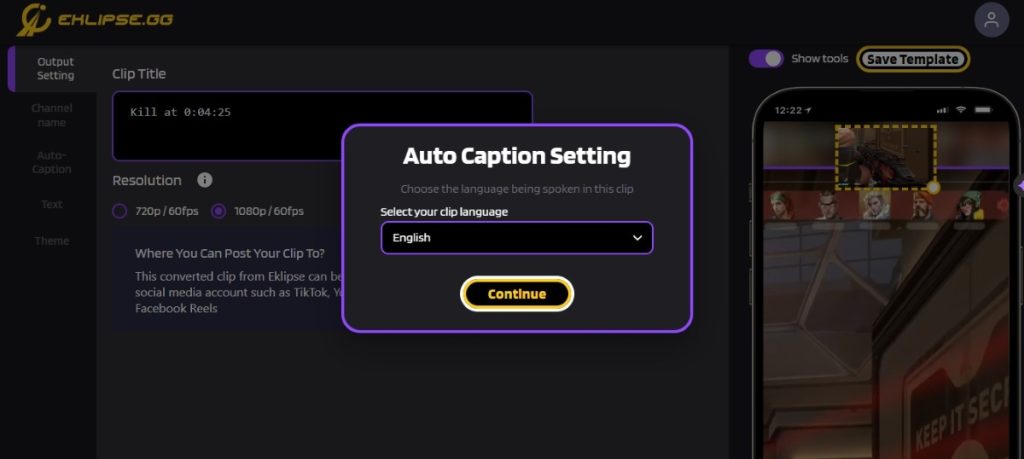
Finally, share your kick highlight on social media platforms like TikTok, Facebook Reels, or YouTube Shorts. Eklipse also has a โ€œConvert to TikTokโ€ tool that has simple drag-and-drop video editor workflow.

Make sure to use relevant hashtags and tag your streaming friends and communities to get maximum exposure. You can also upload your highlight to YouTube or other video-sharing platforms to reach a wider audience.

FAQ

Q1. What are Kick Clips, and how are they generated?

Kick Clips are short videos, up to 60 seconds in length, generated from a Kick livestream. These clips can be created by any logged-in user watching your stream or by the streamer themselves.

Q2. Does Eklipse GG integrate with Kick for stream clipping?

Absolutely! Eklipse AI now seamlessly integrates with Kick, allowing you to have your streams automatically clipped. Connect your Kick account to Eklipse for effortless stream highlights.

Q3. Can I clip from Kick VODs (Video on Demand)?

Navigate to the desired stream, hover your mouse over the video player, and look for the “Clip” button. Currently, it appears that clips can only be created for livestreams that are currently happening, not for previous streams.

Q4. Is Eklipse GG a free service?

Yes, Eklipse is 100% free, setting it apart from other Convert to TikTok tools. Enjoy a comprehensive suite of features, including templates, channel name stickers, auto-captions, and custom text. Enhance your online presence and attract more viewers effortlessly. Try Now!

Conclusion

Creating a kick highlight from your stream is a fun and effective way to showcase your best moments and attract more viewers to your content. By following these simple steps, you can create a polished and engaging highlight that will leave a lasting impression on your audience.

So why wait? Start making kick highlights today and take your streaming game to the next level!


Maximize your Black Ops 6 rewardsโ€”Create highlights from your best gameplay with with Eklipse

Eklipse help streamer improve their social media presence with AI highlights that clip your Twitch / Kick streams automatically & converts them to TikTok / Reels / Shorts

How to Add Pictures on TikTok Video Without Slideshow: A Step-by-Step Guide

0
How To Add Pictures On TikTok Video Without Slideshow
Source: CNET

Adding pictures to your TikTok videos without the slideshow effect is a great way to break up your content and make your videos more visually appealing. It can also be a good way to add humor or commentary to your videos.

There are a few different ways to add pictures to your TikTok videos without the slideshow effect. One way is to use the Green Screen effect. Another way is to use a video editing app like CapCut or InShot.

In this article, we will show you how to add pictures to your TikTok videos without the slideshow effect using both the Green Screen effect and a video editing app. We will also provide some tips on how to make your videos look their best.

How To Add Pictures On TikTok Video Without Slideshow
Source: CNET

Whether you’re using an Android, iPhone, or iPad, these techniques will help you customize your TikTok content and make it stand out from the crowd.

Using Green Screen with Multiple Pictures

To add pictures to your TikTok video without a slideshow using the Green Screen effect, follow these steps:

  1. Open the TikTok app and tap on the “+” button to create a new video.
  2. Select “Photo Templates” and choose a template that suits your style.
  3. Tap on the green screen icon at the bottom of the screen.
  4. Import multiple pictures from your gallery by tapping on the image icon.
  5. Adjust the size and position of each picture by dragging them around.
  6. Tap on the checkmark icon to confirm your changes.
  7. Record your video while showcasing each picture in different segments.
  8. Edit further if needed and proceed to post your customized TikTok video.

More on Eklipse Blog>>> How to Turn iPhone Live Picture into a Video for TikTok: 3 Easy Step

Using CapCut

CapCut is another fantastic TikTok video editor app that allows you to add pictures to your TikTok videos without creating a slideshow. Here’s how:

  1. Download and install CapCut from your device’s app store (available for both Android and iOS).
  2. Open CapCut and import the video clip where you want to add pictures.
  3. Tap on “Media” at the bottom of the screen and select “Image.”
  4. Choose multiple pictures from your gallery that you want to insert into the video.
  5. Adjust the duration and position of each picture by dragging them on the timeline.
  6. Customize transitions or effects between each picture for a seamless integration.
  7. Preview your edited video to ensure it looks just the way you want.
  8. Export the video and save it to your device.
  9. Open TikTok, tap on the “+” button, and select the edited video from CapCut.
  10. Add any additional edits or effects within TikTok if desired, and post your final creation.

Expert Q&A:

Q: Can I add captions or stickers to my pictures using these methods?

A: Yes! Both Green Screen with Multiple Pictures and CapCut allow you to add captions, stickers, and other overlays to enhance your TikTok videos further.

Tips:

  • Experiment with different transitions or effects to make your pictures blend seamlessly into your videos.
  • Use high-quality images for better visual impact on TikTok.
  • Consider adding background music or sound effects to complement your pictures.

Conclusion:

Adding pictures to your TikTok videos without creating a slideshow is easier than you might think. By using either the Green Screen effect with multiple pictures or CapCut app, you can customize each photo’s appearance and create unique content that stands out on TikTok. Remember to experiment with different techniques, transitions, and effects to unleash your creativity fully.

Now that you have learned these two methods, go ahead and start adding captivating pictures to elevate your TikTok game!

TikTok is the world’s most popular short-form video app, and it’s only getting bigger. But creating TikTok videos can be time-consuming, especially if you’re used to creating horizontal videos for other platforms like YouTube or Twitch.

That’s where Eklipse comes in. Eklipse is a powerful tool that uses advanced AI to automatically convert horizontal videos to vertical videos in seconds. So, if you have a library of horizontal videos that you want to share on TikTok, Eklipse can help you save a ton of time and effort.

Sign up for a free trial of Eklipse today and start converting your horizontal videos to vertical videos for TikTok automatically with our advanced AI.


Maximize your Black Ops 6 rewardsโ€”Create highlights from your best gameplay with with Eklipse

Eklipse help streamer improve their social media presence with AI highlights that clip your Twitch / Kick streams automatically & converts them to TikTok / Reels / Shorts

7 Tips to Boost Kick Stream Viewer Engagement

0

Are you looking for ways to improve your Kick stream viewer engagement? Whether you’re an experienced streamer or just starting out, there are a few strategies that can help you attract and retain more viewers.

In this article, we’ll share some tips to help you increase your Kick stream viewer engagement. Let’s dive in!

1. Use a catchy title

tips to Boost Kick Stream Viewer Engagement

The title of your stream is the first thing viewers will see, so it’s essential to make it catchy and attention-grabbing.

Use action words, exciting phrases, and keywords that describe your content to create a title that stands out. Your title should be clear and descriptive, but also engaging and compelling.

More on Eklipse Blog >> Go Live Notification Twitch Ideas and Guide to Attract More Viewers

2. Engage with your audience

Engaging with your audience is a crucial part of building a loyal following on Kick.

Respond to comments, ask questions, and encourage interaction during your stream. Make your viewers feel like they’re a part of the experience, and they’ll be more likely to stick around and come back for more.

In addition to responding to comments, you can also create polls, quizzes, create a play-together session or even open a media share donation session to engage with your audience.

You can try different interactive strategies between you and your viewers, and then focus on one or two successful sessions per week to keep your audience engaged.

3. Be authentic

Nevous streamer losing videogame, game over for man cyber playing online space shooter games with headset. Player performing on powerful computer talking with players on chat in gaming competition

Viewers can tell when you’re being fake, so it’s essential to be authentic during your Kick streams.

Be yourself, and don’t try to put on a persona that doesn’t feel natural. Your viewers will appreciate your honesty and be more likely to connect with you on a deeper level.

While a wacky and funny persona may be more favorable for viewers, you shouldn’t blatantly fake that persona just because it’s popular. The key is to strike a balance between being yourself and presenting the best version of yourself that is friendly and engaging.

4. Offer giveaways and rewards

Everyone loves free stuff, and giveaways can be an effective way to boost viewer engagement.

Consider offering prizes, exclusive content, or other rewards to viewers who engage with your stream. This can motivate your viewers to participate and keep them coming back for more.

Remember to keep interactivity while doing giveaways. Instead of just doing a random raffle with no interaction, you can call on your viewers and ask them questions or do quizzes.

Another idea could be to have a play-together session and set rules that allow your viewers to win a prize when they meet the game objective.

More on Eklipse Blog >> Top 9 Social Media Giveaway Ideas for More Followers (2023)

5. Collaborate with other streamers

Collaborating with other streamers is a great way to expand your audience and boost viewer engagement on Kick. Collaboration adds freshness to your stream content and creates a special event that may happen only once.

To collaborate, you can look for other streamers who create similar content and consider streaming together or hosting each other’s streams. This can help you reach a new audience and build relationships with other creators in your community.

6. Use high-quality visuals and sound

use high visual to Boost Kick Stream Viewer Engagement

The quality of your stream’s visuals and sound can have a significant impact on viewer engagement.

Make sure your stream is visually appealing and easy to watch, with clear audio and high-quality visuals. Invest in good equipment and software to ensure your stream looks and sounds professional.

More on Eklipse Blog >> Misconceptions on Live Streaming Equipment Every Streamer Must-Know

7. Promote your stream on social media

Boost Kick Stream Viewer Engagement

Finally, promote your Kick stream on social media to reach a broader audience.

Share your stream on your social media profiles, and consider joining online communities and groups related to your content. This can help you connect with new viewers and increase engagement with your existing audience.

Other than that, you should consider creating highlights of clips from your live stream session.

You can try tools like Eklipse.gg, an AI highlights generator that automatically creates highlight moments from your stream. Additionally, it has a “Convert to TikTok” feature so that you can easily edit any of your highlights into a vertical format that is currently trending.

By sharing your highlights content on social media platforms like TikTok, Reels, or YouTube Shorts, you can expand your discoverability and ultimately increase your viewership while boosting engagement through the daily digest of your content. Try it now!

Conclusion

In conclusion, increasing your Kick stream viewer engagement is all about creating a fun, engaging experience for your viewers.

Use these tips to attract and retain more viewers, and don’t be afraid to experiment with different strategies until you find what works best for you. With time and effort, you can build a loyal following on Kick and create content that resonates with your audience.


Maximize your Black Ops 6 rewardsโ€”Create highlights from your best gameplay with with Eklipse

Eklipse help streamer improve their social media presence with AI highlights that clip your Twitch / Kick streams automatically & converts them to TikTok / Reels / Shorts

Best 10 Twitch AdBlock To Try in 2024, Block Disturbing Ads!

0
Twitch Adblock
Source: Nord VPN

Watching our beloved Twitch streamers is always a delight, but now and then, those pesky ads can intrude upon the fun. If you are in such a predicament, why not delve into the realm of the top 10 Twitch ad blockers of 2024?

We recognize the significance of ads in helping streamers earn their livelihood, yet their abrupt interruptions can dampen the viewing experience. Nevertheless, it’s important to remember that employing Twitch ad blockers isn’t the ideal route if you wish to support your favorite streamer. Donating or subscribing to them serves as a more effective demonstration of your backing.

However, for those inquisitive souls seeking the ultimate Twitch AdBlock solution, let’s continue scrolling to uncover the answer!

1. TwiBlocker: Free Video AdBlock for Twitch

TwiBlocker - Video AdBlocker

Source: chrome.google.com

You may be aware of the importance of having a good ad-blocker if you want to stream without annoying commercials showing up on your screen. Thankfully, we have TwiBlocker.

TwiBlocker is a Chrome extension that will help you get rid of Twitch quickly. The interesting thing about this tool is it wonโ€™t require you to use a VPN, any external proxy, or even third-party scripts.

You can instantly say goodbye to all Twitch ads with only a single click on the toggle button. Sounds interesting, doesnโ€™t it?

In addition to that, TwiBlocker can also block any ads from your Twitch stream without reducing the quality of your streaming. So, you can still enjoy high-quality streams without hassle. 

Key Features:

  1. Blocks video ads on Twitch
  2. High-quality streaming without compromising video quality
  3. Easy toggle ON/OFF for ad blocking
  4. Displays a message after blocking ads
  5. No external proxy, VPN, or third-party scripts used

Pros:

  • Effective at blocking preroll ads
  • Blocks ads on Twitch
  • Easy to use and install
  • Does not require any technical knowledge
  • Can be used on multiple devices

Cons:

  • Does not work consistently
  • Causes the stream to freeze or stop playing
  • Requires manual adjustments to the ream quality

Best For: Users who primarily watch Twitch and want to block video ads without compromising their streaming experience.

Price: Free

2. TTV LOL: Best Custom Proxy Twitch AdBlock

TTV LOL

Source: ttv.lol

Another extension to try to get ad-free streaming is TTV LOL. TTV LOL is a popular Twitch ad blocker that many people recommend. It has been downloaded over 30,000 times with 4 stars from the Chrome store.

You can put this extension both on Google Chrome or Firefox. Additionally, TTV LOL promises to block livestream ads without affecting video quality nor causing purple screens of death like other extensions might do so check out all your favorite streams guilt-free.

Key Features:

  • Blocks video ads on Twitch
  • Improved ad-blocking method
  • Uses standard HTTP proxies for better proxy command-blocking and privacy
  • Stream status widget in the popup
  • Whitelisting channels and custom proxy support
  • Do not remove banner ads or ads from VODs
  • Recommended to use TTV LOL uBlock Origin for the best experience

Pros:

  • Effective at blocking video ads
  • Improved ad-blocking method
  • Better proxy compatibility and privacy
  • Stream ad-blocking for enhanced user experience
  • Custom proxy support for users who want to use their proxies

Cons:

  • Do not remove banner ads or ads from VODs
  • May work inconsistently across all streams
  • The extension is not updated frequently, which may lead to compatibility issues

Best For: Users who want to use a custom proxy for enhanced privacy and security.

Price: Free

3. uBlock Origin: Best Customizable Twitch AdBlock

The Ultimate Superuser's Guide to uBlock Origin - Make Tech Easier

Source: Make Tech Easier

uBlock Origin could be your alternative if you are looking for a tool that can quickly block any annoying commercials while enjoying your favorite stream. 

Whatโ€™s so special about this tool is that uBlock doesnโ€™t take up too much space in your memory. So, it will be a lot more efficient for your storage. As with other previous tools, uBlock Origin wonโ€™t affect the quality of the stream while blocking the ads.

Key Features:

  • Blocks ads, trackers, coin miners, popups, and other unwanted content
  • CPU and memory efficient
  • Supports multiple browsers including Chrome, Chromium, MS Edge, Opera, Firefox, and Safari
  • Available for desktop and Android versions
  • Includes various filter lists such as EasyList, EasyPrivacy, Peter Lowe’s Blocklist, Online Malicious URL Blocklist, and uBO filter lists
  • Allows users to select additional lists and create custom rules
  • Supports host files for blocking specific domains
  • Open-source with public license (GPLv3)

Pros:

  • Supports multiple browsers and platforms
  • Highly customizable with various filter lists and rules
  • Open-source and free
  • Efficient on CPU and memory
  • Supports host files for blocking specific domains

Cons:

  • Users need to manually select and configure filter lists and rules
  • May require additional technical knowledge for advanced features
  • Some users may experience issues with compatibility or performance

Best For: Users who want to customize their ad-blocking experience with various filter lists and rules

Price: Free

4. Purple Ad-Block: Twitch AdBlocker to Improve Speed and Privacy

Best adblock for Twitch (+ How to use adblock on Twitch)

Source: Comparitech

The next Twitch AdBlock option that should be on the list is Purple Ad-block. It is one of the most popular ad-blocking tools available for Twitch users. You can install it in both Chrome and Firefox.

However, you may want to consider getting it from Github if thatโ€™s your preference. This tool works by proxy M3U8 playlist files so videos donโ€™t have annoying advertisements playing during them.

Only working on the official Twitch Adblock site means there are fewer chances of tripped triggers from malware or other unwanted software trying to get through. 

Key Features:

  • Blocks ads on websites, including Twitch
  • Simple and attractive user interface
  • Supports multiple browsers including Chrome
  • Offers filter lists and custom filters
  • Allows website whitelisting
  • Blocks specific elements on a web page
  • Supports local caching for improved website speed and privacy

Pros:

  • Effective at blocking ads
  • Simple and easy to use
  • Supports multiple browsers
  • Offers customization options through filter lists and whitelisting
  • Supports local caching for improved website speed and privacy

Cons:

  • No information on script-blocking capabilities
  • No information on pop-up blocking capabilities
  • No information on the effectiveness of blocking specific elements on a web page

Best For: Users who want to improve their website speed and privacy through local caching.

Price: Free

More on Eklipse Blog >> How to Watch Twitch Without Ads: 100% Free Streaming!

5. TTV AdEraser: Best Twitch AdBlock to Enhance Watching Experience

TTV AdEraser

Source: TTV AdEraser

Users on Reddit have begun doubting the ability of this ad block to cope with purple screen errors. But V1.2 has fixed them. The developer promises that they will continue working hard to make sure these problems donโ€™t come back in future updates.

Anyway, TTV AdEraser seems to be unique since itโ€™s capable of muting any ads in Twitch without actually blocking them. It will turn the ads into a small mini-player in the bottom left corner of the page when they appear.

Then, it will hide again once the ad is over. So, you can still support your favorite streamers while not bothering to watch the ads themselves.

Key Features:

  • Blocks ads on Twitch live streams
  • Displays muted ads in a mini-player in the lower left corner of the page
  • Allows users to choose whether to display the mini ad player or not
  • Supports channel points
  • Detects and reloads the stream player if it encounters an error
  • Prevents streams from lowering their quality when in the background
  • Available on the Chrome Web Store
  • Open-source with an MIT license

Pros:

  • Effective at blocking ads
  • Offers a unique mini ad player feature
  • Supports channel points
  • Detects and reloads stream player errors
  • Prevents quality degradation when in the background
  • Available on the Chrome Web Store
  • Open-source with an MIT license

Cons:

  • May not work consistently across all streams
  • Users have reported issues with the extension not blocking ads effectively
  • The extension is still in development and may be buggy

Best For: Users who want to enhance their Twitch experience with features like channel points and stream player error detection

Price: Free

6. AdBlock Plus: Popular Twitch AdBlock

Adblock Plus โ€“ Dapatkan Ekstensi ini untuk ๐ŸฆŠ Firefox (id)

Source: Firefox adds-on Mozilla

AdBlock Plus is a popular browser extension that effectively blocks ads on various platforms, including Twitch, Facebook, and YouTube. It uses a combination of filters and algorithms to identify and block ads, ensuring that you don’t see any unwanted content. 

Additionally, AdBlock Plus is available for both PC and mobile devices, allowing you to access it on multiple platforms without any issues. This means you can use it on your desktop computer, laptop, tablet, or smartphone without worrying about compatibility issues.

Key Features:

  • Blocks ads on websites
  • Supports multiple browsers including Chrome, Firefox, Safari, and Internet Explorer
  • Offers customizable filter lists
  • Allows users to whitelist specific websites or elements
  • Includes features like Acceptable Ads, which allows non-intrusive ads to be displayed
  • Supports tracking protection
  • Available for desktop and mobile devices

Pros:

  • Customizable filter lists for tailored ad-blocking
  • Supports multiple browsers
  • Offers Acceptable Ads feature for non-intrusive ads
  • Tracks and blocks tracking scripts
  • Available for both desktop and mobile devices

Cons:

  • Some users may find the advanced features and options confusing
  • Some users may not like the fact that Adblock Plus accepts money from companies to whitelist their ads
  • Some users may experience issues with compatibility or performance

Best For: Users who want a reliable and widely supported ad blocker for both desktop and mobile devices.

Price: Free

More on Eklipse Blog >> How to Block Twitch Ads: 6+ Tested Ways in 2024

7. Total Adblock: Best Premium Twitch AdBlock

Total adblock, a Twitch adblocker

Total Adblock is one of the apps that can successfully eliminate all ads, pop-ups, notifications, and trackers on Twitch. It has a customization option, that allows you to whitelist some sites that you want/donโ€™t mind seeing ads. It also comes with antivirus in the pack, so youโ€™ll be protected from malware or spyware on the internet.

Key Features:

  • Blocks ads on websites, including YouTube video ads
  • Blocks third-party trackers to protect privacy and information
  • Improves page load times and enables faster browsing
  • Available as a browser extension and mobile app
  • Offers a free version with decent ad-blocking and tracker-blocking features
  • Premium plan includes TotalAV antivirus protection
  • Supports Android and iOS devices

Pros:

  • Easy to set up and use
  • The premium plan includes antivirus protection
  • Supports multiple platforms
  • Blocks trackers to protect privacy
  • Improves page load times

Cons:

  • The free version excludes the top 15,000 websites
  • Some users reported difficulty canceling payments
  • Annoying pop-ups prompt users to upgrade to premium

Best For: Users who prefer a premium ad blocker with various features and antivirus protection

Price: US$29 per year (promotional price, might change)

8. AdLock: Best Twitch AdBlock App

Adlock, a Twitch adblocker

AdLock is a popular ad blocker that effectively blocks ads on various platforms, including Twitch, Facebook, and YouTube. It offers a range of features such as whitelisting, blacklisting, and blocking of different types of ads like pop-up ads, tracking, and video ads. AdLock is available for both PC and mobile devices and provides 24/7 customer support through email, phone, and a knowledge base. It is considered a good ad blocker, although it may not be the best available, and is particularly effective for blocking social media ads.

Key Features:

  • Blocks ads on websites, including YouTube video ads
  • Blocks third-party trackers to protect privacy and information
  • Improves page load times and enables faster browsing
  • Available as a browser extension and mobile app
  • Offers a free version with decent ad-blocking capabilities
  • The premium plan includes additional features like anti-malware and social media ad-blocking
  • Supports multiple platforms including Windows, macOS, Android, and iOS
  • Offers 24/7 customer support

Pros:

  • Easy to set up and use
  • The premium plan includes additional features like anti-malware and social media ad-blocking
  • Supports multiple platforms
  • Blocks trackers to protect privacy
  • Improves page load times

Cons:

  • Some users reported difficulty canceling payments
  • Not as effective as some premium ad blockers
  • Limited customization options

Best For: Users who prefer an adblocker app rather than just an extension

Price:

  • Monthly: US$ 3.5
  • Yearly: US$ 2.8
  • 5 Years: US$1.05

More on Eklipse Blog >> Twitch Emotes Not Showing Up? Try This 3 Quick Fix!

9. NordVPN Threat Protection

Source: NordVPN

NordVPN’s Threat Protection is an additional layer of security that actively scans and blocks risky or malicious sites, files, and applications without requiring a VPN connection. 

This feature is included in all NordVPN plans and is available for different operating systems. It offers users an extra layer of security beyond the standard VPN protection, making it a valuable feature for those who want enhanced online security.

Key Features:

  • Blocks ads, including pop-ups, YouTube ads, and more
  • Blocks malicious websites and trackers
  • Scans downloaded files for malware and viruses
  • Offers DNS filtering for mobile devices
  • Available on Windows, macOS, Android, and iOS
  • Includes antivirus capabilities
  • Provides real-time protection against malware and viruses
  • Blocks phishing domains and links
  • Supports multiple devices and operating systems

Pros:

  • Comprehensive security features, which include antivirus capabilities and real-time protection against malware and viruses
  • Blocks phishing domains and links
  • Supports multiple devices and operating systems
  • Offers DNS filtering for mobile devices
  • Provides enhanced privacy and security

Cons:

  • Limited file scanning capabilities (only executable files)
  • Limited file size for scanning (20MB)
  • Higher cost compared to some other ad blockers

Best For: Users who want a comprehensive adblocker with antivirus, security, and privacy protection

Price: 

NordVPN Threat Protection is included in the NordVPN subscription package, so the price listed is for the NordVPN subscription.

  • Basic plan US$12.99 per month (monthly billing)
  • Plus plan US$13.99 per month (monthly billing)
  • Complete plan US$14.99 per month (monthly billing)

10. Surfshark CleanWeb

Source: Surfshark

Surfshark’s CleanWeb is an ad-blocking feature that works on web browsers and across apps. It alerts users to sites that pose potential risks for malware exposure, providing an additional layer of protection against malicious content. CleanWeb is included in all Surfshark plans, making it a standard feature for users who want a secure VPN and powerful ad blocker.

Key Features:

  • Blocks ads and trackers across multiple platforms, including browsers and apps
  • Includes features like a pop-up blocker, data breach alert, and malware alert
  • Available as a browser extension for Chrome, Firefox, and Edge, as well as a feature within the Surfshark VPN app
  • Offers DNS filtering and a list of known malicious ads and websites to block intrusive ads and trackers
  • Compatible with all major devices and browsers
  • Included in all Surfshark VPN subscription packages at no extra cost

Pros:

  • Offers a range of features beyond basic ad blocking, including pop-up blocking and data breach alerts
  • Easy to use and set up
  • Compatible with multiple platforms and devices
  • Included in all Surfshark VPN subscriptions
  • Offers robust protection against online threats

Cons:

  • Some users may find the additional features overwhelming or unnecessary
  • Limited customization options for the ad-blocking settings
  • May not be as effective against certain types of ads or trackers

Best For: Users who are already using Surfshark VPN and want to enhance their browsing experience with CleanWeb

Price:

  • Free with limited features
  • Surfshark Starter US$15.45 per month (monthly billing, including Surfshark VPN)
  • Surfshark One US$15.95 per month (monthly billing, including Surfshark VPN)
  • Surfshark One+ US$17.95 per month (monthly billing, including Surfshark VPN)

Choosing the Ideal Twitch AdBlocker: What to Consider

Selecting the best ad blocker for Twitch can be overwhelming with numerous providers available. To make an informed decision, focus on these key criteria:

1. Considerations for Devices and Browsers

Verify compatibility of adblocker with your preferred browser for Twitch streaming and your deviceโ€™s operating system.

2. Additional Features

Beyond ad blocking, seek features like an included VPN or antivirus for enhanced data and device security.

Ensure the chosen ad blocker effectively handles Twitch video ads and trackers. Look for top-rated blockers that also combat various malicious ads and online threats.

3. Price

Choose an ad blocker based on the value it offers. Higher cost doesnโ€™t guarantee suitability; prioritize features aligning with your needs.

Why Block Twitch Ads?

Blocking Twitch ads offers more than just resisting corporate intrusion; there are compelling reasons to opt for a reliable Twitch ad blocker:

  1. Seamless Streaming: Prevent interruptions and create a smooth, ad-free streaming experience.
  2. Stop Subscription Ads: Even with a paid subscription, ads may persist; an ad blocker ensures an ad-free experience.
  3. Avoid Loud Ads: Sidestep jarring video ads that can disrupt your experience, ensuring a more enjoyable viewing session.

Final Thoughts

Choosing the right ad blocker for Twitch is crucial to improve your viewing experience and keep those annoying ads at bay. When selecting an ad blocker, consider its compatibility with your devices and any additional features it may offer, such as antivirus protection.

After reviewing several options, TwiBlocker stands out as a reliable choice. This Chrome extension effectively blocks ads without the need for additional tools like VPNs. It’s easy to use, allowing you to quickly enable or disable it, and it excels at blocking video ads, ensuring a seamless Twitch experience.

If you are streamers who produce content on Twitch, consider enhancing your content with tools like Eklipse. Eklipse helps you generate bite-sized clips from your long-form videos, making it easier to engage your audience and grow your following. Try Eklipse now to know more!

Twitch Emotes Not Showing Up? Try This 3 Quick Fix!

0
How Long Does It Take for Twitch to Approve Emotes?

Twitch chat is a wonderful place to react to the streamers, especially with a bunch of hilarious Twitch emotes to respond to everything. However, there are cases where Twitch emotes not showing up and only appear as text.

So, what happens when this problem occurs? Let’s dive deep into the best troubleshooting for the Twitch emotes not showing up issue!

How To Fix Twitch Emotes Not Showing Up

fixing twitch emotes not showing up

So, how do you fix the problem when your Twitch emotes are not showing up?

Addressing emote display problems on Twitch varies depending on whether you’re using the desktop app or a web browser, but most solutions are applicable to both.

Here are some solutions that may work for you:

1. Fixing Twitch Emotes on Desktop App

If your Twitch emotes are not showing up, and you are using Twitch desktop app to watch your favorite streamers, there are several solutions you can try, including:

  • Login Again to Your Account โ€“ If you are using Twitch App, try to log out and then log in again to see if it will fix the problem.
  • Refresh your page – refreshing the page using “CTRL + F5” on Windows or “Command + Shift + R” on Mac.
  • Reinstall your Twitch App: Last resort to repairing this problem is by reinstalling your Twitch App. Just go to the Apps menu on Windows Settings, uninstall Twitch, then re-install it

More on Eklipse Blog >> How Long Does It Take for Twitch to Approve Emotes?

2. Installing Twitch Emote Extensions on Your Browser

Some of the Better Twitch TV plugin emote

For fixing third-party Twitch emotes, try to install FFZ or BTTV extensions (these two are very popular Twitch plugins), ensuring you select the right browser option.

To start enabling the custom to emote, you only need to choose one of the plugins. In this case, letโ€™s use Better Twitch TV as an example to enable so your Twitch Emotes can show up on the chat:

  1. Search BTTV or FFZ on your browser, then go to the website
  2. Click Download for Chrome, or Change Browser to find your browser of choice
  3. You will be brought to the extension page on Chrome Web Store or any other browser plugin page (ex: Firefox Browser Add-ons)
  4. Click Add to Chrome, then itโ€™s done

After installing the plugin, donโ€™t forget to refresh Twitch on your browser so your emotes can start showing up on the chat, then itโ€™s ready to go!

Are your Twitch emotes still not showing up? Letโ€™s get to fix number two.

Read More >>> What Does Sadge Mean? 4 Things to Know on Twitch Most Popular Emote

3. Clear your Browser Cookies and Cache

This solution seems trivial but sometimes it really works to fix every internet problem in the world, including the Twitch emotes not showing up issue.

To clear your browser cache (especially Chrome browser) you can follow these simple steps:

  1. Click three dotted lines in the upper right corner
  2. Choose Settings
  3. Type โ€œcacheโ€ on the search box
  4. Choose clear browsing data menu
  5. Unselect browsing history (or you can let it be selected if you want to clear all the data)
  6. Click Clear Data

More on Eklipse Blog >> Top 5 Twitch Alternatives: Platforms, Sites, and Apps

Why is my Twitch Emotes not Showing?

OMEGALUL, one of the Twitch Emotes that sometimes not showing

Actually, there are several reasons behind the Twitch emotes not showing up issue. It can be a server problem, might be using the wrong plugin, and many more.

But, there are some common causes that made your Twitch emotes not showing:

1. Error on the Twitch server

Just like any other app, there is a chance that this error happens because of the app itself. When this happens, just wait until it repaired by their technical team.

2. Wrong emotes plugins being used

Some emote need a 3rd party plugin to be used so they can show up on the chat.

3. Cookies and caches

Cookies and caches can be the culprit of every internet problem that ever happened to you. Though this problem seems trivial, sometimes it can โ€œmagicallyโ€ repair your problem.

4. Browser problem

A browser is another thing that can cause you a problem, so this is another thing that is worth checking out

5. Mistyping emote codes

t’s essential to get the code exactly right, including capitalization and spacing. One misplaced letter or symbol, and your emote won’t appear. Double-check the code before hitting “Enter” to avoid this pesky mistake.

6. “Subscriber only” special emotes

Some channels may have subscriber-only emotes or emotes that are only available to certain user groups. If you don’t have the right permissions, the emote won’t show up.

More on Eklipse Blog >> What are Bits on Twitch and Tips to Unlock it for Streamers

FAQ

Q1: Why are BTTV emotes not appearing on my Twitch chat?

To ensure BTTV emotes show up, click on the chat settings icon in the Live Chat’s lower right corner. Select BetterTTV Settings, and ensure both BetterTTV Emotes and BetterTTV GIF Emotes options are enabled. If you’ve toggled other buttons previously, turn them on again.

Q2: Why can’t I see OMEGALUL in chat?

If OMEGALUL is being spammed but no emote is visible, it’s likely that BetterTTV or FrankerFaceZ is not activated. To enable BTTV, visit betterttv.com, click Download, install the BTTV extension for your browser, and then log in at betterttv.com.

Q3: Why can’t I access free emotes on Twitch?

While many streamers offer free emotes, there’s a caveat. Streamers must be eligible for instant emote uploads to provide follower emotes. Twitch Partners of 60 days or more, without infractions for 60 days, can offer free emotes.

Q4: Can anyone have emotes on Twitch?

Global Emotes are accessible to all Twitch users, while Custom Emotes are unique to specific channels and are unlocked by subscribing to that channel.

Conclusions

Thatโ€™s all some solutions you can try to work on to fix when your Twitch emotes are not showing up. Hopefully, these solutions could help you with any issues that happen. 

If you are just started streaming and looking for a way to grow your channel, you might want to consider clipping your stream on Twitch and creating highlights from it. Now you’re lucky because there’s a way to cut all the processes and let AI create your best highlights AUTOMATICALLY.

Yes, thatโ€™s right! You can use Eklipse.gg, an AI highlight generator that automatically creates highlights from a stream. Even better, it can convert Twitch streams to TikTok videos. Go check it out and give it a try!


Maximize your Black Ops 6 rewardsโ€”Create highlights from your best gameplay with with Eklipse

Eklipse help streamer improve their social media presence with AI highlights that clip your Twitch / Kick streams automatically & converts them to TikTok / Reels / Shorts

Also check our blog for more relevant content about Twitch and streaming tips. Don’t forget to share this post on your socials if you found it helpful!