Home Blog Page 87

Top TikTok Slang Words and Phrases in 2024 You Should Know to Go Viral!

0

Are you curious about the secret language of Gen Z on TikTok? Let’s dive into the vibrant world of TikTok slang, where every scroll unveils a new term waiting to be decoded. From “FYP” to “CEO,” we’ve compiled the most popular TikTok slang word and phrases you need to know.

TikTok, the dynamic social media platform, has its own lexicon—a secret language that Gen Z users wield with finesse. Whether you’re a seasoned TikToker or a curious newcomer, understanding these trendy slang terms is essential.

Curious to learn more? Check out our full breakdown of TikTok slang terms and meanings to stay in the loop!

Ready to unleash your full potential? Join the Eklipse revolution here!

1. FYP (For You Page)

The FYP is your personalized TikTok feed. It showcases popular, viral, and random videos based on your interests.

You’ve likely also noticed the hashtag #FYP all over TikTok. Essentially, content creators employ the hashtags #fyp or #foryoupage to have their videos appear on your homepage, tailored by your personal algorithm, to gain a higher number of views.

2. CEO (Chief Executive Officer)

This TikTok slang words 2024 refers to someone who excels at something on TikTok. For example, if someone is exceptionally talented at dancing, you might say, ‘She’s the CEO of dance challenges!

3. PFP (Profile Picture)

PFP is your display picture on TikTok. This is one of most used gen z TikTok slang 2024.

More on Eklipse Blog >> 100+ Funny PFP For TikTok Free And How to Download It [2024]

4. POV (Point of View)

Another popular TikTok phrases is POV. It is used in captions to indicate the viewer’s perspective in a story telling. A “Point Of View” video also shows a situation as if you’re seeing it through your own eyes.

For example: “POV: You’re a detective solving a mystery.”

5. OOMF (One Of My Followers)

The TikTok slang funny OOMF stands for “One of my friends” or “One of my followers.” Urban Dictionary explains that OOMF is often used negatively to discuss people without directly naming them. For instance, someone might say, “OOMF liked my latest video!”

More on Eklipse Blog >> How To Hide Chats While Watching A TikTok Live: Android + iPhone

6. Heather

Have you ever heard about Heather on TikTok? TikTok users have contributed numerous new terms to the Urban Dictionary. One such term that has gained popularity in the past year is “Heather.” As of 2021, there are over 2.2 billion views associated with this hashtag (#Heather)

“Heather” originated from a song by Conan Gray, a popular TikTok artist. The song describes the common situation where the person you have a crush on is interested in someone else.

Urban Dictionary defines “Heather” as “When someone says that you are Heather, they mean that everyone can’t help but like you.”

7. IB (Inspired By)

Use the slang ‘IB’ (inspired by) to indicate that a video is inspired by another viral or notable TikTok video. For example, ‘This dance is IB @DanceQueen123!

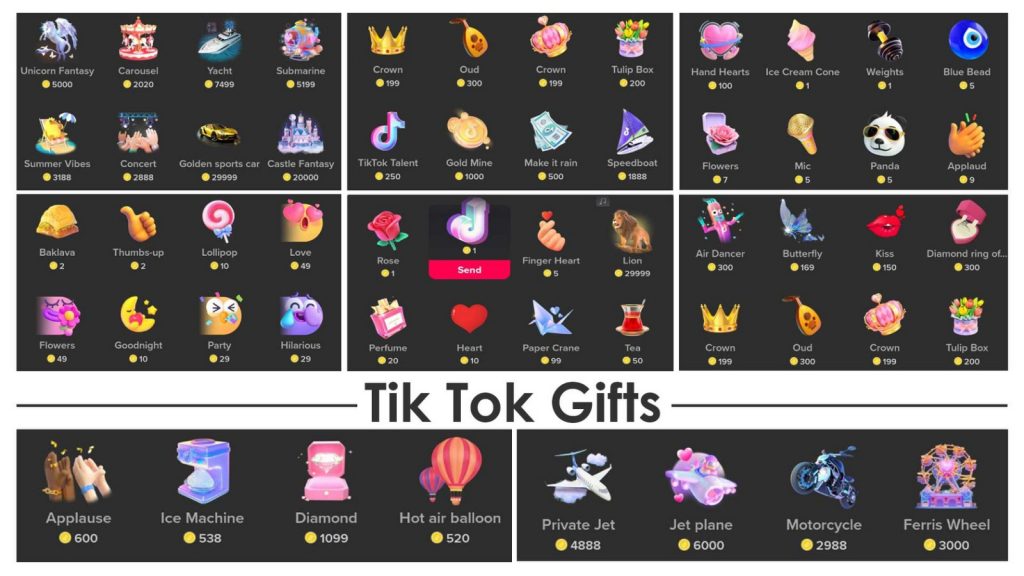
More on Eklipse Blog >> What is The Most Expensive Gift? How Much Does the TikTok Universe Cost?

8. DC (Dance Credits)

Besides ‘IB’, you can also use the TikTok slang ‘DC’ (Dance Credit) in 2024 to acknowledge the originator of a viral dance or challenge. Example: ‘Giving DC to @FunkyMoves for this awesome routine!

9. Alt TikTok (Alternative TikTok)

Alt TikTok means a quirky side of TikTok with unique humor and memes. For example, “I’m all about Alt TikTok—Frog TikTok is my jam!”

10. Simp

Another popular TikTok slang 2024 is Simp. Simp means someone who excessively admires or does anything for their crush. For example, “He’s such a simp for that TikTok star.”

More on Eklipse Blog >> Level Up Your Live Streams: Unlock Screen Sharing On TikTok Live (Easy Guide)

11. No cap

No cap is used to express honesty or truthfulness. It means “no exaggeration” or “no lie”. It is often used to emphasize a point, compliment someone, or show confidence.

12. Cheugy

This word is used to describe something or someone that is outdated, uncool, or cringey. It is often used as a form of self-deprecation or mockery, especially among Gen Z users.

13. Vibe Check

This funny Tiktok slang word is used to check in with someone and see how they are feeling or doing. It can also mean to give someone positive or negative feedback based on their mood, appearance, or performance.

Bonus: Go Viral on TikTok Faster with Eklipse

If you’re a content creator, you know that going viral on TikTok isn’t just about luck; it’s about strategy. While understanding TikTok’s popular slangs is one step to achieving stardom, you also need to start using Eklipse to boost your popularity faster.

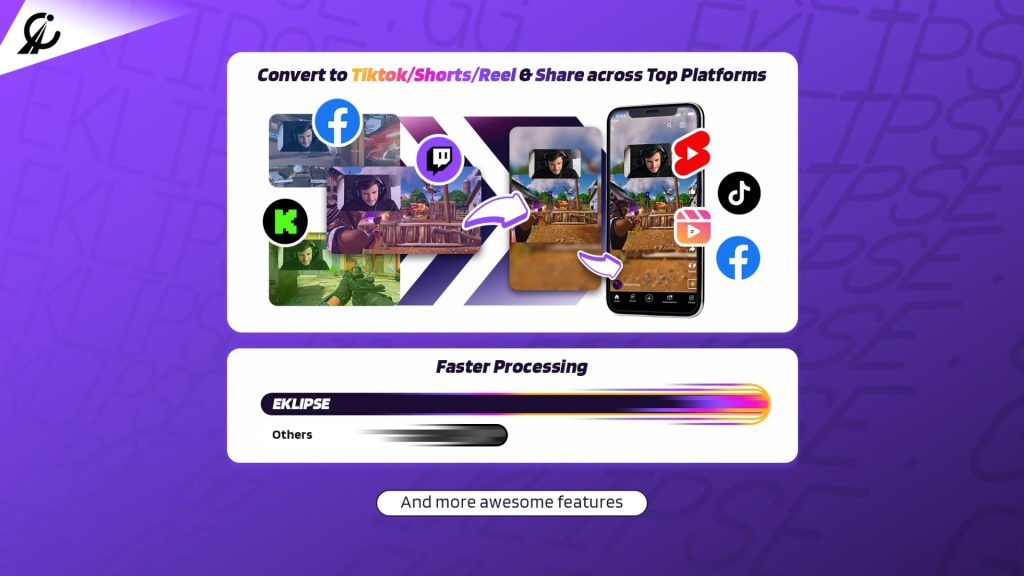
Eklipse.gg is your secret weapon for skyrocketing your TikTok game. This amazing AI video clipping tool automatically sifts through your Twitch, YouTube, or Facebook streams, pinpointing those electrifying moments that scream “viral.” It’s like having a personal editor at your fingertips. No more hours lost in manual editing—Eklipse does the heavy lifting for you.

What’s even more epic is that you can use various interesting features like auto-caption, label sticker name, emojis, adding songs, and content planner for FREE.

Eklipse VIP access is unlocked for free – Claim it now!

@eklipsegg

Eklipse offers the ability to take AI-generated highlights from ur stream, manual #clips from Twitch, or uploaded ones to create TikTok/Reels/#Shorts instantly and FREE! We have numerous templates, channel name stickers, DMCA-free music, and much more coming soon — including closed captioning & holiday themed templates! Why use anything else?! #streamer #twitchtips #streamertips #highlights #streaming #gaming #gamer #eklipse #eklipsegg #eklipsehighlight #athenascope #youtube #facebook #howto #fyp #callofduty #warzone #streamingtips

♬ original sound – Eklipse.GG

So let’s turn those gaming gems into TikTok gold! Sign up on Eklipse today and start gaining followers, boosting engagement, and basking in the glow of viral fame.


Maximize your Black Ops 6 rewards—Create highlights from your best gameplay with with Eklipse

Eklipse help streamer improve their social media presence with AI highlights that clip your Twitch / Kick streams automatically & converts them to TikTok / Reels / Shorts


Conclusion

Now armed with these essential TikTok slang terms, you’re ready to navigate TikTok like a pro. Whether you’re vibing on the FYP or decoding IB videos, remember: TikTok is all about creativity, fun, and staying in the loop. Happy TikTok-ing!

7 Ways How to Fix OBS Twitch Stream Black Screen in 2024

0
OBS Twitch Stream Black Screen
Source: YourSixStudios YouTube

Despite being a wonderful streaming software with all its features and ease of use, OBS Studio still has infamous downsides like the Black Screen. Well, some streamers reported that their OBS Twitch stream black screen while going live. 

The black screen glitch is mostly seen in the Windows platform and system. There are some possible causes of this typical glitch. Through this post, we’ll break down the causes, along with the solution to fix them. Without any more ado, let’s dive deeper into the article.

Clip like a pro, instantly! Eklipse turns your Twitch streams into captivating clips and shorts for YouTube, TikTok, and Instagram, maximizing your content reach and engagement.

@eklipsegg

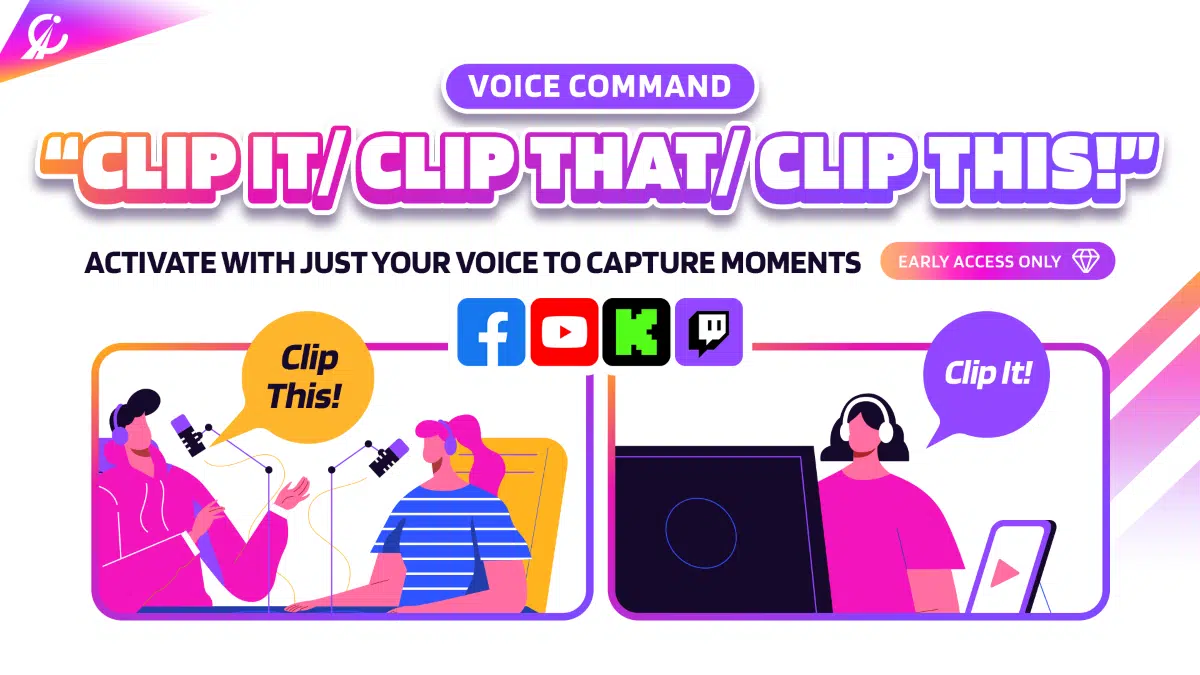
📣 Voice Command AI is available NOW on Eklipse! Simply say ‘Clip it’ or ‘Clip That,’ and our AI will recognize these keywords, creating highlights for you right after you end the stream!

♬ original sound – Eklipse.GG – Eklipse.GG

What Causes a Black Screen in OBS?

If you have the OBS black screen, you may run an outdated version of OBS that interferes with screen recording. Not only that, but some other factors can also be an issue. What are they?

  1. Dedicated graphic interfering – When launching a program or game, your operating system must decide which graphics processor to use – the dedicated card or the integrated one on the motherboard. This choice can affect the performance of the game or program and may cause issues with OBS.
  2. Lack of administrative rights – If OBS is unable to display your content, it could be because the computer is restricting its access to your screen. This problem can often be solved by simply starting the application with administrative rights.
  3. Compatibility issue – the error in OBS may be caused by the incompatibility of the software with the latest version of Windows. The OS simply doesn’t support the app you installed, making it doesn’t function properly. The solution is to update the system or choose the right OBS version, whether 32-bit or 64-bit.
  4. Overclocking – Overclocking is undeniably capable of improving PC performance. However, it has adverse effects on third-party software. Try to disable overclocking and see if it can resolve the problem.
  5. Conflict with similar software – If other similar software is running in the background, this software could potentially cause conflicts with OBS as they both try to access the same resources, resulting in OBS not functioning correctly, and causing issues such as the Black Screen error.
  6. Set the wrong capture option – OBS offers several capturing options such as specific or full-screen windows and more. It’s important to choose the right option when capturing content. Otherwise, it can result in an error issue.
  7. The computer is in an error state – If you run your PC for a long time without turning it off, you can put your computer in an error state. Try power cycling to get rid of the error.

More on Eklipse Blog>>> How to Stream on Twitch with OBS on PC: Complete Guide

Obs twitch stream black screen windows 10
Some things could probably cause OBS black screen issues | Source: Thomas Herceg

How to Fix OBS Twitch Stream Black Screen

Some simple steps have been already stated in the above section. So let’s see other potential fixes. 

1. Setting Up the Administrator’s Rights

As previously stated, the lack of admin rights can be the culprit of the black screen issue. To be able to resolve this problem, simply grant the app admin privileges by doing these steps.

  1. Find the OBS installation file on your device.
  2. Then, right-click on the app icon to open the drop-down list.
  3. Click the Open File Location.
game capture black screen obs
Source: Alphr – Obs twitch stream black screen ps4
  1. Now that a window pops up and shows the file, right-click on it and select Properties.
obs black screen windows 10
Source: Alphr – Why is my Twitch stream black screen?
  1. There will be another window appearing. Hit the Compatibility tab and navigate to Settings.
  2. Next up, tick the small box next to the “Run This Program as the Administrator” option to enable it.
twitch studio black screen
Source: Alphr – twitch stream black screen on mobile
  1. Finally, select Apply to save the changes and restart your PC.

2. Change the Drive permission

If OBS is installed on your C drive, you may encounter restrictions when trying to alter the software’s data content. These restrictions can cause problems with display capturing, so you’ll need to adjust the Drive Permission settings to fix the issue. Here’s how:

  1. First, make sure to log in to an account with administrative privileges.
  2. Hit the “Windows + E” button on the keyboard to open File Explorer.
  3. Locate the primary drive and right-click to see the drop-down menu.
  4. Select Properties.
twitch stream black screen with sound
Source: Alphr – Obs twitch stream black screen reddit
  1. Afterward, click on the Security tab and hit the Edit button to change the permission.
Source: Alphr – OBS Stream not showing up on Twitch
  1. Select the Authenticated User under the Group or User Name Box.
  2. Then, navigate to the Permission for Authenticated Users and enable the Full Control option.
obs preview black screen
Source: Alphr – OBS not steraming to Twitch
  1. If you are done with the changes, click Apply and then OK.
  2. Now, restart your PC and open the OBS app to see if its functions well.

3. Tweak the Compatibility Settings

The Black Screen problem can occur if the software version you’ve chosen doesn’t fit the latest Windows version. All you have to do is make some changes in the Compatibility Settings. Follow the guide to get it done.

  1. Find the OBS installation file and right-click to open the drop-down menu.
  2. Hit Open File Location from the menu.
  3. You’ll be brought to the destination folder.
  4. Once you’ve found the OBS file, right-click and click the Properties option.
  1. Hit the Compatibility tab in the pop-up box and find the Compatibility Mode section.
Source: Alphr – OBS live Stream Black Screen
  1. Tick the small box next to the “Run This Program in Compatibility Mode For:” option.
  2. After that, choose the current Windows OS version.
  3. Lastly, select Apply and OK, then restart the device.

4. Fix The Game Capture Black Screen OBS With Disabling Overclocking

Overclocking can lead to errors on software or apps, including OBS. But we got you. You can try to disable the feature to fix the bug. Don’t know how to start? This guide will lead you.

  1. To begin with, access the Charm Bar by holding the Windows + C key on the keyboard.
  2. Then, head to Settings and select Change PC Settings.
  3. From the list of options, choose General.
  4. Hit Advanced Startup > Restart Now.
  5. Open the Troubleshoot option and head to Advanced Options.
  6. There, select UEFI Firmware Settings.
  7. Next up, restart your PC to automatically launch the BIOS menu.
  8. After that, open the Advanced tab and hit Performance.
  9. Once you found the Overclocking option, disable it. 
  10. Save the changes and exit the BIOS menu by pressing the F10 on the keyboard.

5. Changing the GPU Settings

Changing the GPU settings is actually simple. Do the following steps and you’ll be able to troubleshoot the Black Screen problem on OBS.

  1. Starting off by accessing the NVIDIA Control Panel (right-click on the display).
  2. Go to the Manage 3D Settings tab and open the Program Settings option.
Go to ‘Manage 3D Settings’ | Source: Alphr
  1. Scroll down the list and find the OBS screen capture feature.
black screen on twitch
Find OBS as the program to customize | Source: Alphr
  1. In addition, if you are unable to find it, just hit Add and search for the OBS.exe file.
  2. Then, select the right graphic processor for the screen-capturing process.
obs video capture device black screen
  1. Once done, save all changes and restart your PC.
  2. Launch back the OBS app to see if the issue has been fixed.

It’s worth noting that this method will only work if your PC has a dedicated graphics card.

6. Update the OBS Software

The culprit of the black screen problem may come from the app end. There could be any bugs that significantly affect the function of the software. The best thing you can do is update the software. Here’s how.

  1. Open the Control Panel App by holding the Windows + S button on the keyboard.
  2. Hit the Program to open the list of apps installed.
  3. Then, scroll until you find OBS.
  4. Right-click on the installation file and hit Uninstall
obs stream is black
Uninstall the OBS to be re-installed later | Source: Alphr
  1. Restart your PC.
  2. Now, go to the official website of OBS to download the latest version.
  3. Once downloaded, install the app and give it a shot.

7. Power Cycling Your Computer

The last possible cause for a black-screen issue is when your PC is in an error state. We’ve mentioned that to resolve this problem, you can power cycle your computer. The steps are simple. Just follow the guide below.

  1. Shut down your computer.
  2. When it’s completely turned off, unplug the power outlet if you’re using a desktop computer.
  3. In addition, if you are using a laptop, remove the battery.
  4. Then, hold the power button for a few seconds to make sure all power is unloaded.
  5. Finally, leave it for the next 5-10 minutes and then restart.

Conclusion

Facing obs twitch stream black screen during streaming is undeniably sucks. But fortunately, it’s actually manageable. If someday you experience the blackout issue while streaming on Twitch or other platforms, feel free to revisit this blog to find out the cause as well as the solution to troubleshoot it.

Dream of going viral beyond your Twitch audience? Eklipse makes it possible! Our AI curates the most engaging moments from your streams, turning them into captivating highlights and shorts optimized for YouTube, TikTok, and Instagram. Attract new viewers, boost your discoverability, and watch your channels flourish with Eklipse.

Sign up for Eklipse today and start creating amazing videos from your OBS streams!


Maximize your Black Ops 6 rewards—Create highlights from your best gameplay with with Eklipse

Eklipse help streamer improve their social media presence with AI highlights that clip your Twitch / Kick streams automatically & converts them to TikTok / Reels / Shorts


What is Prime Gaming Rewards and How to Get It

0

If you’re looking to enhance your gaming experience with exclusive in-game content, free games, and more, Prime Gaming Rewards is the way to go. Available to Amazon Prime members, these rewards offer exciting perks. To claim your Prime Gaming rewards, simply visit the Prime Gaming website, select the rewards you’re interested in, and follow the instructions to link your accounts. It’s quick and easy to start enjoying your bonuses. Read on to learn more about the process.

Eklipse VIP access is unlocked for free – Claim it now!

What is Prime Gaming?

Prime Gaming is one of the benefits included with an Amazon Prime subscription, along with Amazon Prime and Prime Video. This feature offers various gaming perks at no extra cost. These include free games, a monthly subscription to a Twitch channel (where available), and additional benefits.

what is prime gaming
Source: gaming amazon – what is prime gaming

Key features encompass access to select game content, exclusive Twitch perks like a free channel subscription, special emoticons, more chat color options, a unique Prime chat badge, and extended broadcast storage on Twitch, increasing from 14 to 60 days. Availability of offers may differ by country.

More on Eklipse Blog >> How To Link Amazon Prime To Twitch From PC and Mobile Phone

What is Prime Gaming Rewards?

What is Prime Gaming Rewards?
Source: thirstymag.com – What is Prime Gaming Rewards?

Prime Gaming rewards are free bonus gifts that can be obtained if you subscribe to Amazon Prime. Some of these bonuses include:

  • Free Games: Prime Gaming offers a collection of free games that you can claim and play.
  • Monthly Twitch Channel Subscription: If available in your region, you get a free monthly subscription to a Twitch channel of your choice. This subscription comes with exclusive channel-specific perks like chat privileges, emoticons, badges, and more.
  • Exclusive Emoticons: As a Prime Gaming member, you gain access to special emoticons (such as KappaHD and ScaredyCat) that are reserved only for Prime Gaming and Turbo members.
  • Expanded Chat Color Options: Customize your chat experience by setting a unique chat color.
  • Member-Only Prime Chat Badge: Stand out in Twitch chats with a distinctive chat badge—the crown icon—identifying you as a Prime member.
  • Extended Broadcast Storage: Save your past Twitch broadcasts for 60 days instead of the standard 14.

Am I Eligible for Prime Gaming?

Am I Eligible for Prime Gaming?
Source: Eklipse Blog – Am I Eligible for Prime Gaming?

If you’re looking to access your Prime Gaming perks, it’s essential to ensure you meet the necessary eligibility criteria. Below is a comprehensive overview of who can access Prime Gaming and any important considerations to keep in mind.

  1. Amazon Prime Membership:
  • You must have an annual or monthly paid Amazon Prime membership to access Prime Gaming benefits.
  • Prime Student members are also eligible, but their benefits may be limited during free trial periods.
  1. Free Trials:
  • Users on Amazon Prime free trials can access Prime Gaming.
  • However, those on a Prime Video-only free trial do not qualify for all benefits, particularly the Twitch channel subscription.
  1. Amazon Household Restrictions:
  • Within an Amazon Household, only one member can redeem offers associated with Prime Gaming.
  1. Geographical Availability:
  • Prime Gaming is available in various countries, including the United States, Canada, the United Kingdom, Australia, and many European nations. If you reside outside these regions, you may need a Prime Video membership to access certain benefits.
  1. Special Considerations for Students:
  • Prime Student members during their free trial are entitled to only one Twitch channel subscription for a month as part of their membership benefits.

Important Notes

  • Free trials of Prime Video-only memberships do not qualify for certain gaming benefits like channel subscriptions on Twitch.
  • To fully utilize all features of Prime Gaming, ensure that your Amazon account is linked correctly.

More on Eklipse Blog >> Prime Gaming Roblox Rewards: How to claim?

Subscribe to Prime Gaming

subscribe to amazon prime gaming
Source: Eklipse Blog – Subscribe to Prime Gaming

If you have an Amazon Prime or Prime Video membership, connect your Amazon account. If not, ensure you are in a supported country or territory. Afterwards, follow these steps to subscribe to Amazon Prime Gaming:

  1. Navigate to Prime Gaming.
  2. Choose “Try Prime”.
  3. Verify the accuracy of your location when prompted.
  4. If the location is incorrect, click on “Change country” and select the correct one.
  5. Click “Continue”.
  6. Log in or set up an Amazon account.
  7. Proceed with the instructions to finalize the membership registration and link your account.

How to Claim Prime Gaming Rewards?

Amazon Prime Games
Source: GameSpot

So, how do you claim Prime Gaming Rewards? Here is the easiest way to follow:

  1. Visit the Prime Gaming website.
  2. Scroll down to find the game you’re interested in, or type the game name into the search bar.
  3. Click on the current reward pack.
  4. If you find a reward you’re interested in, click “Claim.”
  5. Follow the unique instructions to claim your in-game items.

It’s important to mention that you may be asked to link your Amazon and Steam accounts as a requirement to claim the reward. Remember to keep an eye on the Prime Gaming landing pages for new rewards each month!

More on Eklipse Blog >> Why Twitch Prime Sub Not Showing Up? 8 Reasons and How To Fix

FAQs

1. What is Prime Gaming?

Prime Gaming is part of Amazon Prime and Prime Video subscriptions, offering free games, a monthly Twitch channel subscription where available, and more benefits.

2. How Can Teen Accounts Claim Games and More?

Prime Gaming enables claiming of games and special offers, which may vary by country. For Teen Amazon account users on Household accounts, an adult member can:

  • Log into Prime Gaming.
  • Link their Amazon account with the Teen’s game account.
  • Select and claim the desired offer, following its unique instructions.
  • The Teen can then use the offer in-game.

Note: Offers can only be claimed once.

3. How Do I Claim Games and More?

To claim bonus games, exclusive in-game content, and special offers through Prime Gaming:

  • Visit Prime Gaming and log in.
  • Choose the offer to claim, following its unique instructions.
  • Sign up for email updates for future drops on some games by selecting the “Be in the know” button on the offer page, where available.

4. Which Countries & Territories Are Eligible for Prime Gaming?

Prime Gaming is available with Amazon Prime and Prime Video memberships in over 200 countries and territories, listing both Amazon Prime supported countries and PrimeVideo.com supported countries extensively.

5. Why Is There a Pending Charge from Amazon on My Card?

When signing up for Prime Gaming, a pending charge or authorization appears as we verify your payment method’s validity to protect your information and prevent fraud. This disappears within 10 business days after sign-up completion.

6. What is My Collection?

“My Collection” offers one-click access to your order history, claim codes, and delivery status of all your collected content, allowing you to:

  • Check delivery status and destination of each claimed game/offer.
  • Access claim codes after campaign ends.

7. What If My Collection Shows Delivery Status as Pending or Undelivered?

If a claimed offer’s delivery status is Pending or Undelivered, it suggests a delay in receiving the offer in-game or an issue with fulfillment, respectively. To address this:

  • For Pending status, log into the game with the linked account to access the content.
  • For Undelivered status, reasons could include issues with the game account. Contact customer support for help.
  • To change the game account linked to your Amazon account, follow the linking instructions provided on the Prime Gaming offer page. Note that instructions vary by game developer.

More on Eklipse Blog >> How to Subscribe for Free Twitch Prime

How to Subscribe to a Twitch Channel using Prime Gaming

To connect your Amazon and Twitch accounts, visit gaming.amazon.com and log in. After logging in, click on your profile name and choose “Link Twitch Account.” Proceed to the Twitch channel you wish to subscribe to and select the “Subscribe” button. Remember to check the option “Use Prime Sub.”

How to Link Your Amazon and Twitch Accounts

how to link amazon prime to twitch
Source: Live Streaming Tech YouTube

To link your Amazon and Twitch accounts, follow these steps on the Prime Gaming website:

For existing Prime members:

  1. Choose “Connect your Twitch account.”
  2. Log in to your Amazon account.
  3. Log in to your Twitch account and confirm the connection.

For non-Prime members:

  1. Select “Start your 30-day free trial of Amazon Prime.”
  2. Log in to your Amazon account.
  3. Log in to your Twitch account and confirm the connection.
  4. Review your details and select “Start your 30-day free trial” to complete the process.

Linking your Amazon account with a Twitch account can help you enjoy the Prime benefit of a complimentary subscription. However, it is not required to access other Amazon Prime benefits.

More on Eklipse Blog >> How to Link Amazon Prime to Twitch: 3 Simple Steps To Do

FAQ

1. How to use Amazon Prime Gaming?
To use Amazon Prime Gaming, visit the Prime Gaming website, log in with your Amazon account, select the rewards you’re interested in, and follow the instructions to link your game accounts.

2. Is Call of Duty on Prime Gaming?
While specific offers may vary, Prime Gaming regularly features rewards for many games, including exclusive content for popular titles. Check the Prime Gaming website for the latest rewards available for Call of Duty.

3. Is there no more Prime Gaming loot?
No, Prime Gaming still offers loot and rewards. New in-game content, free games, and Twitch perks are available each month, so be sure to check the Prime Gaming website regularly for the latest offers.

Conclusion

Claiming your Prime Gaming Rewards is an easy way to enhance your gaming experience with free games, exclusive content, and more. Don’t forget to check the Prime Gaming website regularly for new offers. If you’re a content creator looking to level up your Twitch streams, try Eklipse — the ultimate AI video editing tool for free. Save time and transform your content into viral clips with just one click!


Maximize your Black Ops 6 rewards—Create highlights from your best gameplay with with Eklipse

Eklipse help streamer improve their social media presence with AI highlights that clip your Twitch / Kick streams automatically & converts them to TikTok / Reels / Shorts


7 Best Restream Alternatives & Competitors for HD Videos (Free & Paid)

0
Source" Restream.io

Restream is a tool that will help you to do live streaming and editing of your video. Despite its powerful features, not everyone clicks with Restream. Maybe some of you will not find certain features that will help you improve the video in it. That’s why you need any Restream Alternatives.

In this article, we’ll give you some insights about any streaming software with similar features and functions. Without any further ado, let’s start the discussion.

You stream, we clip. Try Eklipse today for free

Wirecast

Restream Alternatives
Source: telestream

Wirecast is one of the Restream alternatives that offers many features essential for multistreaming. It allows you to stream directly to popular platforms and simultaneous recording.

On top of that, Wirecast gives you control over your stream with their plugin integration for Elgato Stream Deck.

They also let you customize your stream more with layer-based compositing, chroma key, and overlays. Wirecast offers you 2 types of plans, Wirecast Studio for $599 for a lifetime license, or the more robust Wirecast Pro with a $ 799-lifetime license or a $35 per month subscription plan.

BONUS: Eklipse – The Best of Restream Alternatives

Eklipse: the best Restream Alternatives
Source: Eklipse

Eklipse is another choice of Restream. But unlike Restream or other previous tools, Eklipse doesn’t provide you with features that allow you to stream your video. However, you can use this AI-powered tool as a great video editor.

If you wish to capture the best moment from your video, you can do it automatically with Eklipse. All you need to do is connect Eklipse to your social media platforms such as YouTube, Twitch, or Facebook. Your streaming video will then be added to Eklipse, where you can clip it as you wish.

On top of that, Eklipse is a completely free tool to use. Though you use the premium features, you don’t need to worry about the price. Go try it today for free!


Maximize your Black Ops 6 rewards—Create highlights from your best gameplay with with Eklipse

Eklipse help streamer improve their social media presence with AI highlights that clip your Twitch / Kick streams automatically & converts them to TikTok / Reels / Shorts


Switchboard Live

Restream Alternatives free
Source: 50Wheel

Another Restream alternative you have to know is Switchboard Live. Compared to Restream, there isn’t much difference at all. You will be able to stream through multiple channels of your favourite platforms, embed links for ease of access, and even StreamShare where others can bring your stream to their viewers.

Switchboard Live is also perfect for those who want to start their streaming career as you can try their service for free, they don’t even need your credit card. However, it doesn’t support live chat unlike Restream

But it still allows you to engage your audience with other tools such as annotations, multi-camera feed, and live polling. You can see it as a more basic multistream software compared to Restream, and that might be what you seek when deciding which alternative you want.

Castr: A Must-try Tool of Restream Alternatives

Castr Live Streaming - Stream videos your way with Castr Live Streaming CDN  📡📺 | Product Hunt
Source: Product Hunt – restream alternative reddit

Castr is a bit different when you compare it side-by-side with other Restream alternatives. They essentially still offer you the same simulcasting service as the others. But on top of that, they also allow you to pick them for your main live stream and video hosting platform.

When you look at the main advantages of Castr, they let you use multiple kinds of ingesting which Restream might lack. Another feature you will like is how specialized their approach to simulcasting is. You will get the feature you need based on the type of content you stream.

For example, for an education-based stream, you want interactive chats and embed so you can host the classes on your own website. For gaming, you definitely want overlay, for sports streams you really want a rewind feature and the ability to turn them into VODs.

Splitstream

Source: Dacast – free restream alternative reddit splistream

While other Restream alternatives are filled to the brim with features, Splitstream takes a step back and offers you the only thing that matters most; the ability to simulcast reliably. Splitstream is designed to be simple and easy to use.

Splitstream offers you what is important and delivers them efficiently, which is super advantageous for those looking for what exactly a multistreaming tool is.

That said, Splitstream has 4 monthly plans for you to choose, they are Standard for $9.99, Pro for $29.99, Pro+ for $59.99 and Free. When you look at it, they all are very economic because at the end of the day you don’t have to pay for features you might not need.

Prism Live Studio

PC Guide] Guide for dropping frames | by PRISM Live Studio. Official | PRISM  Live Studio | Medium
Source: Medium – restream free alternative

Prism Live Studio is the Restream.io alternatives you want to pick when your focus is more to have better control over video editing and production than simulcasting. They will allow you to do simulcasting but that isn’t their main focus so expect very basic features for that. Due to that Prism Live Studio’s simulcasting service only limits you to several platforms, which may or may not be a deal-breaker for some.

However, one thing stands out, that their services are all free. This is big for people looking to start their streaming adventures but has a limited budget. On top of that, when you consider their robust video editor to support your stream it’s no brainer that this tool is a worthy adversary for Restream.

Streamlabs: One of The Restream Studio Alternatives

Streamlabs OBS might be your new favorite streaming app | Windows Central
Source: Windows Central

Coming from the giant streaming application, Streamlabs, while focused on live streaming features it also allows you to simulcast. While most of its user base uses it for streaming PC games, you are not limited only to that.

However, it needs to be addressed that while Streamlabs are free to use their simulcasting features requires you to upgrade your account to their premium subscription.

Although you have to subscribe for the simulcasting feature, what they offer to you is insanely useful. Setting up your multistream is super simple with just a toggle, even more, important is that they give you aggregated chat box, where you can see your chats from every platform in one place.

On top of that, you’ll also get other features from the subscription such as a panelled library, custom chatbots, increased storage, and their mobile app for you to stream from your phone.

Conclusion

From the list of Restream alternative free above, which one do you think is the best tool to help you live stream or edit video? Now you don’t have to worry about Restream pricing, just pick the best alternative as you wish!

Do you have any other restream alternative open source? Leave your comment below!

Best Realtime TikTok Followers Counter in 2024

0
tiktok counter tokcounter

Whether you are a content creator, a brand, or a fan, you might be curious to know how many followers and likes you or your favorite TikTokers have at any given moment. That’s why you need a real-time TikTok followers counter tool.

But with so many TikTok followers counter tools available online, how do you choose the best one for your needs? In this article, we will review the top 5 best real-time TikTok followers counter tools in 2024.

So, let’s get started!

Don’t miss the short-form wave! Eklipse is your one-stop shop for crafting viral Twitch, TikTok, and YouTube shorts from your streams, clips, and long videos. Register now and join the content creators who are winning the game.

@eklipsegg

Excited to announce our next big update for the Eklipse Mobile App! Now get (almost) all the benefits of Eklipse desktop but now on your phone 📱! Download our app today and see how you can create clips on the go 🚶! What’s ✨new✨? 1. Select which streams you’d like our AI to process 2. Review and select your favorite best highlights 🎞️ 3. Customize your clips with templates, webcam customization, channel stickers, text and auto-captions 4. Easily post to socials all on your phone Find our app by searching “Eklipse” in your app store!

♬ original sound – Eklipse.GG – Eklipse.GG

What is TikTok Counter?

A real-time TikTok followers counter tool is a web-based application that allows you to see the live count of followers and likes of any TikTok account.

You can use it to track your own growth, compare yourself with others, analyze your audience, and improve your content strategy. You can also use it to discover new and trending TikTokers and see who is gaining or losing followers the fastest.

tiktok counter follower

Here’s a list of the best TikTok counter tools you can find online for free!

More on Eklipse Blog>>> What is The Most Expensive Gift? How Much Does the TikTok Universe Cost?

1. TokCount

tiktok counter username

This is a web-based tool that allows you to see the live count of followers and likes of any TikTok account. You can use it to track your own growth, compare yourself with others, analyze your audience, and improve your content strategy.

You can also use it to discover new and trending TikTokers, and see who is gaining or losing followers the fastest. TokCount also has an Android app that provides convenient access to all its features.

More on Eklipse Blog>>> 10 Reasons Why Is Your TikTok Video Not Showing Up For Others [Fixed]

2. Countik

tiktok counter views

This is another web-based tool that offers realtime TikTok live follower count of any user on TikTok. You can use it to monitor your followers in real-time and see how they change over time.

Countik also provides a video view counter, which helps you track the popularity of your videos. Countik also has other features, such as compare users, analytics, hashtags generator, AI voice over, and video downloader. Countik is a free and comprehensive tool for TikTok users.

More on Eklipse Blog>>> How to Get TikTok Stream Key in 2024? All You Need to Know

3. TikTok Counter

tiktok counter download

This is a simple and easy tool that shows you the live follower count of any TikTok account, without using the app. You just need to enter the username and get accurate and updated data from TikTok. TikTok Counter is a fast and reliable way to check your followers in real-time.

More on Eklipse Blog>>> How To Refilm A Clip On TikTok: Easy Guide 2024

4. Livecounts

tiktok counter money

This is another web-based tool that offers realtime TikTok live follower count of any user on TikTok. You can use it to monitor your followers in real-time and see how they change over time. Livecounts.io also provides video view counter, which helps you track the popularity of your videos.

More on Eklipse Blog>>> How to Get 1k Followers on TikTok in 5 Minutes: 12 Easy Tips

Tips to Grow Your TikTok Followers Easily

tiktok follower count history

Growing your TikTok followers can be challenging, but not impossible. There are many tips and strategies that you can use to attract more fans and increase your engagement on the platform. Here are some of the most effective ones:

  • Hop on all relevant trends
  • Identify your target audience and create for them
  • Create educational content
  • Use trending hashtags
  • Promote your content on other platforms

Promoting your content on other platforms means that you can share your TikTok videos on other social media sites, such as Instagram, YouTube, Twitter, or Facebook, to reach more potential followers and increase your exposure.

However, different platforms have different formats and requirements for video content, such as aspect ratio, length, and quality. Therefore, you need a tool that can help you convert your videos to fit each platform’s specifications.

@eklipsegg

Eklipse offers the ability to take AI-generated highlights from ur stream, manual #clips from Twitch, or uploaded ones to create TikTok/Reels/#Shorts instantly and FREE! We have numerous templates, channel name stickers, DMCA-free music, and much more coming soon — including closed captioning & holiday themed templates! Why use anything else?! #streamer #twitchtips #streamertips #highlights #streaming #gaming #gamer #eklipse #eklipsegg #eklipsehighlight #athenascope #youtube #facebook #howto #fyp #callofduty #warzone #streamingtips

♬ original sound – Eklipse.GG

Eklipse is a tool that can do that for you. Eklipse is an AI-powered tool that automatically converts your streams and videos into viral clips. You can use Eklipse to create different kinds of vertical highlights from one long video, such as TikTok, Instagram Reels, YouTube Shorts, and more.

Eklipse also allows you to edit, caption, and personalize your clips, as well as schedule your posts and optimize your hashtags. Eklipse is a time-saving and user-friendly tool that can help you grow your TikTok followers by cross-promoting your content on other platforms.

Sign up now and discover how Eklipse can revolutionize your content creation journey.

Conclusion

TikTok is a powerful and popular platform that can help you reach millions of people and grow your personal or professional brand. However, to succeed on TikTok, you need to have a clear understanding of your followers and your performance. That’s why using a realtime TikTok followers counter tool is essential for any TikToker.

Want to grow your TikTok audience? Look no further than Eklipse!

Experience the magic of our AI-powered tool, seamlessly transforming your best gaming livestream moments into captivating TikTok/Short/Reels content with just a single click! 

Sign up for free at Eklipse.gg and dive into the world of effortlessly creating gaming video clips like never before. Elevate your channel with Eklipse and watch your community thrive!


Maximize your Black Ops 6 rewards—Create highlights from your best gameplay with with Eklipse

Eklipse help streamer improve their social media presence with AI highlights that clip your Twitch / Kick streams automatically & converts them to TikTok / Reels / Shorts


How to Create Call of Duty Mobile Highlights with AI

0

Call of Duty: Mobile, developed by TiMi Studio Group and published by Activision, is a wildly popular first-person shooter game for Android and iOS. Since its October 1, 2019 release, it has amassed over 270 million downloads and generated $480 million in revenue within a year.

Gamers often stream Call of Duty: Mobile on platforms like Twitch and YouTube Live, and to make these streams more engaging, you can use AI-powered tools like Eklipse. This article provides a concise guide on creating Call of Duty Mobile highlights using Eklipse.

Go from stream to viral with Eklipse! Effortlessly convert your Call of Duty long streams into shareable shorts that explode across social media and skyrocket your viewership.

Step-by-Step Guide to Creating Call of Duty Mobile Highlights

Creating Call of Duty Mobile highlights in Eklipse is easy. You only need to create your Eklipse account, connect it to your Twitch, YouTube Live, or Kick account, and Eklipse will generate clips from your past livestreams automatically.

Additionally, you can repurpose the clips for vertical short-form social media platforms such as TikTok, Reels, or Shorts. Using Eklipse Studio, you can add auto-captions, channel name stickers, or custom text to make your video more engaging.

Step 1 – Create Your Eklipse Account and Connect it to Your Twitch or YouTube

The first crucial step in creating Call of Duty Mobile highlights is setting up your Eklipse account and linking it to your preferred livestreaming platform, such as Twitch or YouTube. Here’s how to do it:

  1. Visit eklipse.gg and sign up to create your Eklipse account.
  2. Click on the User Profile Icon, then go to Account Settings.
  3. Under the Personal Details tab, click the “Add Account” button located at the top right corner.

Once you’ve successfully created your Eklipse account and linked it to your Twitch or YouTube, you’re ready to move on to the next step.

Step 2 – Stream on Your Twitch, Kick, or YouTube and Get Your Call of Duty Mobile Highlights on Eklipse

The next step involves streaming your Call of Duty Mobile gameplay on platforms like Twitch or YouTube. After your streaming session, you can retrieve your highlights on Eklipse.gg. Here’s how:

  1. Go to the “Clip” section and select “Streams.” You will find your past streams listed there.
    • Ensure that your Twitch or YouTube stream is set to public, so Eklipse can access your highlights.
  2. Click the “Get Clip” button and choose the Call of Duty Mobile category.
    • Be sure to set your game category to Call of Duty Mobile when you stream on Twitch or YouTube.
  3. Wait for a brief moment, and your Call of Duty Mobile Highlights will be ready for you!

Step 3 – Repurpose Your Stream Clip for TikTok/Shorts/Reels with Eklipse

In the final step, you can repurpose your Call of Duty Mobile highlights into formats suitable for TikTok, Shorts, or Reels. This allows you to promote your livestream content to a broader audience. Here’s how to do it on Eklipse:

  1. Select one of your highlights in the “Clip” > “Streams” section, and then click the “Convert to TikTok/Shorts/Reels” button.
  2. Choose a template that suits your style.
  3. Customize your video by selecting the face cam and gameplay area.
  4. Add text, channel name stickers, and auto-captions to make your clip more engaging.
  5. Click “Publish,” and you’re all set to share your Call of Duty Mobile highlights on social media.

More on Eklipse Blog > > 5 Content Repurposing Tips: Long Videos to Vertical Content

Conclusion

Creating Call of Duty Mobile highlights with the help of AI-powered tools like Eklipse can significantly enhance your streaming experience and attract a wider audience. By following this step-by-step guide, you’ll be well-equipped to capture your best gaming moments and share them with the world, whether on Twitch, YouTube, or social media platforms like TikTok, Shorts, or Reels. Start creating your highlights today and showcase your gaming prowess to a global audience.

How to Stream on Kick.com: A Comprehensive Guide 2024

0

Dreaming of sharing your gaming skills or creative talents with the world? Look no further than Kick.com, the up-and-coming platform built for passionate streamers like you. Learn how to stream on Kick.com, here!

Whether you’re a seasoned pro or an aspiring streamer, Kick offers a user-friendly experience and a supportive community. So, grab your mic, fire up your game (or camera!), and get ready to dive into the world of live streaming.

This guide will walk you through every step of going live on Kick.com, from setting up your account to hitting that “go live” button and captivating your audience!

Go from stream to viral with Eklipse! Effortlessly convert your Kick highlights into shareable shorts that explode across social media and skyrocket your viewership.

What is Kick.com?

Kick.com is a live streaming platform launched in 2022, aiming to compete with established giants like Twitch. It focuses on providing:

  • Looser moderation: Compared to its competitors, Kick allows for more relaxed content guidelines, attracting streamers who might prefer less restrictive policies.
  • Higher revenue shares: Kick offers streamers a larger percentage of their earnings compared to some other platforms, making it potentially more lucrative for creators.
  • Growing community: While still building its user base, Kick is attracting established streamers and viewers, creating a dynamic and evolving environment.

More on Eklipse Blog>>> What Is Kick Streaming: Everything You Need to Know

What you Need to Stream on Kick.com?

Before getting on to the How-to, you need to make sure you have these apps to support your Kick live streaming:

  • OBS (Open Broadcaster Software).
  • XSplit
  • Streamlabs Desktop

How to Go Live on Kick.com

To begin your Kick streaming journey, follow our guide on how to go live using Open Broadcaster Software (OBS), one of the major live streaming applications supported by Kick.com.

How to Stream on Kick.com

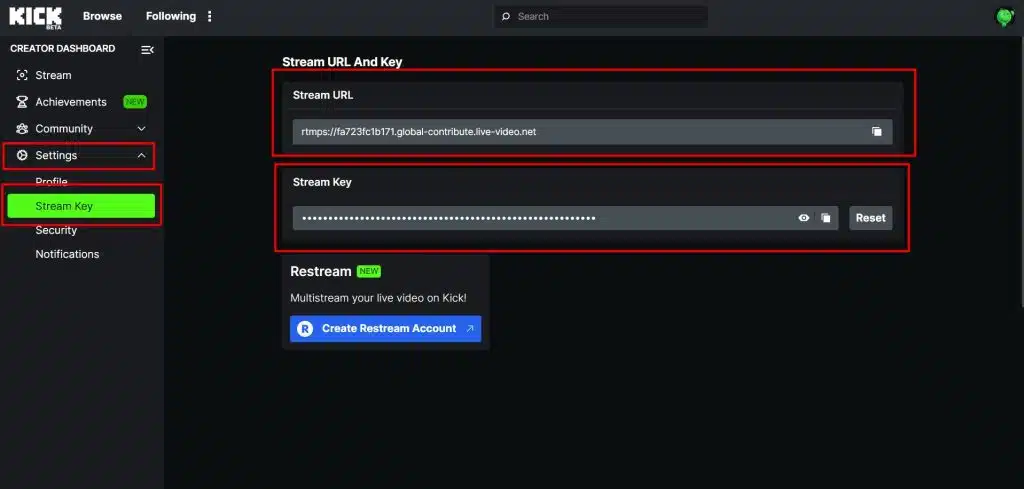
Step 1 – Stream Key + Server URL

Please ensure you are logged into your Kick.com account you wish to stream from and visit your creator dashboard.

  • Log into your Kick.com account
  • Visit your creator dashboard
  • Click the “Settings” menu item
  • Click “Stream Key”

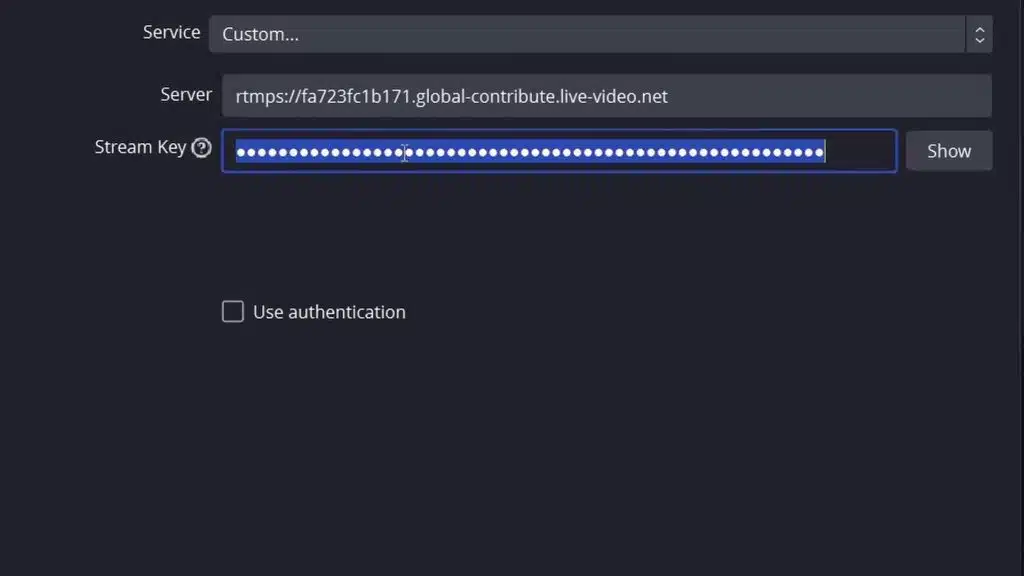
Step 2 – Adding Your Kick Stream Key to OBS

best streaming software for kick.com

This is how to add your stream key and stream URL to OBS.

  • Open OBS
  • Click “File”
  • Click “Settings”
  • Click “Stream”
  • Change the service to “Custom…”
  • Paste the “Server” URL from your Kick Settings Page
  • Paste the “Stream Key” from your Kick Settings Page
  • Press Apply

More on Eklipse Blog>>> Should You Stream on Kick? The Rising Competitor to Twitch

Step 3 – Output Settings

how to stream on kick.com with streamlabs

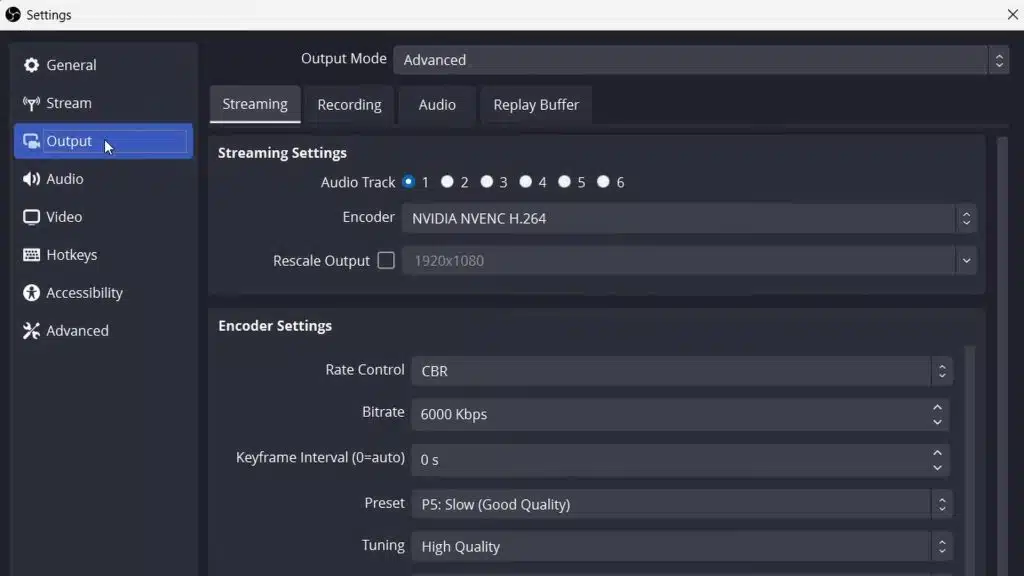
Your setup is unique, so ensure that your maximum upload speed for your internet connection aligns with your bitrate settings. You can change these settings by clicking on the Output option from the OBS Settings page.

For x264 Encoding Options:

  • Encoder: x264
  • Rescale Output: 1920 x 1080
  • Rate Control: CBR
  • Bitrate : 1,000kbps to 8,000kbps
  • Keyframe Interval: 1s
  • CPU Usage Preset: veryfast
  • Profile: main
  • Tune: zero latency

And more options for NVIDIA NVENC H.264 Encoder and AMD HW H.264 Encoder.

More on Eklipse Blog>>> How to Make Money on Kick Streaming – Essential Guide 2024

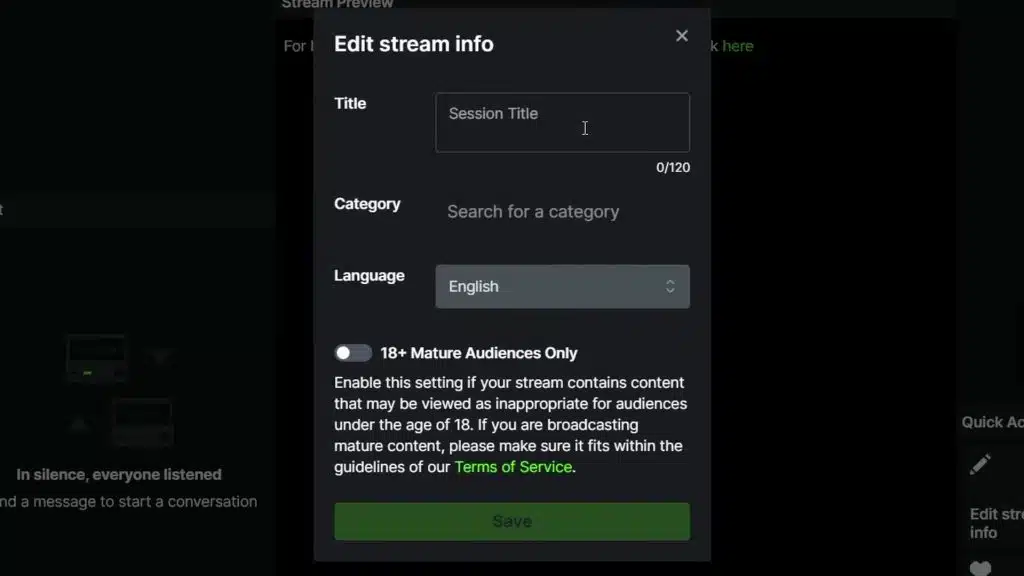
Step 4 – Setting Your Title and Category

Now it’s time to save all your streaming settings and head over to your Kick Creator Dashboard to set your Stream Title and Category.

Step 5 – Going Live

Press the “Start Streaming” button from OBS software to start live streaming.

Step 6 – Ending Your Stream

Click the “Stop Streaming” button in OBS software. Kick will then show your viewers an offline banner and your replay will be saved to your channel page.

More on Eklipse Blog>>> How to Become Kick Streamer: A Step-by-Step Guide

Make Your Kick Highlights in Eklipse!

Don’t stop after you stream. Create cool highlights from your best games to share on social media. You can reach a wider audience that way.

You don’t need editing skills to create cool highlights. You can use an AI platform like Eklipse that can automatically generate highlights from your game streams.

More on Eklipse Blog>>> How to Make Kick Highlight From Stream: A Step-by-Step Guide

Curious how to do it? Check out the guide below:

  1. Download your Kick VOD.
  2. Go to Eklipse.gg and login. Make sure to sign up for an account if you don’t have one. Don’t worry, it’s free!
  3. Connect your Kick account with Eklipse.
  4. Choose “Clips” > “Streams.”
  5. Choose your Kick Streams in the dashboard.
  6. Ekipse will automatically generate cool highlights from your stream. Eklipse also can convert the highlight into a TikTok-ready vertical video for you.
  7. Download your highlight or share directly to social media using our Content Planner.

Elevate your streaming game with Eklipse, the ultimate AI video editing tool designed for streamers and content creators. Save a whopping 90% of your editing time and transform your streams into viral clips with just one click. 

Still hesitating? Try Eklipse for free and experience the impressive power of AI editing. Don’t miss out—sign up now and watch your content go viral!

Tips for a Smooth Streaming Experience

As you embark on your streaming journey, keep these tips in mind:

  1. Ensure that your bitrate settings align with your internet connection’s maximum upload speed for optimal performance.
  2. Select a less demanding preset if you experience stuttering or lag during your stream.
  3. Set your stream title and category in advance for a hassle-free start.
  4. If using a Mac for streaming, switch to x264 encoder to enable certain options.

More on Eklipse Blog>>> How to Become a Kick Affiliate? Earn Money as a Streamer

FAQs about Kick Streaming

1. Why does my Kick stream stutter?

Adjust bitrate and preset settings as necessary.

2. Does Kick support Variable Bitrate (VBR)?

Kick supports only Constant Bitrate (CBR) encoding.

3. What is the maximum resolution supported by Kick?

The maximum resolution supported is 1920×1080.

4. Can you stream on Kick without OBS?

Yes, you can stream on Kick without OBS or a laptop. 

5. Can you stream on Kick from mobile?

Yes, to live stream mobile games directly from your mobile phone you need to install a 3rd party application like Streamlabs mobile.

Conclusion

In conclusion, this guide aims not only to help beginners get started but also to provide valuable insights for experienced streamers looking to optimize their setups and troubleshoot common issues effectively when using KICK services.

Now that you have a comprehensive understanding of how to kick-start your journey as a livestreamer on KICK.COM in 2023 consider exploring additional resources available through KICK support directly should any issues arise along the way. Happy Streaming!


Maximize your Black Ops 6 rewards—Create highlights from your best gameplay with with Eklipse

Eklipse help streamer improve their social media presence with AI highlights that clip your Twitch / Kick streams automatically & converts them to TikTok / Reels / Shorts


How to Live Picture into a Video on Your iPhone for TikTok: 3 Easy Steps

0
live picture into a video
Source: USA Today - live picture into a video

How to turn iPhone live picture into a video for TikTok? Look no further. Here we will unveil the three easy steps to make captivating TikTok video from your iPhone gallery pics!

Live photos are a great source to make viral video TikTok. However, some users may find this editing strategy a bit tricky since live photos aren’t directly compatible with TikTok.

Therefore, we’ll show you how to easily turn your Live Photos into TikTok videos in just a few steps. Let’s dive in!

Stop editing, start creating! Join Eklipse and instantly generate captivating micro-content for TikTok, Instagram, YouTube, Facebook, and more, directly from your longer videos.

@eklipsegg

Excited to announce our next big update for the Eklipse Mobile App! Now get (almost) all the benefits of Eklipse desktop but now on your phone 📱! Download our app today and see how you can create clips on the go 🚶! What’s ✨new✨? 1. Select which streams you’d like our AI to process 2. Review and select your favorite best highlights 🎞️ 3. Customize your clips with templates, webcam customization, channel stickers, text and auto-captions 4. Easily post to socials all on your phone Find our app by searching “Eklipse” in your app store!

♬ original sound – Eklipse.GG – Eklipse.GG

What is a live picture?

Source: HTG – Live picture into a video online

Social media and social entertainment platform apps like TikTok are flooding with many upcoming features nowadays. These new additions can add immense flavor and make these platforms more enjoyable to use.

Live photos feature is also a recent and very interesting feature and it is quite fun to use. These live photos record for 3 seconds in total, with one and a half seconds recorded both before and after the shutter click.

To see the live photo, you just press and hold it. You would probably think it’s a video but actually, it is a High-Efficiency Image File ( HEIF ) format. The file chooses one picture as a lead image and it will show only that image when you share it but what if you want to send the whole sequence or you want to send it as a GIF? Among many other queries, users find it hard to convert a live picture into a video.

More on Eklipse Blog>>> Simple Steps on How to Edit Videos on iPhone

How to turn a live picture into a video?

You need to save a live photo as a video file before sharing it. This is because live photos don’t always shared as high-quality videos.

This feature previously needed third-party applications to perform this action . However, Apple made this changeover even effortless with the release of IOS 13 in 2019. Now no external app is required to do this.

Here’s a simple four step guide for you to convert your live photos into videos!

  1. Open your Tiktok App and select your live photo:

    Simply open your Tiktok App on your mobile device and choose any live photo from your search feed that you want to convert into a video file.
    How to save an iPhone live picture as a video

  2. Click the option of share on your live photo:

    Second step is quite easy. You just have to click the share button at the bottom left of your mobile screen indicated by a curved arrow. Isn’t it easy?

  3. Tap the option” Save as a video” :

    After you press the share option, you will be given many choices . Scroll down to the bottom and choose save as video and boom! Your live photo has been converted into a video now. Super easy right?
    How to convert live picture into a video

  4. Return back to your gallery

    In this final step, just Go back to your mobile’s photos App, and scroll down to most recent image in your phone. Your live photo will now reappear as a video file. From there, you can now share it wherever you want to. And now, you can also share it as GIF.

Last thing, if you thinking to do the reversed version (as in save TikTok video into a Live Photo), you try on this YouTube video tutorial.

More on Eklipse Blog>>> How To Add Pictures On TikTok Video Without Slideshow: 2 Easy Ways

How to combine multiple Live Photos into a single video clip

With iOS 16, you can also combine multiple Live Photos into a single video clip, effectively creating a montage of your Live Photos. You don’t need to use third-party app to combine multiple Live Photos into a single video clip. Here’s how:

  1. Open the Photos app and select the Live Photos you want to combine.
  2. Tap on the “Share” button in the bottom left corner of the screen.
  3. Scroll down and tap on “Save as Video”.
  4. A new window will appear with the option to “Save as Single Video”. Tap on this option to combine the Live Photos into a single video clip.

More on Eklipse Blog>>> 4 Easy Ways to Crop videos on iOS, Android and PC

Adding Live Photos to Your TikTok Video

Now that you have your live photos ready, it’s time to add them to your TikTok video. Here’s how to do it:

  • Open TikTok and tap the plus sign to create a new video.
  • Record or upload your video footage as you normally would.
  • Tap the “Effects” button at the bottom of the screen.
  • Scroll down until you see the “Live Photo” option and select it.
  • Choose the live photo you want to use and adjust its placement and size on the video frame.
  • You can add as many live photos as you want to your video, and even adjust their duration and placement to create a more dynamic and engaging video.
  • Integrating Live Photos into Your TikTok Video Seamlessly and Creatively:

While adding live photos to your TikTok videos can be a great way to add extra interest and engagement, it’s important to do it seamlessly and creatively. Here are some tips to keep in mind:

  • Use live photos that are relevant to your video’s theme or message. This will make your video more cohesive and engaging.
  • Consider using live photos as a transition between different parts of your video, or to emphasize certain moments or actions.
  • Play with the timing of your live photos – for example, you can slow them down or speed them up to create a more dynamic effect.
  • Experiment with different placements and sizes for your live photos. Try overlaying them on top of your video footage, or positioning them in a way that creates a unique visual effect.
  • Remember to keep your live photos in line with your overall TikTok aesthetic and style

More on Eklipse Blog>>> How To Edit Duration of Photos On TikTok On Phone

How to Convert Live Photos to Animated GIFs

If you find yourself wanting to share your Live Photo as a GIF rather than a video, especially on platforms that favor GIFs, here’s a step-by-step guide on how to achieve that.

While iOS 16 lacks a native method for this conversion, the App Store offers various alternatives. One popular choice is Giphy, which not only transforms Live Photos into animated GIFs but also allows customization and direct social media sharing. Here’s how to do it:

  1. Download and open Giphy from the App Store.
  2. Sign in or create an account, with the option to use Sign in with Apple.
  3. Click on “Create” in the top right corner of the Giphy app.
  4. Grant access to your Camera when prompted and select the photo thumbnail in the bottom left corner to open your photo library. Once again, provide access if prompted.
  5. Choose “Live Photos” at the bottom to filter and display only your Live Photos.
  6. Open the Live Photo you wish to convert to a GIF.
  7. Customize your Live Photo using the editing tools provided by Giphy. These tools include cropping, trimming, and adding stickers or text effects. Once done, click the Right Arrow in the bottom right corner to proceed.
  8. Preview your finished GIF. Choose “Share GIF” to continue or “Tap to Copy GIF” for direct copying to your clipboard.
  9. On the “Share Video” screen, opt to “Save GIF” to store a copy in your photo library or “Save Video” to save it as a conventional video clip.
  10. Alternatively, use the provided options to share the GIF directly to Messages, Facebook Messenger, Snapchat, or Instagram.

More on Eklipse Blog>>> Top 5 AI Portrait Generator: Create Your Stunning Work of Art!

Tips on How to Edit a Live Photo

Instructional image relating how to trim a video on iphone

Do you want to create stunning content? If so, make sure to follow these tips on how to edit a great live photo:

1. Trim Video Clips

Trim video clips to remove unwanted parts from your live photo. Click on the video clip, then the scissors icon, and adjust the video buffers to make it shorter or longer.

2. Add Transitions

Choose video transitions under the “Design” icon and “VIDEO SETTINGS” tab for a polished look.

3. Add Text for Better Engagement

Enhance your video by adding text. Click on “Add text,” drag it to the perfect spot, choose a standout color, and match the font as you like.

4. Apply Filters for Cohesiveness

Make your clips more cohesive with video filters. Click on the “Design” tab, go to the “Filter” section, and select a filter that aligns with your brand.

5. Add Music for Emotion

Want to gain more engagement? Add some viral songs as music background for your video!

6. Add Voice-Over for Connection

Stand out and connect with your audience by recording and adding a voice-over track.

7. Add Compelling CTA

Ensure your video is actionable by adding a bold and clear call to action at the end using a text box.

8. Choose Correct Aspect Ratio

Last but not least, optimize your content for different platforms by selecting the appropriate aspect ratio. For example:

  • Square 1:1 for Facebook, Instagram, and LinkedIn
  • Landscape 16:9 for YouTube, Facebook, and LinkedIn
  • Vertical 9:16 for Facebook, Reels, TikTok, and Instagram Stories

More on Eklipse Blog>>> 4 Easy Ways to Add Pictures to TikTok Video After Recording

Conclusion

Following these four easy steps will solve your all problems regarding live photos and will make your experience of sharing live photos with your near ones more simple, smooth, and way more interesting! We hope you understand how to turn your live picture into a video.

You also can use our tool, Eklipse, to create your gaming highlights into short videos for your TikTok. It’s free and easy to use too. Stay tuned to our blog for more tiktok related content and check our amazing feature for tiktok as well. Happy Streaming!


Maximize your Black Ops 6 rewards—Create highlights from your best gameplay with with Eklipse

Eklipse help streamer improve their social media presence with AI highlights that clip your Twitch / Kick streams automatically & converts them to TikTok / Reels / Shorts


How to Link Your Twitch to TikTok 2025 (Clickable Link): A Simple Guide

0
how to add twitch link to tiktok
Source: Eklipse Blog - how to add twitch link to tiktok

If you’re a streamer looking to expand your audience, learning how to link your Twitch to TikTok can be a game-changer. Combining the live streaming power of Twitch with TikTok’s viral short-form video content lets you connect with diverse viewers and grow your fanbase effortlessly.

Unlike Instagram or YouTube, linking Twitch to TikTok requires a few extra steps. You can add your Twitch link directly to your TikTok bio or include it in your video captions. Want to know how? Keep reading to master this simple yet effective strategy!

TikTok Fame in Minutes? Eklipse Turns Your Long Videos into Viral Gold.

https://www.tiktok.com/@sheebitv/video/7226429497585782058?lang=en&q=eklipse.gg&t=1704782510016

How to Link Your Twitch to TikTok Bio

How to Add a Link to Your TikTok Bio
Source: Sacas – How to Link Your Twitch to TikTok Bio

As above mentioned, you have two different ways to link Twitch with TikTok. The first one is by putting the Twitch link into your TikTok bio. Here’s how to add link to TikTok bio.

  • To begin with, launch a TikTok app on your phone, then log in with your account.
  • After that, go to your profile by hitting the Profile icon on the right-bottom corner of the screen.
  • In your profile, tap on the three horizontal lines on the top right side of your screen.
  • Then, navigate to the Settings and Privacy menu.
  • Tap on the Manage Account option.
  • Under the Manage Account option, you’ll find the option to switch to a Pro account.
  • Change your account to a Pro account.
  • Now, you can go to your Twitch account to copy the link.
  • On Twitch, tap on the Profile icon and navigate to Stream Manager.
  • See and hit a pencil icon at the top right corner of the screen.
  • Then, find the link by hitting the Share link to channel option and tap on Copy to clipboard.
  • Back to your TikTok, go to your profile, and hit the Edit Profile tab.
  • After that, find the Website option and a keyboard will pop up on your screen.
  • Finally, just paste the link onto the website option.

Your Twitch link has now perfectly attached to your TikTok bio. Though it requires more steps, it’s not quite hard to do, right?

More on Eklipse Blog >>> How to Post Twitch Clips to TikTok

How to Add Link to TikTok Video Caption

how to get your twitch link
Source: Eklipse – can i link my twitch to tiktok

Alternatively, you can also put your Twitch link on the caption of your TikTok video. Thankfully, it’s as simple as you put it on your bio. Just follow the steps below.

  • Start over by logging in with your TikTok account.
  • Record a new video or add the existing ones from your camera roll.
  • Once you’ve finished creating and editing a new video, you’re being taken to the caption part.
  • All you need to do is just write anything to describe your video and paste your Twitch link there as well.
  • To copy your Twitch link, you can follow the same steps as above explained.

And voila! Your Twitch link is now available to see on your video caption.

Why Can’t I Add a Link to My TikTok Bio Or Video Caption?

Source: IST – tiktok profile

Many users complained about it as they were unable to attach a clickable link on TikTok. Well, basically before you start to do it, you have to meet several requirements from TikTok. Let’s see what you need to fulfil first.

  • Change your account to a Business account – Currently, the website link feature is not available for TikTok general account. Therefore, you will need to do some things to get your Business account.
  • Have at least 1000 followers – other than a Business account, you are also required to have 1000 followers. If your followers are less than 1000, then you can’t add a clickable link to your TikTok.
  • Make sure the link feature is available in your country – sometimes the problem isn’t always on your account. If you were still unable to add a link after you get your Business account and 1000 followers, then maybe this feature isn’t available in your country. This feature is currently available in the United States, United Kingdom, Russia, Indonesia, and Canada.

How to Add a Link to Your Twitch

How to Stream on Tiktok and Twitch At The Same Time
Source: YouTube – how to stream twitch to tiktok

Adding a link to your Twitch channel is a great way to direct your followers to your TikTok account and vice versa. By doing so, you can create a more engaged community and grow your audience. Here’s how to connect your Twitch to your TikTok

  • Log in to your Twitch Account.
  • Click on your profile picture in the top right corner of the screen and select “Settings.”
  • Click on the “Profile” tab and scroll down to the “About Me” section.
  • Tap on the “Edit Panels” button.
  • Select the “Add a Panel” button and select “Add a Link.”
  • Paste your TikTok link into the “URL” field and add a custom title for your panel, such as “Follow Me on TikTok.”
  • Choose an image or color for your panel to make it stand out.
  • Click on the “Submit” button to save your changes.
  • Your new panel will now be visible on your Twitch profile.

More on Eklipse Blog>>> How to Run Ads on Twitch: 7 Things you Need to Know!

How to Alternatively Add Unclickable Link

Don’t have a Business account or more than 1000 followers? No worries, you can still add a link to your TikTok bio. However, the link will be unclickable as it’s supposed to be. But at least other users can copy and paste it on a new tab in a browser to open the link. Therefore, it shouldn’t be a problem.

You just need to go to your profile page and hit the Edit Profile tab. Instead of tapping the Website option, hit the bio option. Then, you can write anything there to describe yourself, including your Twitch link. You are all set now.

TikTok like a pro, even if you’re a newbie. Eklipse takes the heavy lifting out of editing, giving you more time to shine on the short-form stage.

BONUS: Convert Your Twitch Stream into Viral TikTok using Eklipse!

Source: Eklipse – Converting Twitch video to TikTok

After knowing how to link Twitch stream to TikTok, there’s only one challenge left:  breaking the TikTok barrier without breaking a sweat. Forget juggling platforms and manually clipping highlights – enter Eklipse, the AI wizard that seamlessly links your Twitch to TikTok, turning your streams into viral gold on autopilot.

Imagine this: you stream your heart out, and Eklipse works its magic in the background. It scans your VODs like a hawk, pinpointing hilarious fails, clutch plays, and moments that’ll have TikTok viewers begging for more. Then, bam! Eklipse spits out bite-sized TikTok masterpieces, complete with trendy music, captions, and visuals that’ll make your grandma jealous. All you have to do is download and post – instant virality, served on a silver platter.

Intrigued? You can read more about how to convert your Twitch streams into viral TikTok with Eklipse here:

Edit Twitch Clips for TikTok Easily Using Eklipse: Ultimate Guide

FAQs

1. Can I link my Twitch and TikTok?

Yes, you can link your Twitch and TikTok accounts in two ways: by adding your Twitch link to your TikTok bio or video caption, or by streaming on both platforms at the same time. 

2. How do I promote my Twitch stream on TikTok?

Make sure to mention your Twitch channel and link it in your TikTok profile. You can also use TikTok’s “Live” feature to promote your Twitch streams in real-time.

3. How do I get my Twitch link?

To get your Twitch link, you need to go to your channel page on Twitch, sign in, click your profile picture on the top right corner, and select channel. Then, copy the Twitch URL from the address bar of your browser. That is your Twitch link.

Conclusion

There you have it! Now that you know how to add Twitch link to Tiktok 2025, you can showcase your Twitch account to a wider audience. This is an excellent way to boost engagement and attract more subscribers to your Twitch. Give it a try today!

Looking to grow your Twitch and TikTok audiences simultaneously with ease? Eklipse has got you covered! This AI-powered tool effortlessly transforms your best Twitch livestream moments into captivating TikTok content with just a single click. Sign up for free at Eklipse.gg and start making your content go viral!


Maximize your Black Ops 6 rewards—Create highlights from your best gameplay with with Eklipse

Eklipse help streamer improve their social media presence with AI highlights that clip your Twitch / Kick streams automatically & converts them to TikTok / Reels / Shorts


Everything You Need to Know About Twitch VIP: Perks and How To Get It

0
Twitch VIP
Source: Creator Handbook

If you are new to Twitch, you may often see some channels that have a pink badge with a white diamond inside on their profile. Well, that’s what we called the VIP badge. Twitch VIP is actually a kind of recognition for the most dedicated members of certain channels.

The VIP status is usually granted to viewers who have supported the streamer through a subscription or donation. In addition, those who get this status will have exclusive access to certain features and perks.

What is a VIP on Twitch? Who gets VIP on Twitch? How do you get it? Let’s dive in and discover what being a VIP is all about!

Stream smarter, not harder! Eklipse automates clip creation and short-form content from your Twitch streams, freeing you up to focus on entertaining your audience and taking your channel to the next level.

What Is Twitch VIP? Know More About It

Quora – do twitch vips get ads

Twitch VIP is a special badge that tells us about the specific role on Twitch. This VIP badge is given out by streamers with certain achievements.

Whoever has this special badge can give it to their chosen members or viewers. Yes, several conditions allow a viewer to get a VIP badge from the streamer. They are the ones who are considered a loyal viewer.

Loyalty from viewers is important to develop a streamer to grow up. It is a ladder for the streamer’s success. So, this badge is a form of gratitude for certain viewers who have spent most of their time supporting any streamer on Twitch.

Additionally, those who received this badge and status will also have access to some special perks. These perks can include things like exclusive emotes, access to special chat rooms, and the ability to join the streamer’s Discord server.

Apart from all that, it is actually easy to identify those who get VIP Twitch badges. You can find the unique pink icon with a white diamond inside. It looks like an emote indeed, but just so you know this icon cannot be customized.

More on Eklipse Blog>>> Twitch Badges: A Complete Guide and How to Use Them

The Requirements To Get A VIP Badge For Streamers

Etsy
Source: Etsy

A Twitch VIP badge is a valuable thing you can only get through your achievements on this streaming platform. So, there’s no way to buy this thing.

Only qualified streamers can be assigned VIP badges from Twitch. So what are the qualifications you have to fulfill as a streamer to get this special thing?

First thing first, you need to complete the Build a Community achievement on your channel. By accomplishing this achievement, you can unlock the first 10 VIP badges. You must have at least 50 followers and 5 chatters to complete this achievement.

Chatters is a unique chat from 5 visitors on a selected date. The more followers and viewers you can get, the more VIP badges will be given to you.
These are how many VIP badges you can get in multiple chatters.

Unique ChattersVIP Badges
510
1020
1530
2040
2550
5060
10070
20080

For streamers who plan to hand over the badge, select at least three regular viewers who helped you achieve Affiliate status or 75 viewers who helped you achieve Partner status.

More on Eklipse Blog>>> How to Make a Poll on Twitch: 2 Options You Can Try

How to Get A Twitch VIP Badge

The key to obtaining a VIP badge is to be loyal to a certain channel. To make sure that the streamer is keeping an eye on you, you’ll need to consistently do these things:

how to unlock and use vip badges
StreamScheme – do twitch vips get ads
  1. Keep sending messages – Start by building a relationship with your favorite streamers by regularly messaging them and chatting with other viewers. Remember to be friendly, but don’t rush things or you may be considered spam. Just let everything flow naturally, so people will enjoy having you around.
  2. Avoid doing inappropriate things – stay away from doing anything inappropriate. There are many ways to get noticed, but please avoid any trouble. Don’t bully, spam, or post irrelevant links on chat.
  3. Help on Discord – don’t limit yourself to just Twitch, engage with people on Discord as well, share any relevant memes or promote the stream to your community.
  4. Share the stream with your friends and family – help the streamer grow their channel by sharing the streams with your friends and family. The more people that watch, the higher the view stats will be.
  5. Be the first to chat – this behavior will show how much you put attention to your favorite streamer. Additionally, becoming the first one to give streamers a warm greeting will make them feel appreciated.
  6. Participate in the Giveaways – Not only active on chat, but viewers can also participate in every giveaway from the streamer. This is essential to increase the chance of winning.
  7. Welcome and help new members – helping the streamer to welcome and lend a hand to new members will increase the engagement of the community. The streamer will love it.

More on Eklipse Blog>>> How to Donate on Twitch: 4 Ways to Support Favorite Streamers!

How to Give VIP Badges to Viewers

Have you got 50 followers and 5 chatters yet? If yes, you are supposed to be assigned 10 badges then. Now, you have to find your valuable viewers to receive these badges.

To start sharing the badges you need to do the following step:

  1. Go to twitch.tv and log in with your account
  2. Hit the profile picture at the top right corner
  3. Find the Creator Dashboard from the drop-down menu
  4. Click on Community, then go to Roles Manager
  1. Now, you’ll see your list of followers on your channel
  2. Afterward, hit Add New, and type the name of the follower
  1. Once it comes up, click on the name and give it the badge
  2. Click the VIP box, and hit Save
  3. Now, you have made this follower a VIP
  4. Do the same thing to other selected followers

More on Eklipse Blog>>> How to Give Someone VIP on Twitch: 4 Things You Need to Know

The Perk of Being VIPs

is twitch vip permanent
Twitch – How to Unlock and Use VIP Badge

Viewers who receive VIP badges from the streamer can gain several advantages. Here are the things that will make you special:

  • VIP can chat without being affected by slow mode, sub-only or followers-only mode
  • VIP is not affected by rate limits
  • VIPs can post links on the chat even when the links are disabled
  • There will be a special badge on the username

More on Eklipse Blog>>> Understanding Twitch Slang Words and Common Terms

Avoid These Things If You Don’t Wanna Lose Your Twitch VIP Badge

The VIP badge is not forever in your username. You need to do several things to keep this special badge from falling into another viewer. To do it, you need to avoid doing these things:

  • No longer being an active participant during the stream for a quite long time
  • Breaking Twitch rules such as spam is a toxic member, talking something bad within the community, or sending irrelevant links

When a streamer notices you have done these things, they will immediately remove your badge. You don’t have to be overthrown after all the efforts you’ve made, do you?

More on Eklipse Blog>>> Must Have Twitch Commands for Viewers or Broadcasters

FAQs

1. Can You Make Custom VIP Badges on Twitch?

Unfortunately, you cannot directly create custom VIP badges on Twitch. The platform only allows for a standard, unchangeable VIP badge design. So you need to use an online badge maker to create a badge with your own custom text and logo.

2. Can a mod give VIP?

No, a mod cannot give VIP status to users on Twitch. Only the channel owner has the authority to assign VIP and other user roles.

So, if you want to give someone VIP status, you’ll need to do it yourself as the channel owner. You can do this by typing “/VIP username” in your channel’s chat.

3. What does the VIP role do on Twitch?

On Twitch, the VIP role offers certain privileges to engaged viewers, recognized with a special badge next to their username in chat.

Conclusion

The Twitch VIP badge is one of the best ways for a streamer to show their appreciation for their viewers/followers. With their loyalty, the streamer can go to the top of their popularity. But despite not being selected to be VIPs, you still be appreciated in other ways.

Do you want to spend less time editing and more time streaming? Then you need Eklipse, the AI-powered tool that automatically makes highlights from your Twitch livestreams.

Eklipse uses advanced AI to detect the best moments in your streams and create highlights that are ready to share with your audience. You can even customize the settings to tell Eklipse what types of moments you want to highlight, such as kills, wins, and funny moments.

Sign up for a free Eklipse account today and start creating amazing Twitch highlights in seconds!


Maximize your Black Ops 6 rewards—Create highlights from your best gameplay with with Eklipse

Eklipse help streamer improve their social media presence with AI highlights that clip your Twitch / Kick streams automatically & converts them to TikTok / Reels / Shorts